Translating pages and elements
Create a translation of a page, translate its texts element by element, and manage free translations, page settings and deletions.
You translate a page in two stages: first you create its translation, then you translate its texts element by element. This page also covers translated page settings, news items and categories, free translations and deleting a translation.
Create a translation
Switch to the language
Click the language in the language switch, for example DE. See languages and the language switch.
Select the page
Click the page in the page tree. Untranslated pages are in italics with an EN tag.
Click Translate page…
The untranslated page shows the button Translate page…. On the English page you can also open ⋯ and choose Translate to Deutsch….
Choose how to translate
Keep Connected translation unless you have a reason for another choice (see below). If the page has untranslated subpages, Also create the … subpages translates them the same way.
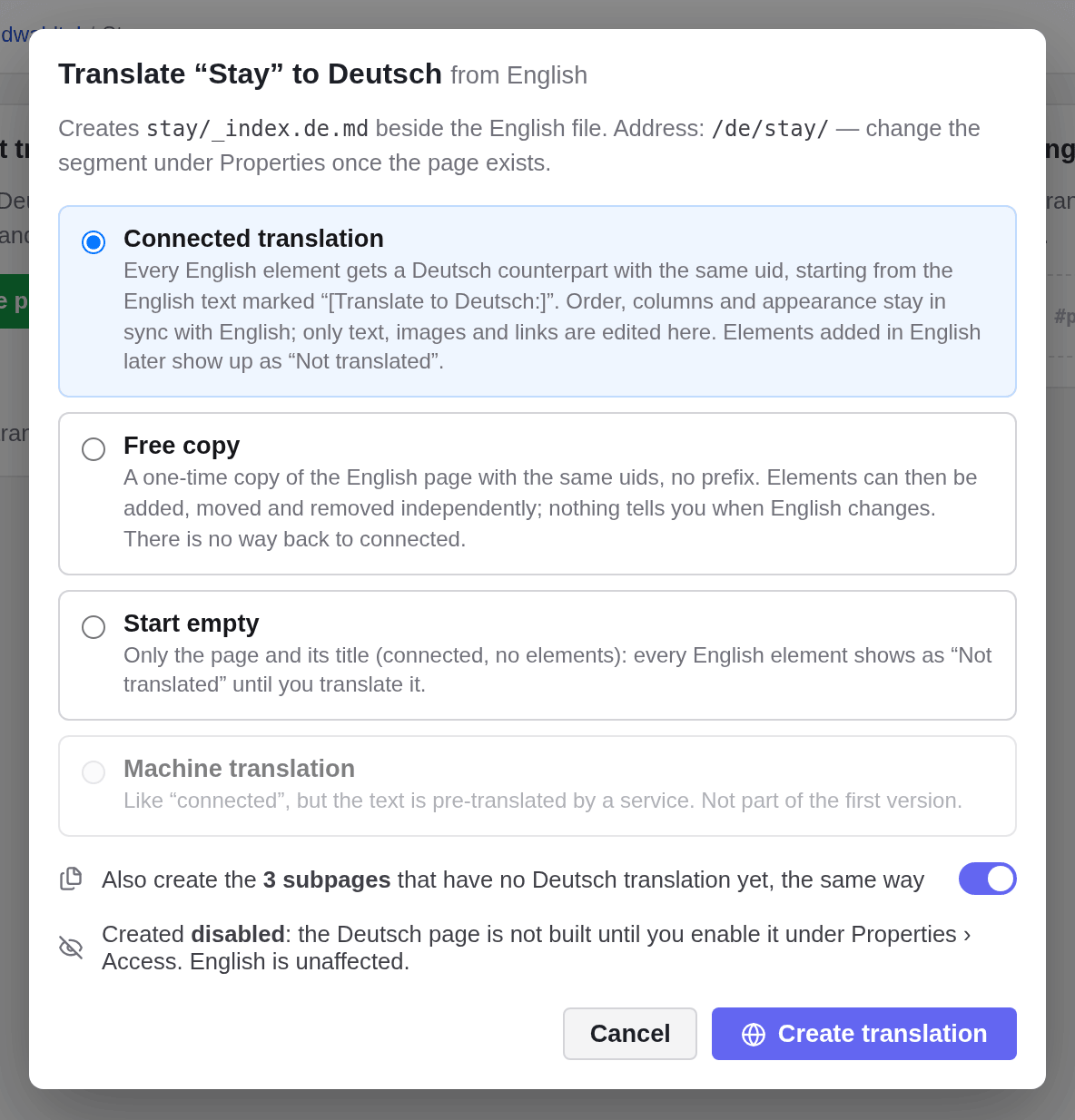
Click Create translation
The new translation opens. Now translate its texts.
| Choice | What you get |
|---|---|
| Connected translation | A copy of every English element. Order, layout and appearance stay in sync with English, and the editor tells you when English changes. Recommended. |
| Free copy | A one-time copy that you can change freely, with nothing tracking English afterwards. |
| Start empty | A connected translation without elements: every element shows as “Not translated” until you translate it. |
In a connected translation, the copied texts begin with a marker such as “[Translate to Deutsch:]”. Replace each one with your translation. The page title is copied in English without a marker, so translate it on the Properties tab.
Work in a connected translation
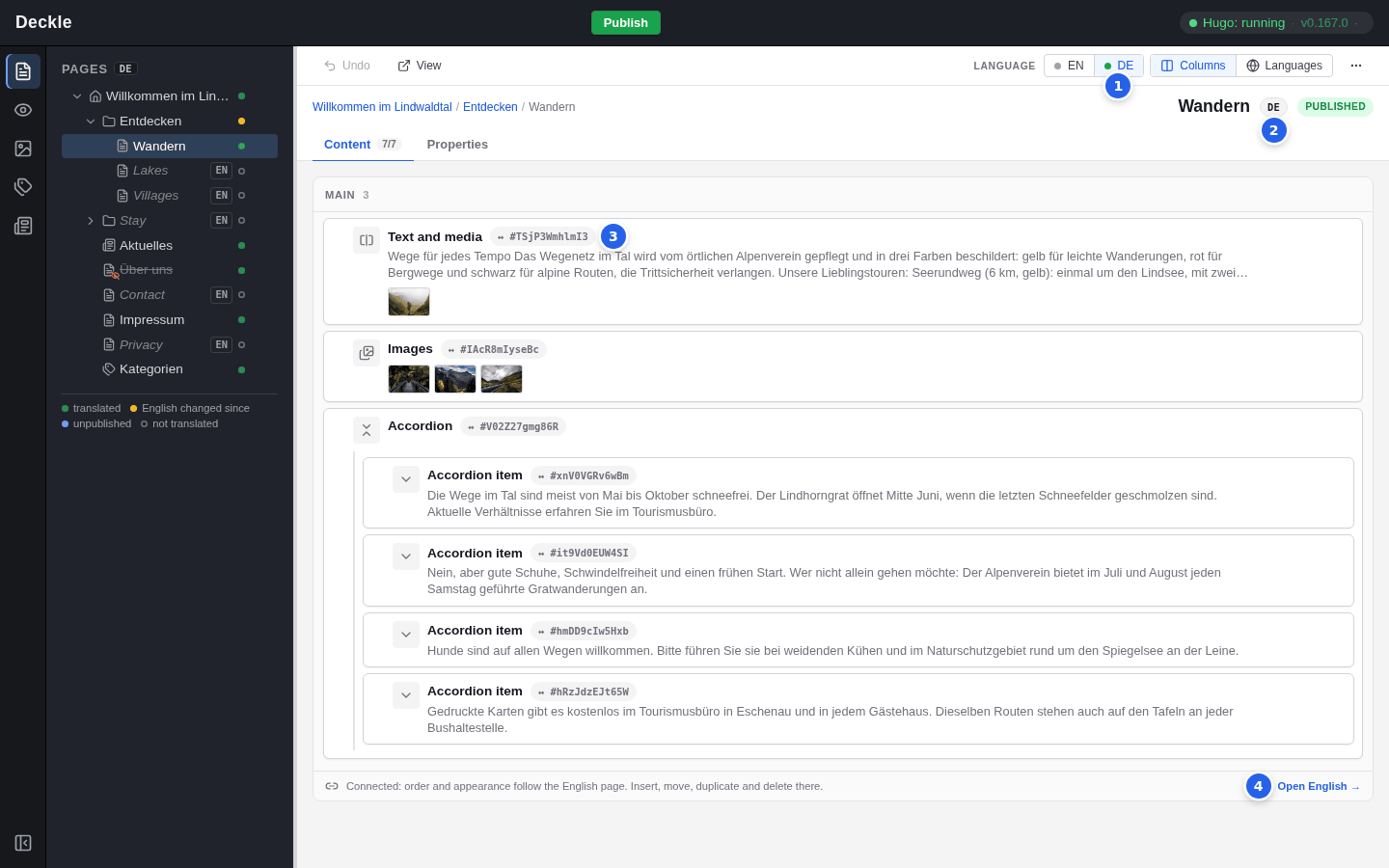
- DE is pressed: you edit German.
- The DE badge next to the title marks the translation.
- The mark ↔ on each element shows that it is connected to the English element.
- Open English takes you to the English page.
You translate everything on the General tab of each element: texts, headings, image descriptions, links and the rows of image or card collections, including their images. The order of the elements, the areas they are in and everything on the Appearance tab follow the English page. So in a connected translation you cannot add, move, copy or delete elements; do that on the English page. The Content tab shows how many elements are translated, for example 7/7.
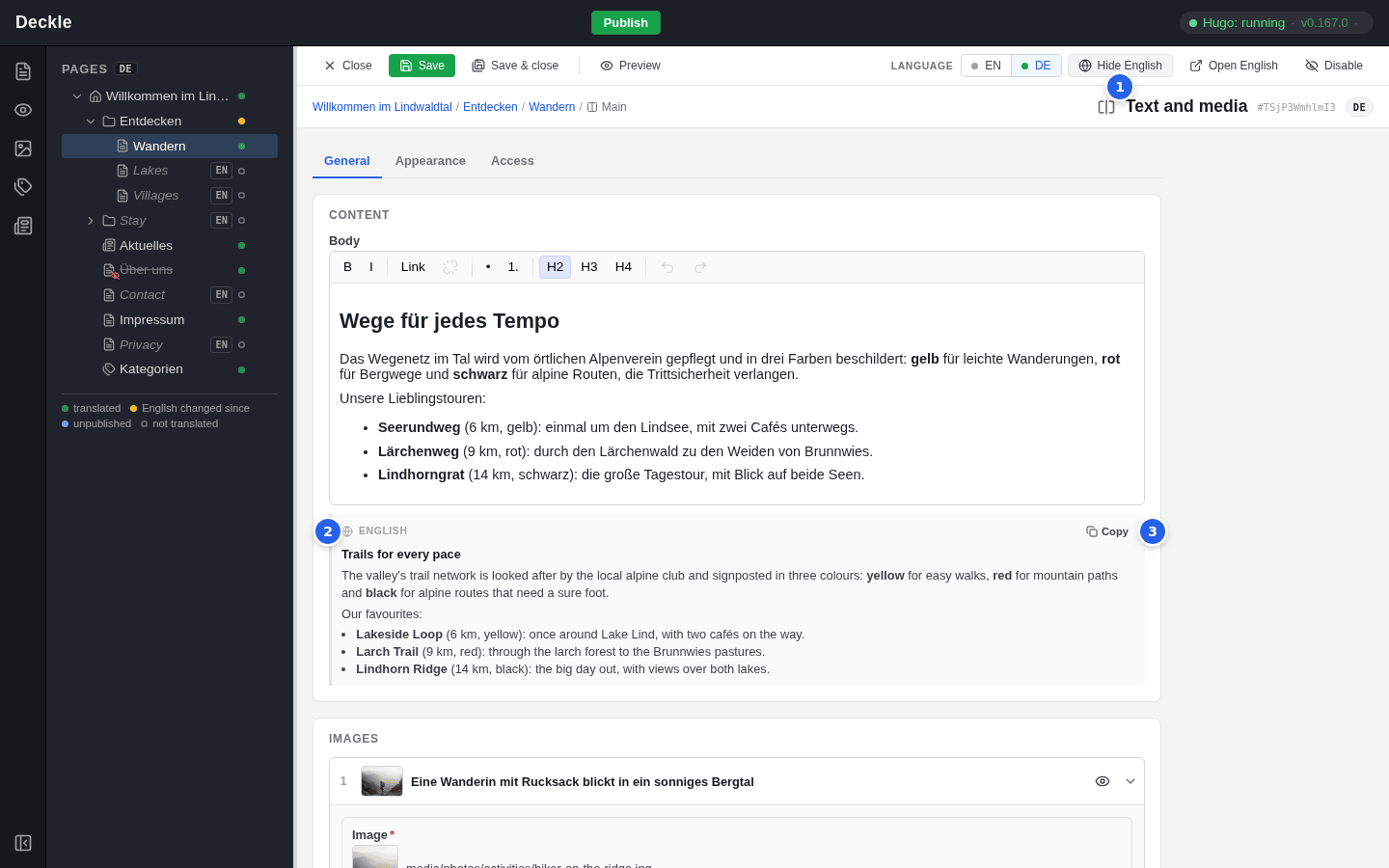
- Hide English and Show English switch the English values on and off.
- Under each field, the box English shows the English value.
- Copy puts the English value into the field, for example to keep a name or an image.
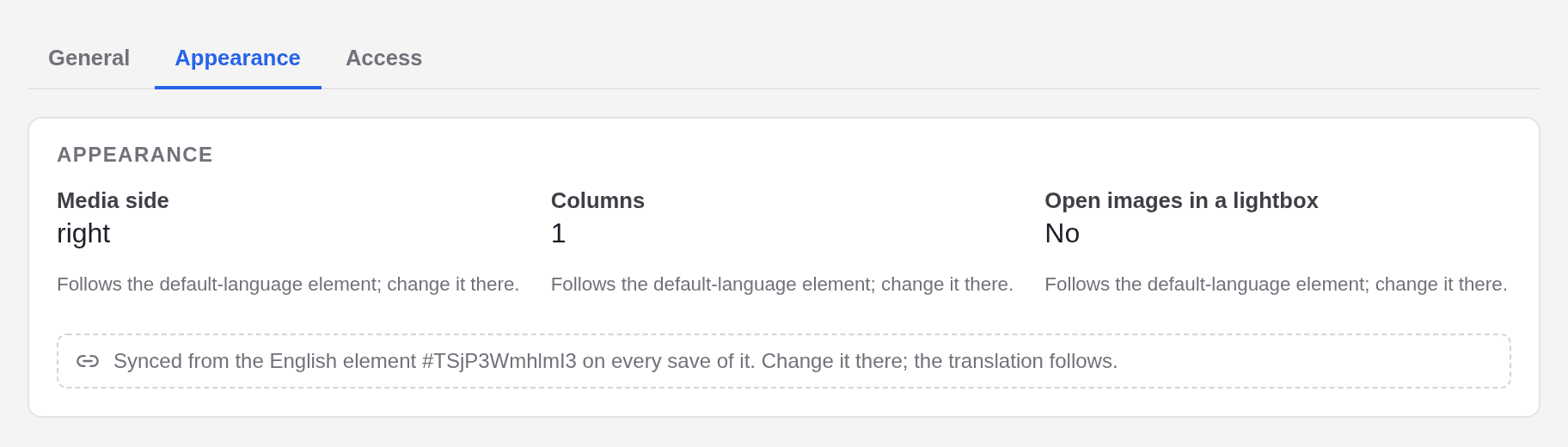
On the Appearance tab, the fields are read-only. Change them on the English element; every save there copies them into the translation.
Elements that are not translated yet
An element without translation appears as a dashed placeholder and is missing from the translated page.
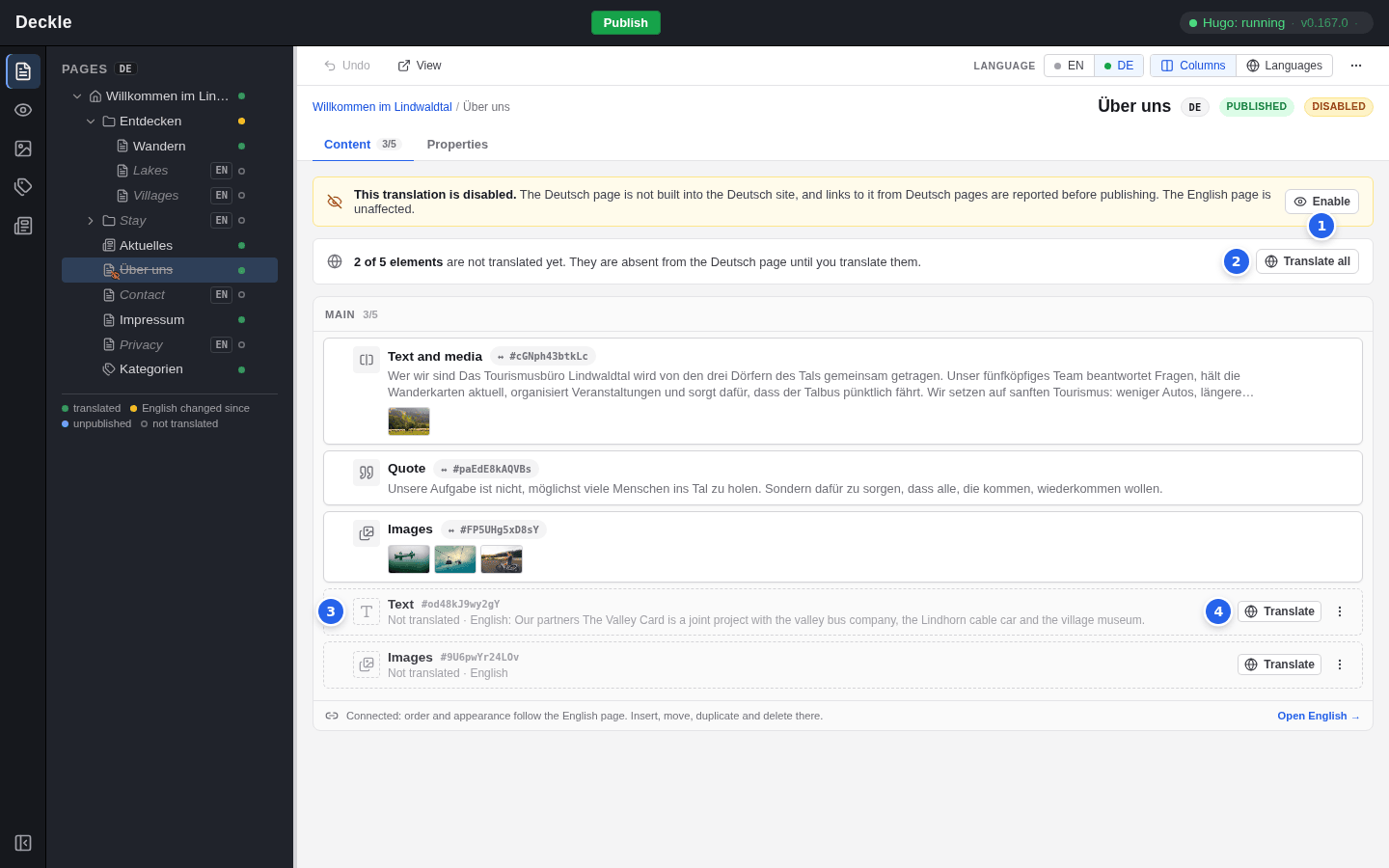
- Enable switches on a disabled translation.
- Translate all creates all missing elements at once from the English texts.
- A placeholder shows the English text it stands for.
- Translate creates this one element and opens its form.
An element inside another one, such as an accordion item, can only be translated after the element that contains it.
News items and categories
In the News and Categories modules, switch to the language and click Translate… in the row of an entry; the same dialog opens. For a news item you translate its title and its content; the publish date, teaser, featured image, author and categories follow the English item. For a category you translate its name. Both start disabled, like every translation.
Translation settings
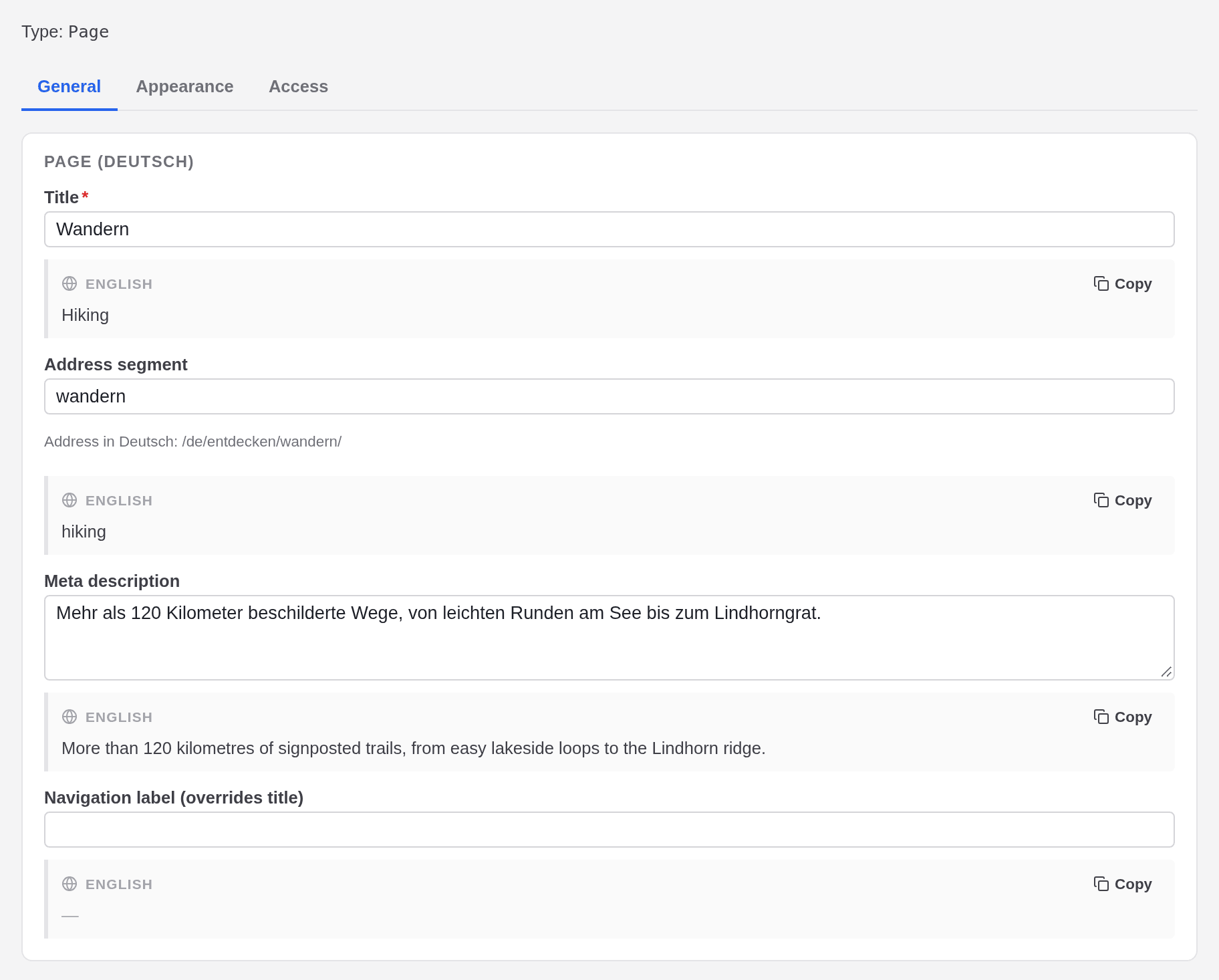
The Properties tab of a translation holds only what belongs to this language: Title, Address segment (this page’s part of the German address), Meta description, Navigation label and, on the Access tab, Enabled. Everything else follows the English page and is read-only. The home page and categories have no address segment. Rename… on a translation changes only its title.
Free translations, disconnecting and deleting
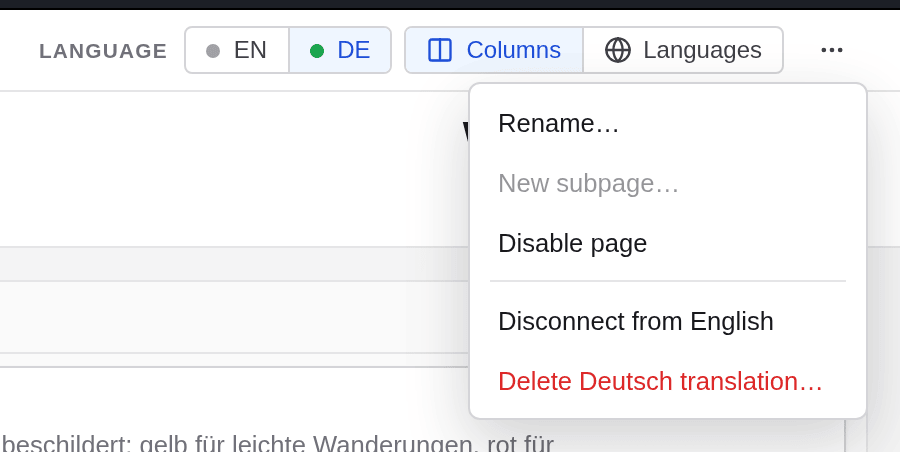
A free translation is an independent copy, marked Free translation: you add, move and delete its elements like on any page, but nothing is synced and nothing marks English changes. Disconnect from English in the ⋯ menu turns a connected translation into a free one. There is no way back.
Delete Deutsch translation… in the same menu deletes only this language version; the English page and the translations of its subpages stay. Deleting the English page deletes all its translations.
Publishing
One Publish puts the changes of all languages on the live site, see publishing. Undo and Discard… act on the language you are working in.