Languages and the language switch
Switch the language you edit in, read the page tree in another language and see how languages appear on your website.
The language switch decides in which language you see and edit your pages. This page explains what changes when you switch, what an untranslated page looks like and how the languages appear on your website.

The language switch
On a site with several languages, the toolbar of every module shows Language with one button per language, such as EN and DE. The pressed button is the language you are working in. Switching keeps the module and the page you are on; if a form has unsaved changes, the editor asks first.
The dot on each button shows the state of the selected page in that language; hover over a button to read it, for example “Deutsch — translated”:
| Dot | Meaning |
|---|---|
| Grey | The main language |
| Green | Translated |
| Amber | Translated, but the English page changed since |
| Blue | Translated, with unpublished changes |
| Hollow circle | Not translated |
What changes in another language
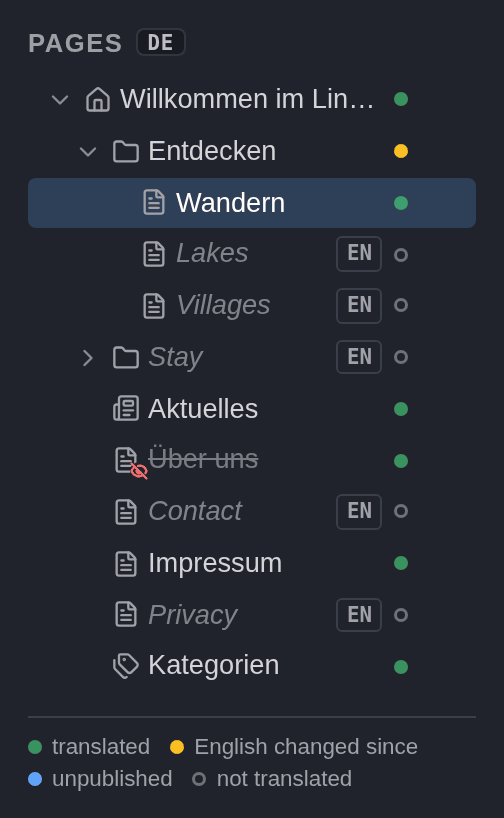
- Page tree: pages show their titles in the selected language. Pages without a translation keep their English title, in italics with an EN tag. A dot after each page shows its translation state, explained in the legend under the tree. A translation that is disabled in this language is struck through.
- Structure: new pages are created in the main language only, and pages are moved and sorted there; in other languages these commands are greyed out. Rename changes only the title in the selected language, and Delete… becomes Delete Deutsch translation….
- News and Categories: the lists show the translated titles and a Translation column; new entries are created in the main language. See keeping translations up to date.
- Page content: you edit the translated texts, while order and appearance follow the English page. See translating pages and elements.
A page without translation
When you select a page that is not translated yet, the editor shows what is missing instead of its content.
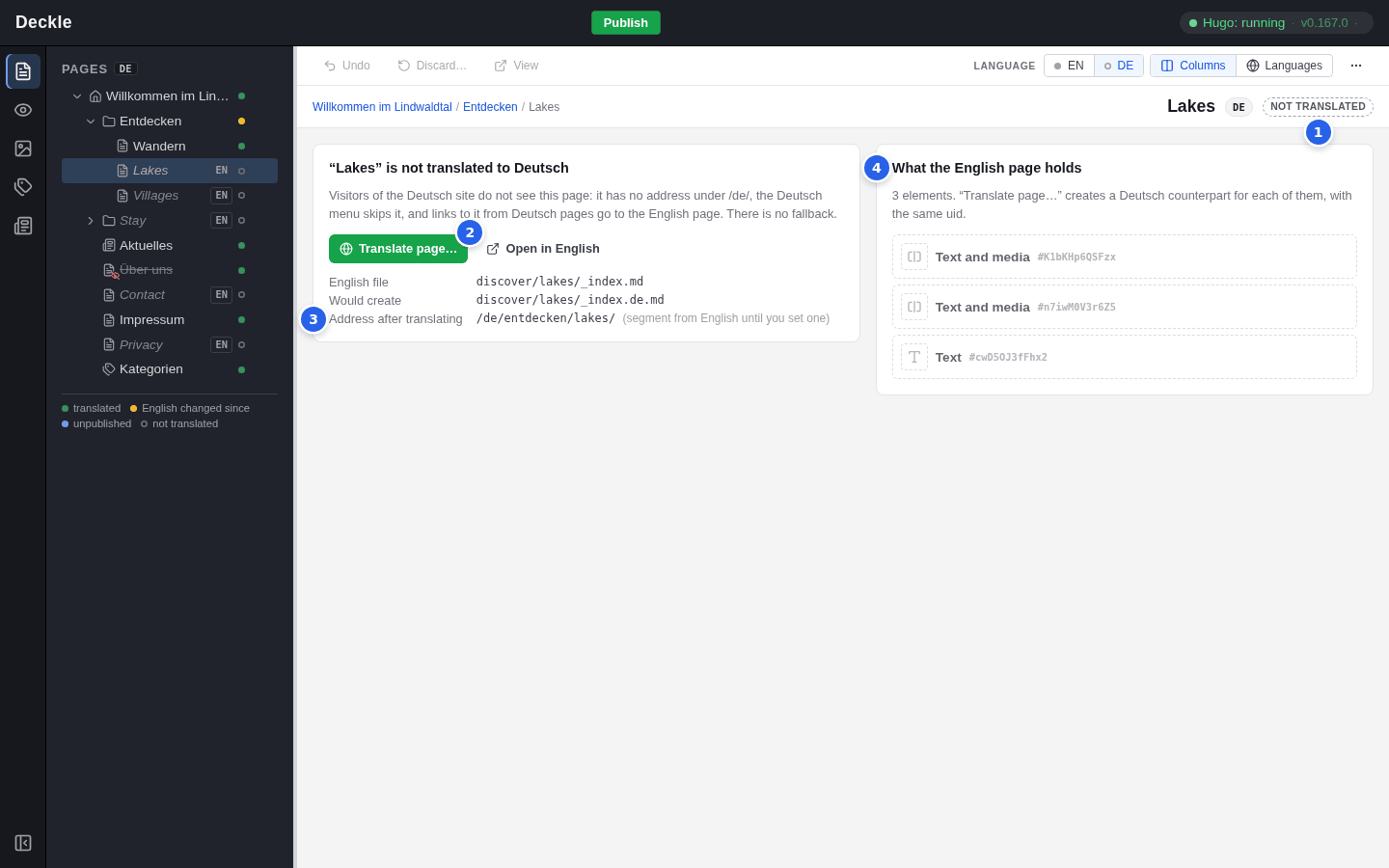
- Not translated: the page has no German version.
- Translate page… creates the translation, see translating pages and elements.
- Address after translating: the address the page will have in German.
- What the English page holds: the elements the translation will be based on.
Visitors of the German site do not see such a page: it has no German address, the German menu skips it, and links to it from German pages lead to the English page. There is no automatic fallback to English.
Languages view
Next to the language switch, Columns shows the page in one language. Languages shows all languages side by side, one column per language, area by area. This is handy to compare a translation with the English page.
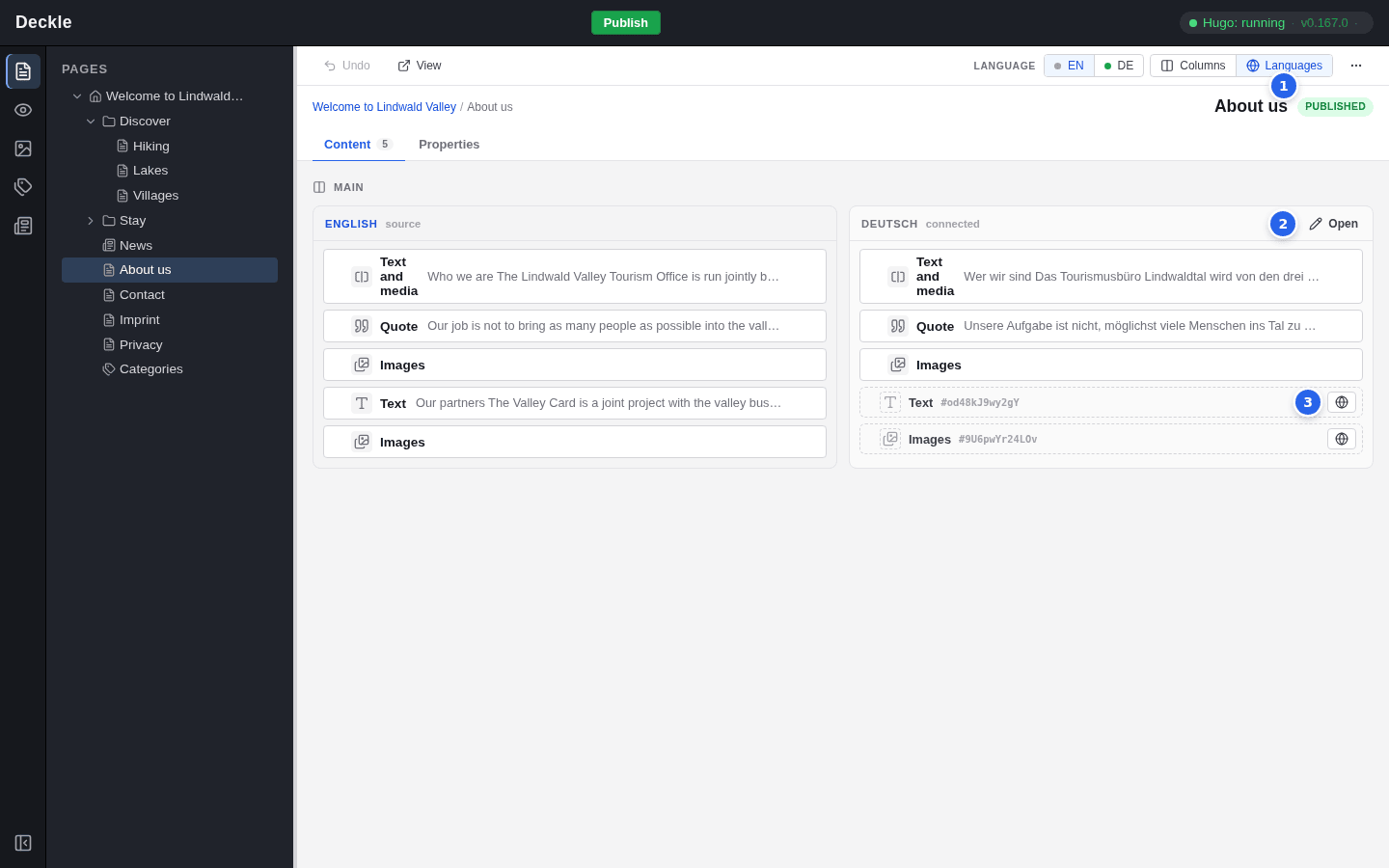
- Languages switches to the side-by-side view.
- Open edits that language in the normal view.
- Elements that are not translated yet appear dashed, with a button that translates them.
Click an element in any column to open its form in that language.
Languages on your website
Each language has its own addresses, starting with its language code: /en/ for English and /de/ for German, for example /en/discover/hiking/ and /de/entdecken/wandern/. The German part of the address comes from each translation’s Address segment, see translating pages and elements.

The website’s header offers the languages the current page exists in; a page that exists in one language only shows no language switch. Links between your pages lead to the same language when the linked page is translated, otherwise to its English version.