Keeping translations up to date
Find translations that are out of date, review changed elements and understand what English-side changes do to a translation.
When the English page changes after it was translated, the editor marks what needs a review. This page explains the marks, how to clear them and what happens to connected translations when you change the English page.
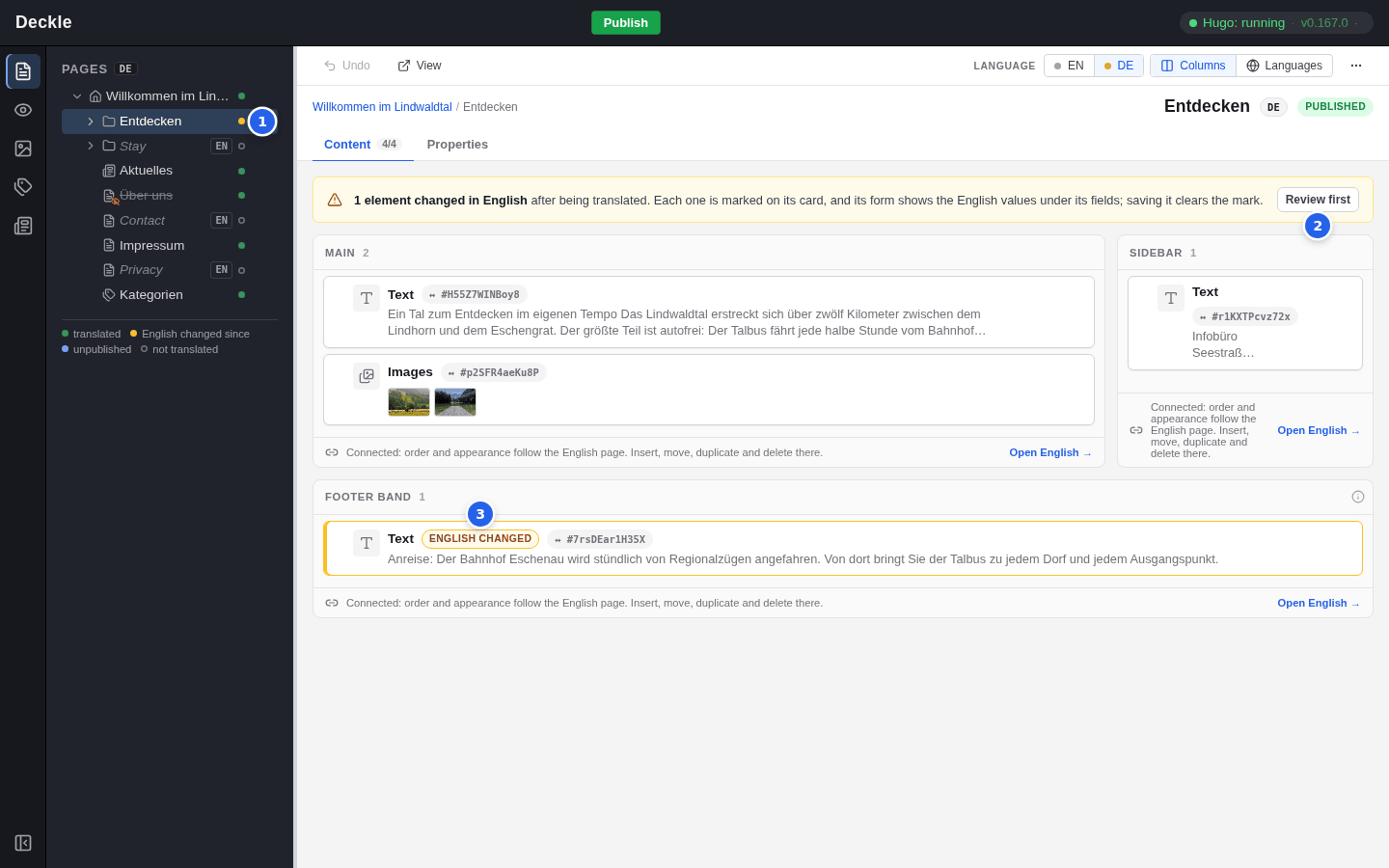
- In the page tree, an amber dot marks a page whose English version changed since it was translated.
- A banner on the page says how many elements changed. Review first opens the first of them.
- Each changed element carries the mark English changed.
Review a changed element
Open the changed element
Click Review first in the banner, or open the element marked English changed.
Compare with the English text
Under each field you see the current English value, marked English — changed since this translation. Find what changed and update your translation; Copy takes over the English value.
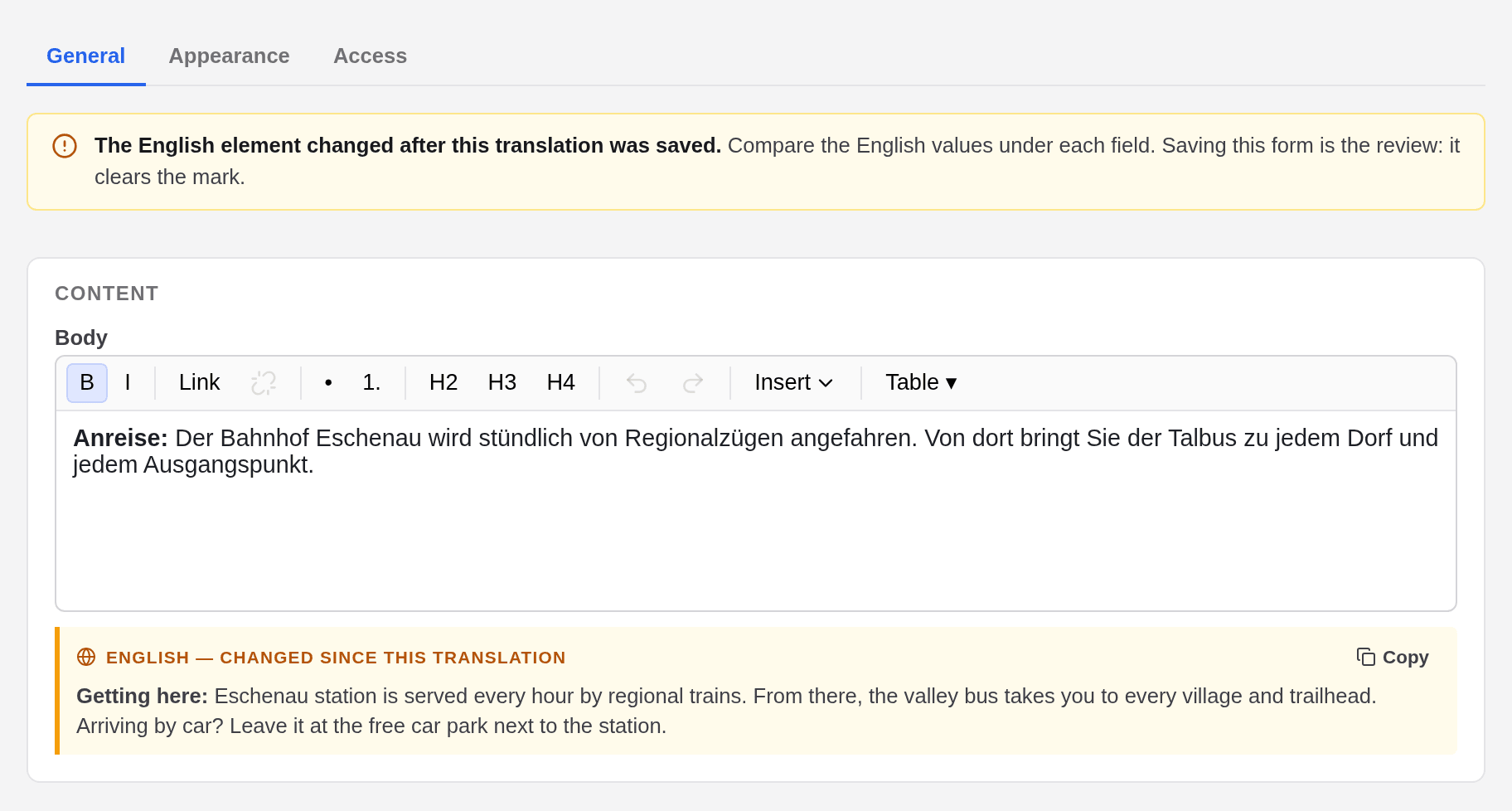
Click Save
Saving clears the mark, even if you did not change anything.
Publish
Click Publish when all changes are reviewed. One publish carries every language.
What English changes do to a translation
A connected translation follows the English page. What you do there has these effects:
| On the English page | In the connected translation |
|---|---|
| You insert an element | It appears as a “Not translated” placeholder and is missing from the translated page until you translate it. |
| You move an element or change the order | The translation follows at once. |
| You delete an element | Its translation is deleted too; the confirmation says so. |
| You cut an element and paste it on another page | Its translation moves along if that page has a connected translation; otherwise it is deleted, and the confirmation tells you. |
| You change a text or another General field | The translated element is marked English changed. |
| You change an Appearance setting and save | The setting is copied into the translation, which then has unpublished changes too. |
| You delete the page | All its translations are deleted. |
A free translation follows none of this: nothing is copied into it and nothing marks it.
Translation states in lists
Everywhere the editor shows the translation state of a page, it uses the same words and colours: in the language switch, as dots in the page tree and in the Translation column of the News and Categories modules.
| State | Colour | Meaning |
|---|---|---|
| Translated | Green | Up to date |
| English changed since | Amber | Elements need a review |
| Unpublished changes | Blue | The translation has changes that are not on the live site yet |
| Not translated | Hollow circle | There is no translation in this language |
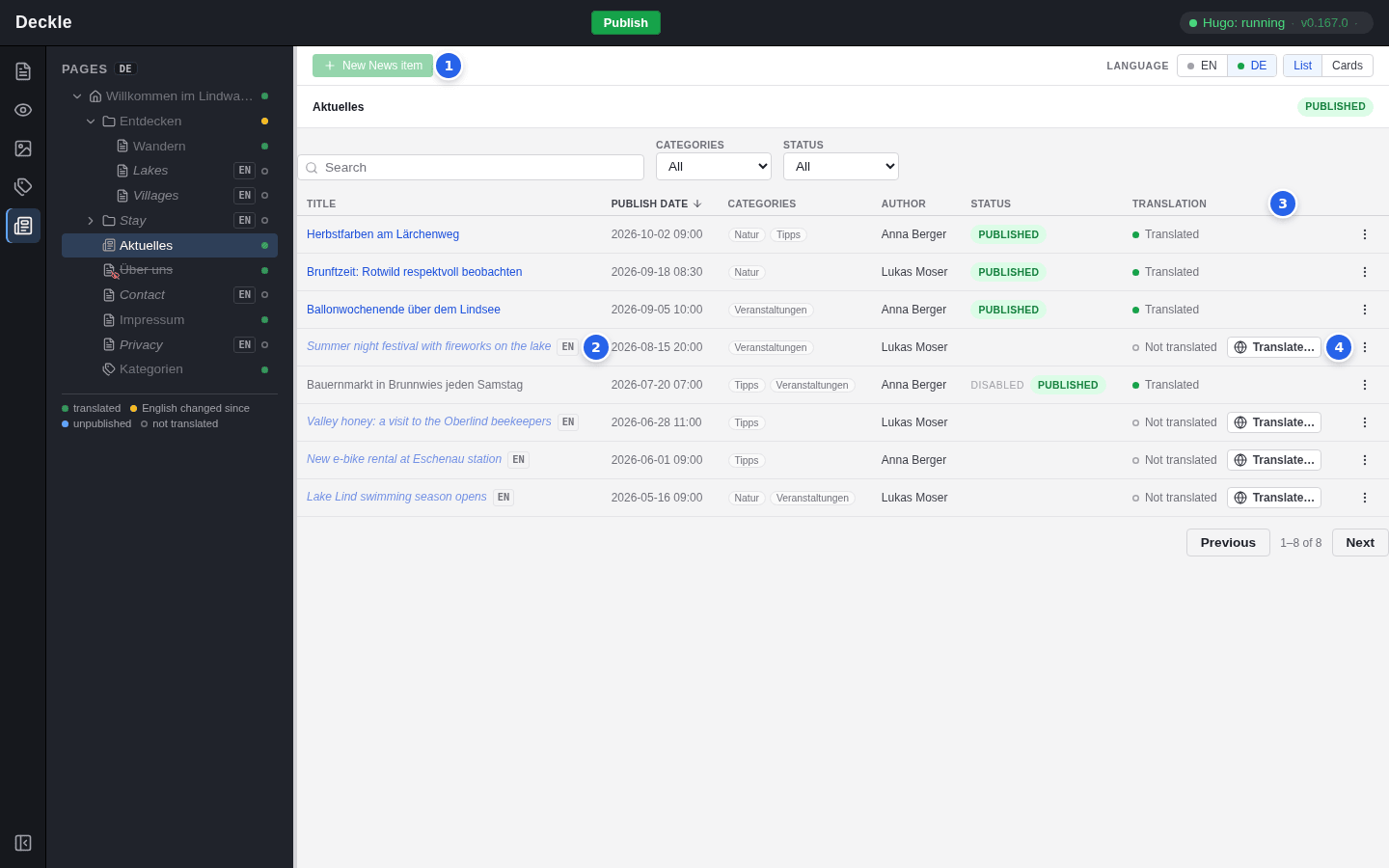
- New News item is greyed out: new items are created in English.
- An untranslated item keeps its English title, in italics with an EN tag.
- The Translation column shows the state of each item.
- Translate… creates the translation of an item.
Review checklist
Before you publish a bigger round of changes, go through each language:
- Look for amber dots and hollow circles in the page tree and in the Translation column of the News and Categories modules.
- Open every amber page and review each element marked English changed.
- Translate the placeholders, or leave them on purpose; untranslated elements simply do not appear in that language.
- Replace any remaining “[Translate to Deutsch:]” markers.
- Enable the translations that are ready; disabled translations are not on the website.
- Check the result in the preview with the language switch set to that language.
- Click Publish once for all languages.