Publishing
What happens when you click Publish, what the editor shows while it runs, and what to do when a publish is stopped.
Publishing puts all saved changes on your live website in one go. This page explains what happens when you click Publish, what the editor shows while it works, and what to do if a publish is stopped.
Publish your changes
Check what will go online
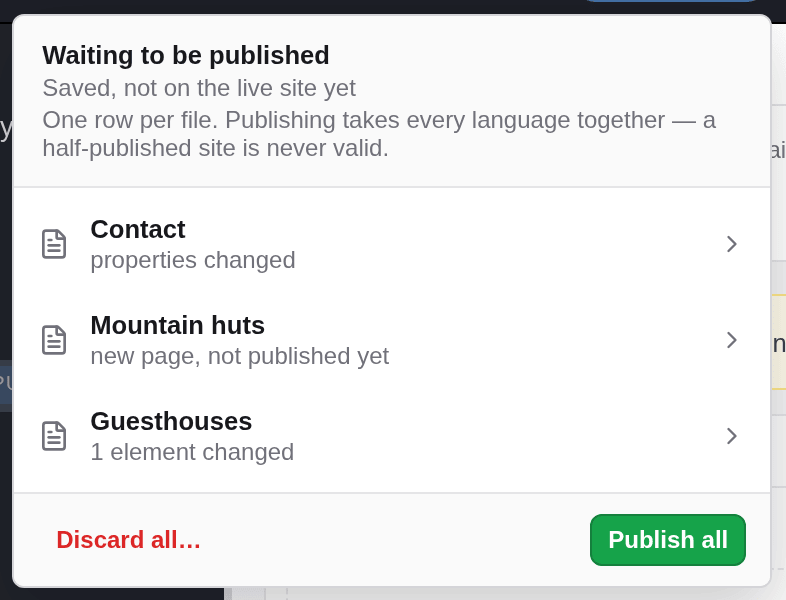
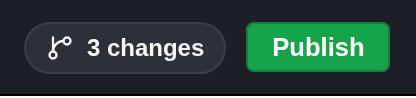
Click the counter next to Publish, for example 3 changes, to see which pages and files will go online. If you are unsure about a change, look at it in the preview first.
Click Publish
Click the green Publish button in the top bar. Publish all at the bottom of the list of changes does the same.
Wait while your website is built
The editor first builds your whole website as a test, exactly as it will go online. Meanwhile it shows Building… and the button says Publishing…. This usually takes a few seconds; a large website can take longer.

Wait until the live website is updated
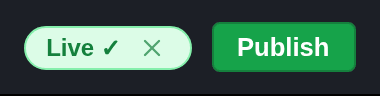
Once the test build has succeeded, your changes are handed over to your live website. The editor follows the update: it shows Publishing… and, as soon as your live website has been updated, a green Live ✓. (Some self-hosted websites cannot report back; there the editor says that the publish was handed to deployment and the site should be live in a few minutes.)

Check the result
The counter of changes is gone and the pages are marked published again. Open your website in the browser to see the changes. The green message disappears by itself after a few seconds.
If nothing is waiting to be published, the editor only says “nothing to publish — no unpublished changes”.
Publishing runs in the background
Once started, a publish continues even if you close or reload the browser tab. When you open the editor again, it shows how far the publish has got. Only one publish runs at a time.
You can keep working meanwhile. Saving may take a little longer while a publish is running, and changes you save during a publish wait for the next one.
When a publish is stopped
Nothing goes online halfway. If a check fails, nothing is published, and all your changes stay saved and waiting.
Links to disabled pages
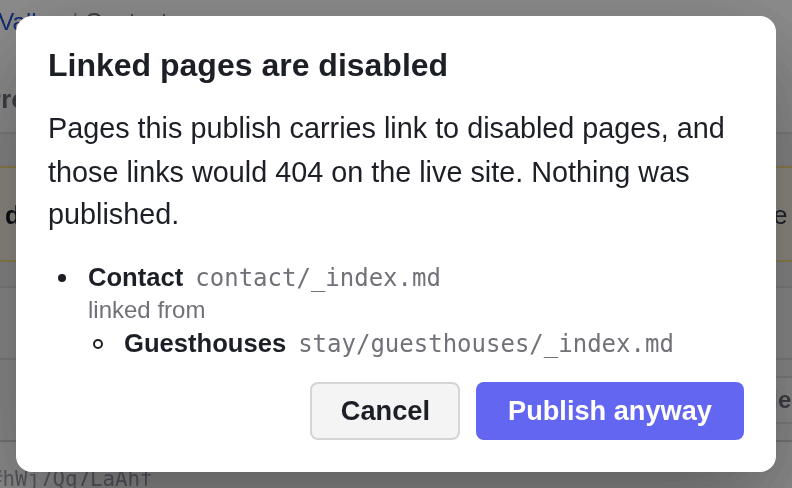
If a page you are publishing links to a page that is disabled, the editor stops and shows Linked pages are disabled, with each disabled page and the pages that link to it. On your live website these links would lead to an error page. You have two options:
- Click Cancel, then enable the linked page or remove the link, and publish again.
- Click Publish anyway if you accept the broken link for now, for example because you will enable the page soon.
The test build fails
If your website cannot be built with the changes, the editor shows Site build failed — nothing was published together with the end of a technical report. Nothing has gone online. Click Close and send the message to the person who looks after your website. If you know which change caused it, you can take it back with Undo or Discard and publish again.
An image or file is missing
If a page uses an image or file from the media library that no longer exists, the editor refuses to publish and shows a red message that names the missing file and ends with “nothing was published”. Choose another image or file on that page, then publish again.
When the live website reports a failure
If the test build succeeded but the update of your live website fails, the message in the top bar turns red and says Build failed, followed by a link to a report. Your changes have been handed over, and the pages are marked published, but your live website has not been updated with them. Open the link and send it to the person who looks after your website. The ✕ closes the message.
Other problems
Other errors appear in a red strip at the top of the editor; some offer Retry. If a problem keeps coming back, contact the person who looks after your website.