Changes, undo and discard
When the editor saves your work, how to recognise unpublished changes, and how to take changes back with Undo and Discard.
Every change you save is kept as a change waiting to be published. This page explains when the editor saves your work, how you recognise changes that are not on your live website yet, and how to take a change back with Undo or Discard.
When your work is saved
Some things are saved only when you click a button, others immediately.
- Forms you save yourself: an element’s form and a page’s Properties. Click Save to stay in the form, Save & close to return to where you came from, or press Ctrl+S (Mac: Cmd+S). Until then the form shows Unsaved changes. This also applies to the Enabled switch and to adding or removing images and cards inside a form.
- Saved immediately: everything you do with the element cards on the Content tab, such as inserting, moving, duplicating, pasting, deleting and switching an element off with its eye icon; everything you do with pages in the page tree, such as creating, renaming, moving, deleting and disabling; and everything in the media library.
If you leave a form without saving
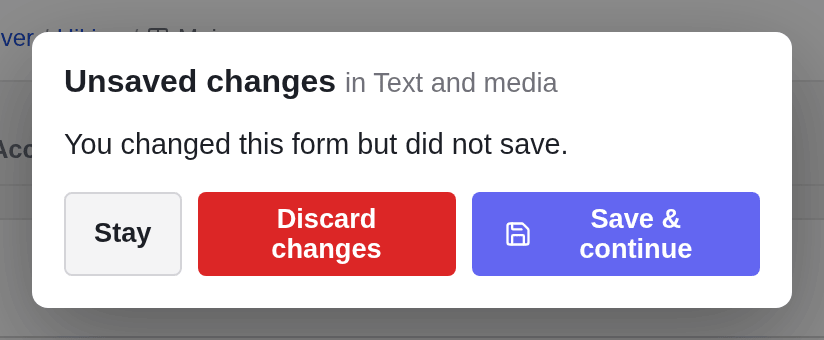
If you have changed a form and try to leave it, with Close, the Escape key, the page tree, the module bar or any other way, the editor asks first. Stay keeps you in the form, Discard changes throws your edits away, and Save & continue saves them and moves on. If you close the browser tab instead, your browser warns you.
How to recognise unpublished changes
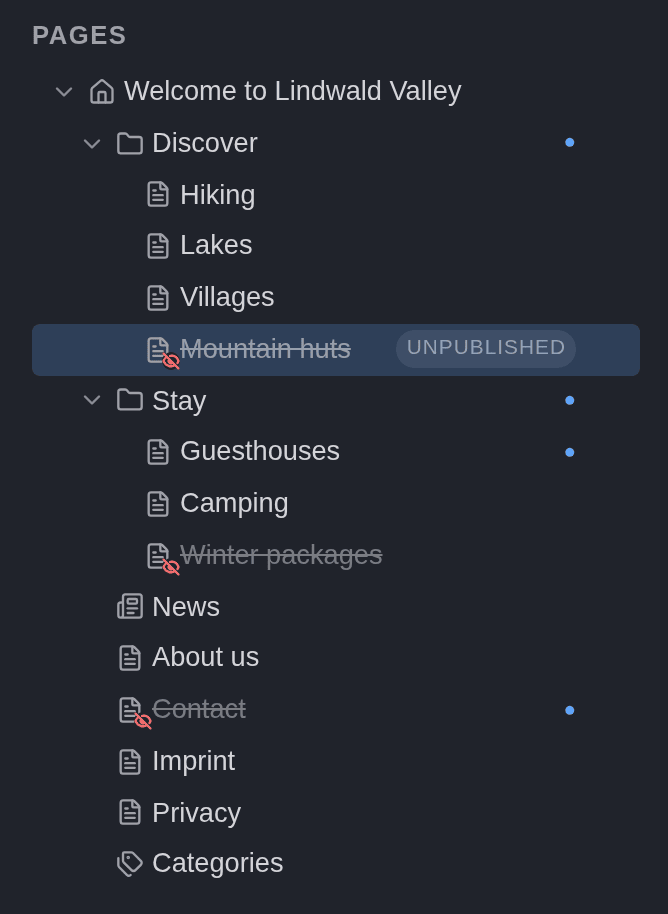
Next to the title of the open page, a badge shows its state. The page tree marks the same states in a shorter form.
| Mark | Meaning |
|---|---|
| published (green) | The page is the same as on your live website. |
| modified (blue), or a blue dot in the page tree | The page has saved changes that are not published yet. A page also gets the dot when one of its subpages has changed. |
| unpublished (grey, dashed) | The page is new and has never been published. |
| Disabled (amber), or a struck-through title in the page tree | The page is switched off and is not on your live website. It can be combined with any of the other marks. |
Disabled is not the same as unpublished: a disabled page has been switched off on purpose, an unpublished page simply has never been published.

The list of changes
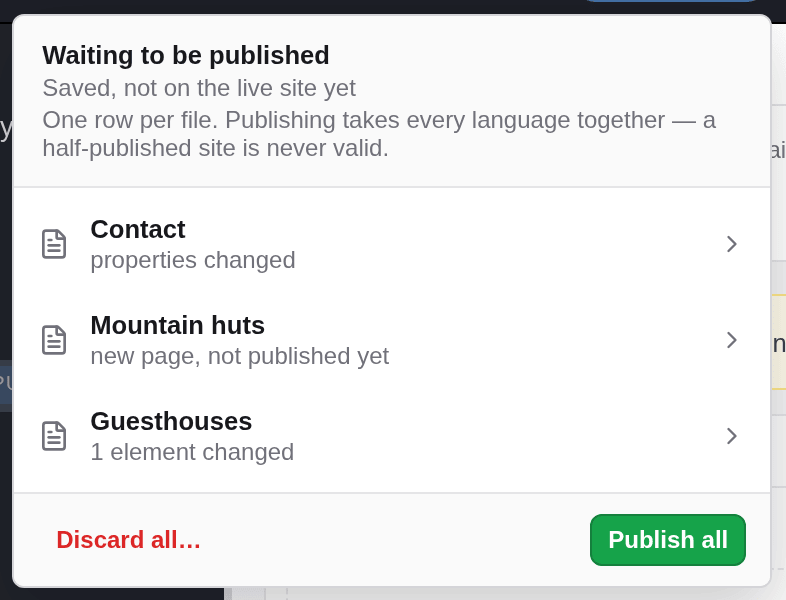
The top bar shows how many changes are waiting, for example 3 changes. Click the counter to open the list Waiting to be published. It has one row per page or file, with what has changed, such as “1 element changed”, “properties changed” or “new page, not published yet”. Click a row to open that page. At the bottom you find Discard all… and Publish all.
On a website with several languages, each language version of a page has its own row, marked with its language code. Saving an element in the default language can also update its translations, because some settings are shared between the languages; the translation then appears in the list as well.
Undo the last change
Undo in the page toolbar takes back the last change to a page’s content, for example the last save of a form or an inserted, moved or deleted element. Point at the button first to see what it would undo, such as “Undo: save on Hiking, just now”. It acts at once, without asking.
- Undo goes back one step only, and only for the last change on the whole website. If your last change was on another page, Undo is greyed out on this page.
- Changes in the page tree are reversed differently: rename a page back to its old title, or drag a moved page back to its old place.
- A deleted page cannot be brought back with Undo. As long as the deletion has not been published, Discard all… restores it. Discard… on its parent page restores it too, but also resets the parent page and all its other subpages to the state of your live website.
- While you are typing in a text, the undo arrow in the text’s toolbar (or Ctrl+Z) takes back your typing. That is separate from the page’s Undo.

Discard the changes of one page
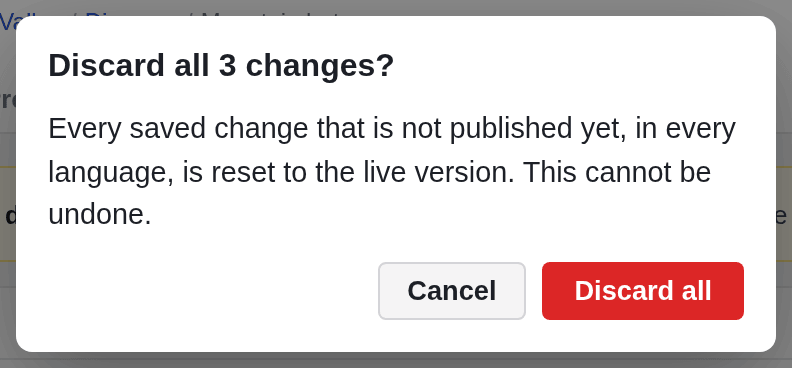
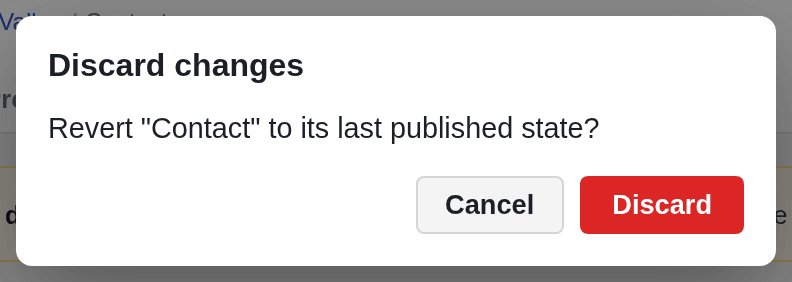
Discard… resets one page to the state of your live website: all of its saved changes since the last publish are removed. The button appears only while the page has unpublished changes. The editor asks first. For a new page that has never been published, discarding removes the page completely.
If you discarded by mistake, Undo brings the changes back, as long as you have not made another change since.
Discard all changes
In the list of changes, Discard all… resets the whole website to the state of your live website. Every saved change that is not published yet is removed, on every page and in every language, including changes other people have saved.