Preview
How the View module shows your website with all saved changes, on desktop and mobile width, and how to edit straight from the preview.
The preview shows your website as your visitors will see it after the next publish, with every change you have saved. It lives in the View module, so you can check each page calmly before it goes online.
Open the preview
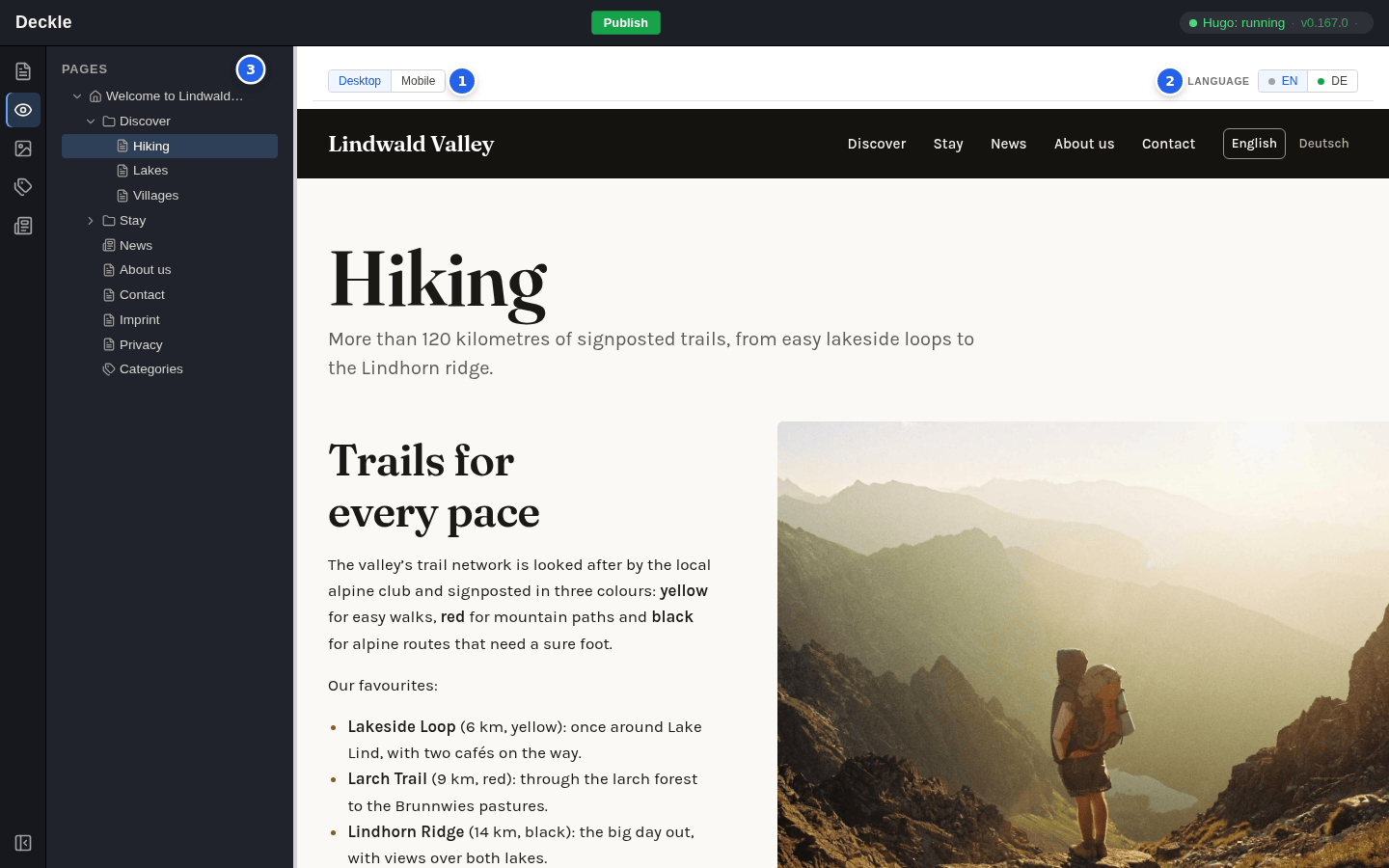
Click View (the eye icon) in the module bar. The preview opens on the page you had selected; click another page in the page tree to see that one instead. You can also follow links inside the preview, and the page tree follows along.
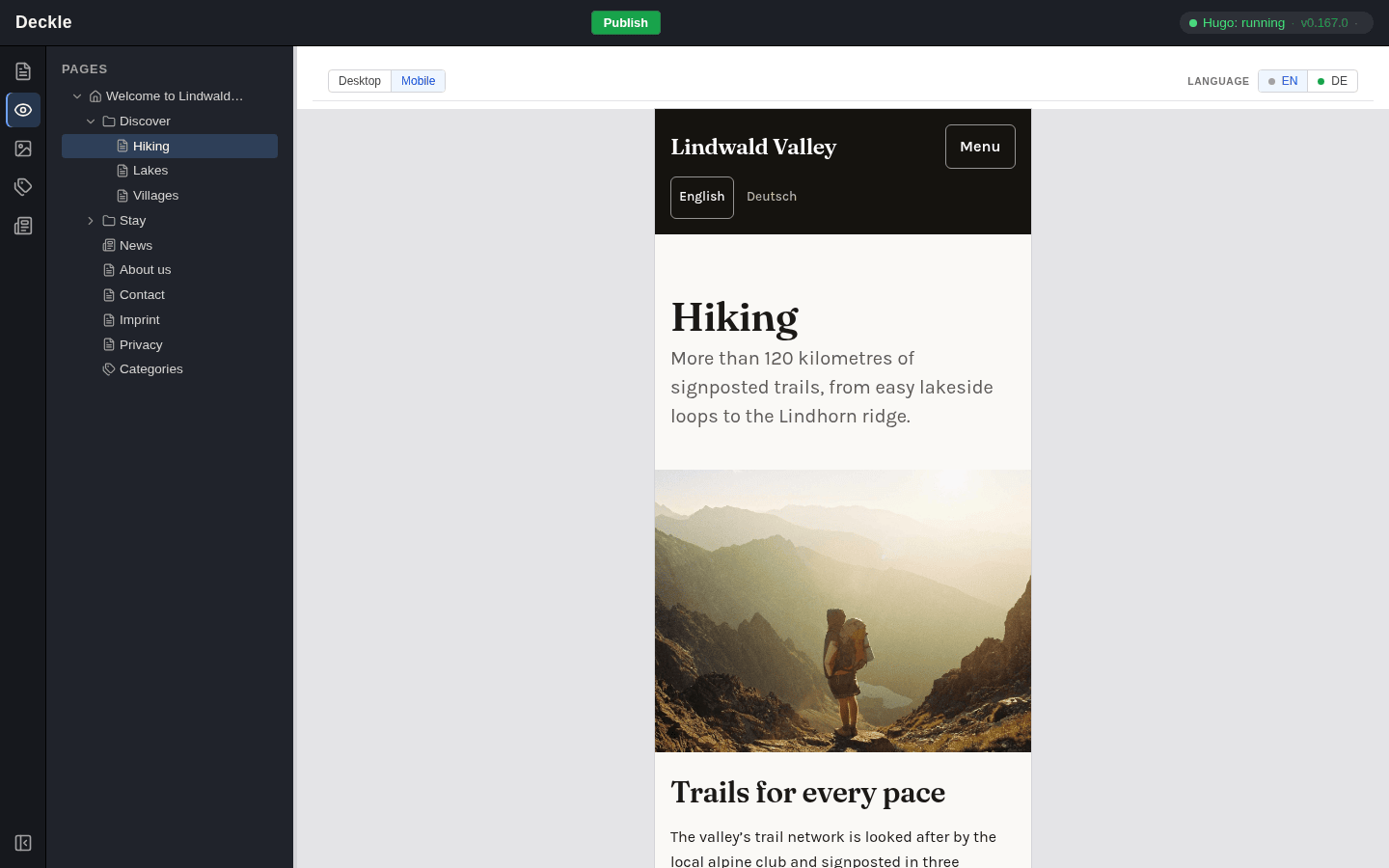
- Desktop and Mobile switch between the full width and the width of a smartphone.
- The language switch shows the page in another language, if your website has more than one.
- The page tree works as in the Page module.
What the preview shows
- Saved changes, published or not. The preview updates by itself a moment after each save. Edits in a form that you have not saved yet do not appear.
- Disabled pages. You can open a disabled page in the preview and check it before you enable it. Visitors of your live website cannot reach it, and lists such as page teasers leave it out, in the preview too.
- No disabled elements. An element you have switched off is hidden in the preview, just as on your live website.
If a red strip starting with Build error appears above the preview, your website cannot be built with the latest change. Take the change back with Undo, or contact the person who looks after your website.
Edit from the preview
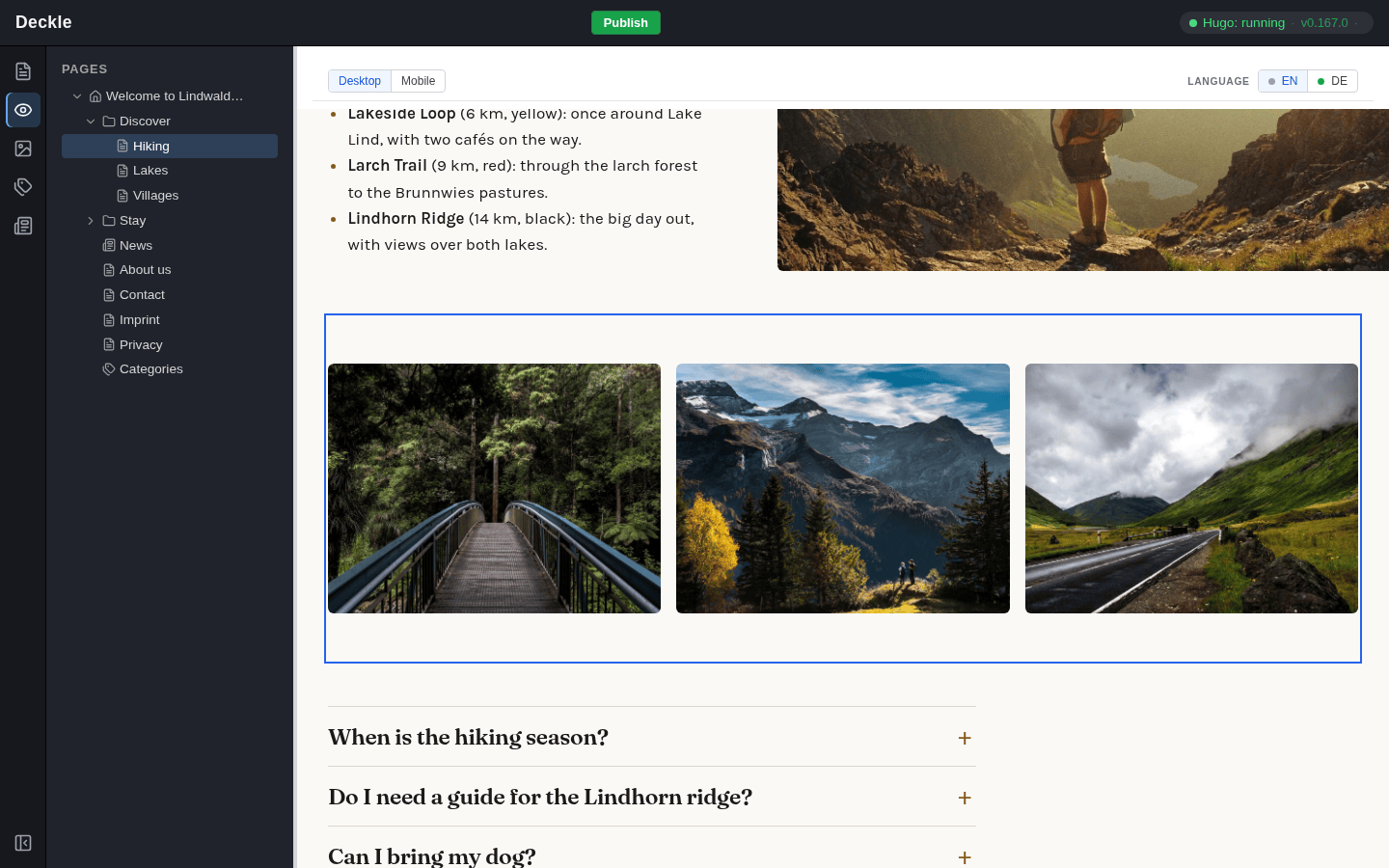
Click an element in the preview, for example a text or an image grid, and its form opens. Make your change and click Save & close: you are back in the preview and see the result straight away. If you change nothing, Close takes you back to the preview as well.
Clicking a link in the preview follows the link instead of opening a form. And because a click opens the form, interactive parts such as the questions of an accordion do not open and close in the preview.
Two more ways to open the preview
The View button of a page
In the Page module, the toolbar of every page has a View button. It opens the page’s preview in a new browser tab, without the editor around it. Keep that tab next to the editor: it updates by itself when you save, and accordions and other interactive parts work there as on your live website.
The Preview button of an element
In an element’s form, Preview switches to the View module and scrolls the page to that element, outlined in blue. If the form has unsaved changes, the editor asks first whether to save them.