The page tree
Read the page tree, and create, rename, move, reorder and delete pages in it.
The page tree is where you create, rename, move and delete pages. It sits on the left of the Page module, under the heading Pages, and shows every page of your site in the order the site lists them.
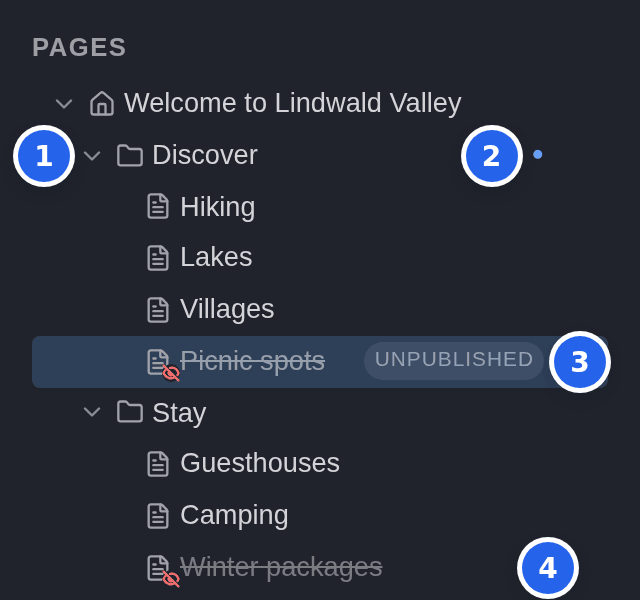
Reading the tree
Each row shows a page with the icon of its page type; subpages are indented below their parent.
- An arrow in front of a page means it has subpages. Click it to show or hide them. The editor remembers which pages you opened.
- A blue dot after the title means the page has changes that are not on the live site yet. Pages above a changed subpage can show the dot too.
- A grey unpublished label means the page has never been published: it is new.
- A struck-through title with a crossed-out eye means the page is disabled and not on the live site. See Enabling and disabling pages.
A page without any of these marks is published and unchanged. Click a title to open the page: its elements appear on the Content tab on the right.
When you switch the editor to another language, the tree shows the translated titles, and pages that are not translated yet appear in italics. See Languages and the language switch.
News items and categories are not listed in the tree. If your site has them, you manage them in their own modules: see News and categories.
The page menu
Point at a row and click ⋯ at its right end, or right-click the row, to open the page’s menu:
| Entry | What it does |
|---|---|
| New subpage ▸ | Creates a page beneath this one. It lists the page types allowed here. |
| Rename | Lets you type a new title in the tree. |
| Move up, Move down | Moves the page one place up or down among its neighbours. |
| Disable, Enable | Takes the page off the live site or puts it back, immediately. |
| Delete… | Deletes the page and everything beneath it, after asking. |
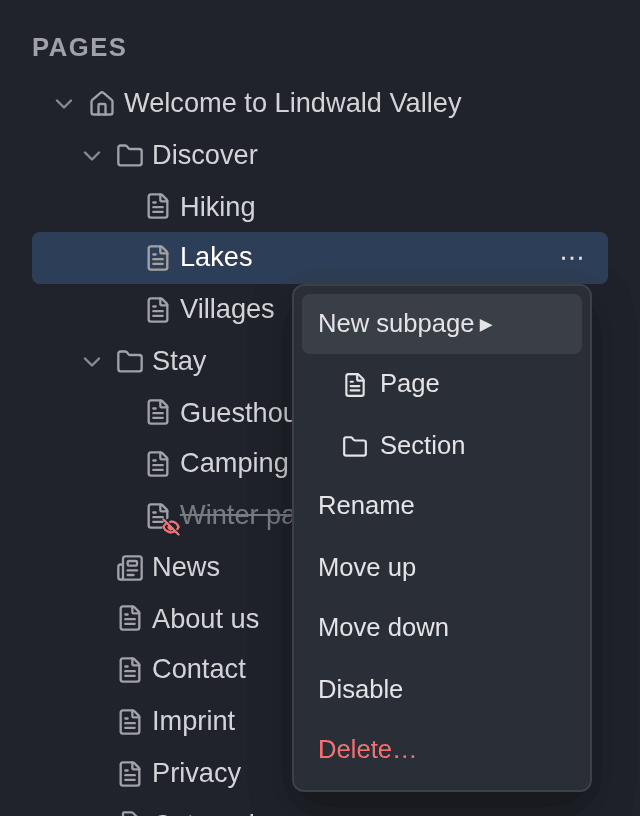
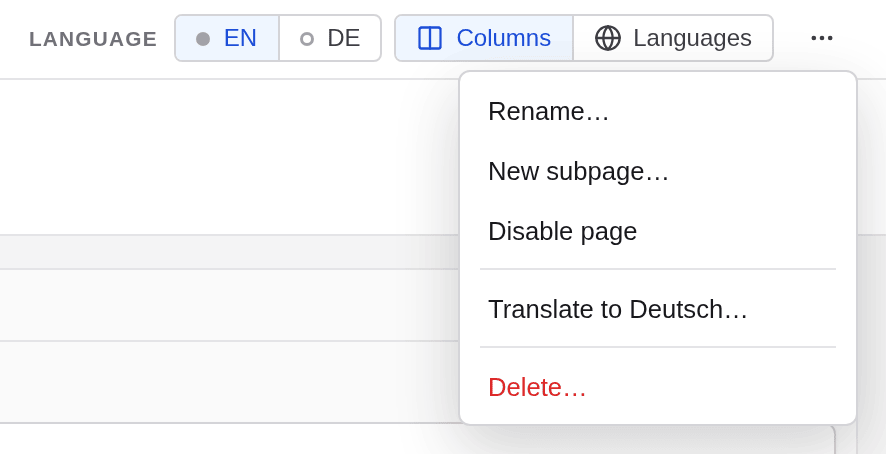
The home page only offers New subpage ▸. You find the same commands in the ⋯ menu at the top right of the open page, as Rename…, New subpage…, Delete… and Disable page or Enable page.
Creating a page
New pages are always created beneath an existing page. To add a page at the top level of your site, create it beneath the home page.
Open the menu of the parent page
In the page tree, point at the page the new page should go under and click ⋯.
Choose New subpage and a page type
Point at New subpage ▸ and click the page type, for example Page or Section. Only the types that are allowed under this page are listed.
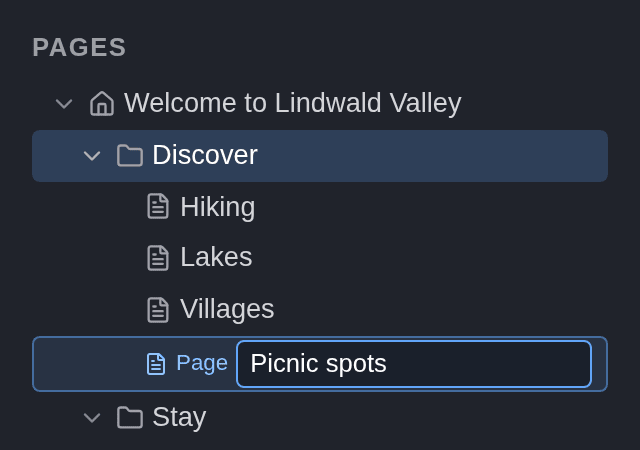
Type the title and press Enter
A new row appears as the last subpage. Type the title and press Enter. Press Escape, or click somewhere else, to cancel.
Add content to the new page
The page’s address is made from its title: lower case, spaces become hyphens, ä, ö, ü and ß become ae, oe, ue and ss, and other special characters are dropped. “Picnic spots” under “Discover” becomes /discover/picnic-spots/. If a page with the same address already exists there, “-2” is added.
You can also create a page with New subpage… in the ⋯ menu at the top right of a page. A dialog then asks for the page type and the title.
Renaming a page
Double-click the title in the tree, or choose Rename in its menu. Type the new title and press Enter; Escape cancels. The Rename… command in the ⋯ menu at the top right opens a dialog that does the same.
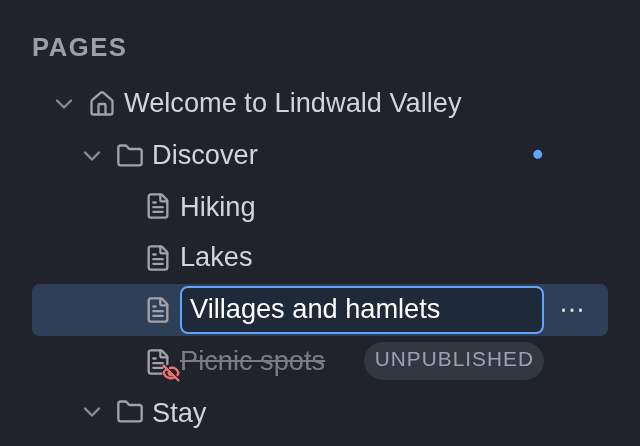
Renaming changes the page’s title and its address, and the addresses of all its subpages. Links to the page inside your site are updated automatically. If you only want to change the heading but keep the address, change Title on the Properties tab instead. The home page cannot be renamed; change its title in its properties.
Moving and reordering pages
Drag a page in the tree to move it:
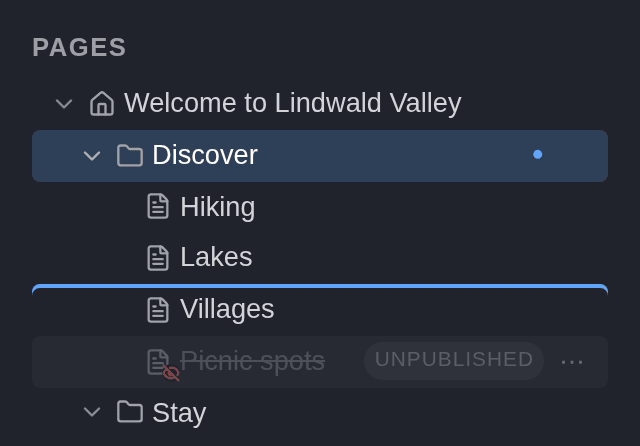
- Drop it on the upper or lower edge of another page to place it before or after that page. A blue line shows where it will land.
- Drop it on the middle of another page to make it the last subpage of that page. A blue frame marks the target.
- Hold it over a closed page for a moment to open it.
The move happens as soon as you let go; there is no confirmation. Where a page may not go, no marker appears. For example, a page cannot go inside itself, nothing can be placed before the home page, and some pages only accept certain page types.
To change the order without dragging, use Move up and Move down in the page’s menu. They move the page among its neighbours and never into another parent page.
Moving a page into another parent changes its address, just like renaming it.
There is no command to duplicate a whole page. Create a new page and copy the elements you need into it.
Deleting a page
Choose Delete
Choose Delete… in the page’s menu in the tree, or in the ⋯ menu at the top right of the page.
Read the dialog
It says how many subpages are deleted with the page and whether its translations go too. Under Other pages link here: it lists the pages that link to it, by their file names. Those links will lead nowhere, so fix them afterwards.
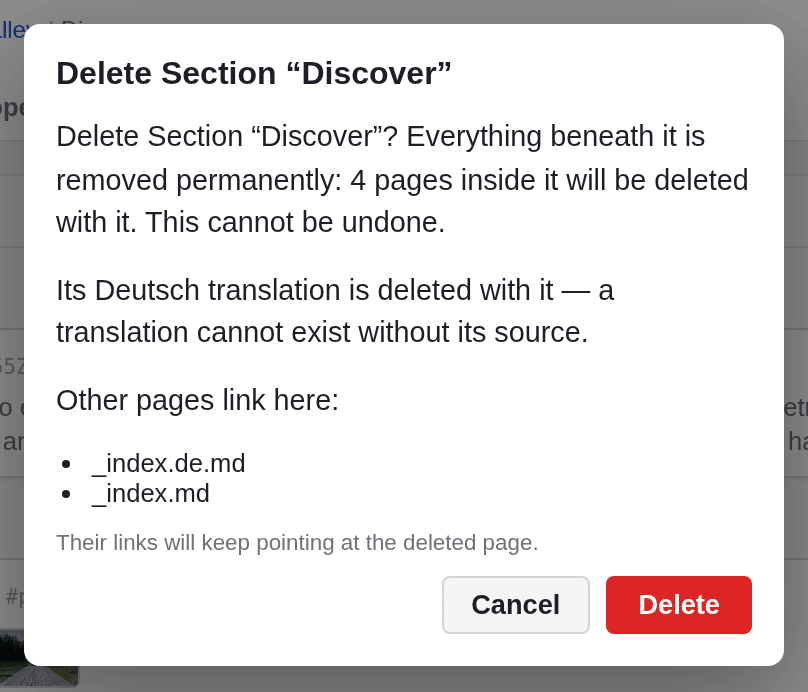
Click Delete
The page, its subpages and its translations are deleted. Click Cancel to keep everything.
The home page cannot be deleted. A deleted page stays on the live site until you publish, but Undo cannot bring it back: after a delete it is greyed out, and its tooltip begins “Nothing to undo on this page”.
As long as you have not published, you can still restore a page that was already on the live site, at a price. Discard all… in the list of unpublished changes restores it, but it also resets every other change that is not published yet. If the page sat below another page (not directly below the home page), Discard… on that page restores it as well, but it resets that page and all pages beneath it to their published state. To take a page offline only for a while, disable it instead of deleting it.