Page properties
Change a page's title, meta description, navigation label, layout and visibility on its Properties tab.
Besides its content, every page has settings: its title, a description for search engines, the label in the navigation menu, its layout and whether it is on the site. You find them on the page’s Properties tab.
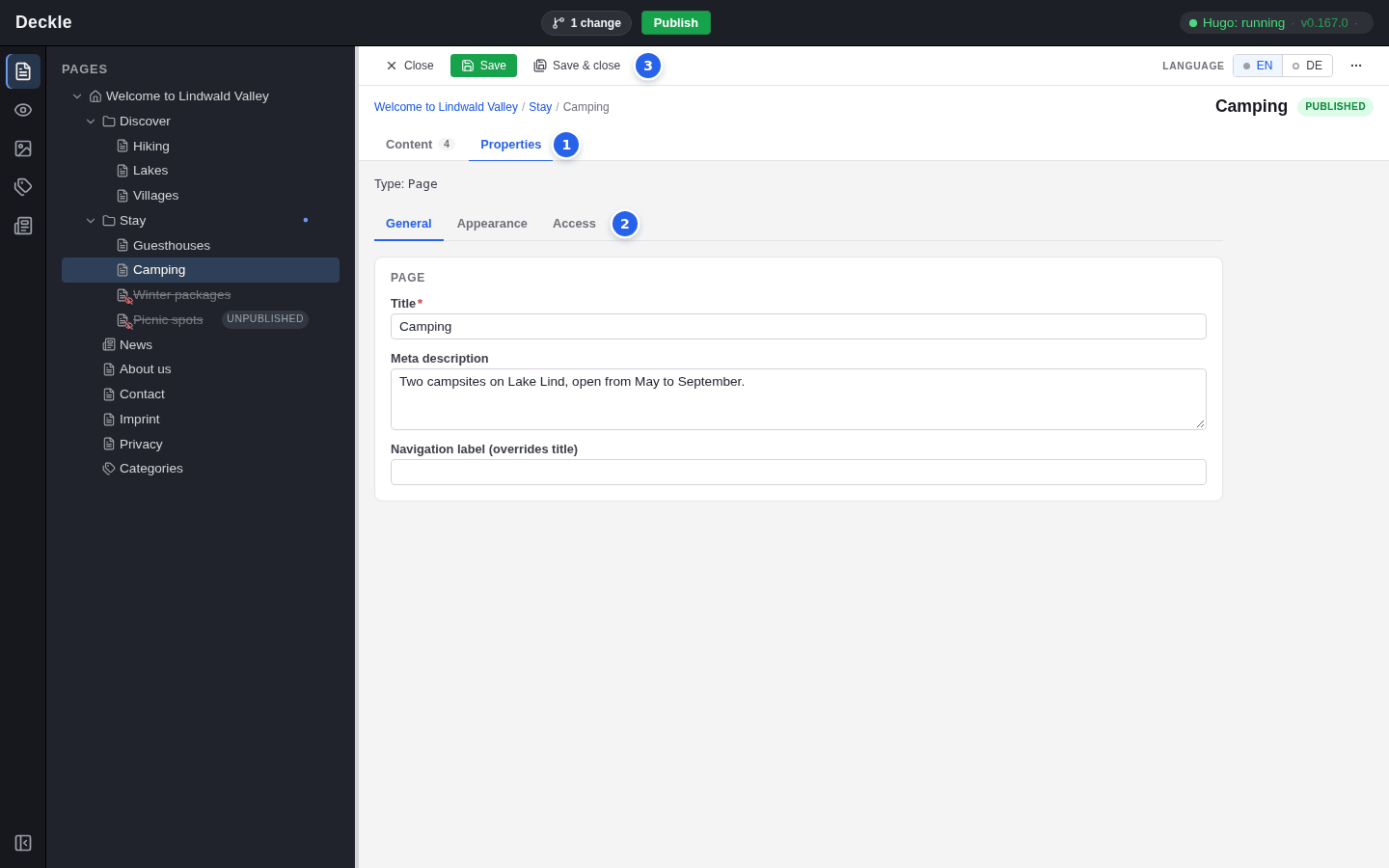
The numbers in the screenshot:
- The Properties tab, next to Content.
- The settings are spread over three tabs: General, Appearance and Access.
- Save stores your changes and keeps the form open; Save & close stores them and returns to the page’s content. Close leaves without saving.
Above the tabs, Type: names the page type, for example “Type: Page”. Which fields appear depends on the page type, and your site may have other or additional fields than the ones described here.
Open the page
Click the page in the page tree.
Click the Properties tab
It is next to the Content tab, below the page title.
Change the fields
Switch between General, Appearance and Access as needed. The tabs keep your changes while you switch.
Click Save or Save & close
You can also press Ctrl+S (⌘S on a Mac). Next to the page title you see Unsaved changes before and ✓ Saved just now after saving.
General
| Field | What it does |
|---|---|
| Title | The name of the page, shown as its main heading and, unless a navigation label is set, in the menus. Required. |
| Meta description | One or two sentences about the page. Search engines use it as the description of the page. Write it as one paragraph: line breaks are not allowed. |
| Navigation label (overrides title) | A shorter text for the menus, if the title is too long for them. Leave it empty to use the title. |
Changing Title here does not change the page’s address. To change the address, rename the page in the page tree. The home page has only Title and Meta description.
Appearance
The Appearance tab decides which layout the page is edited and shown in. Layouts divide a page into areas, for example a main column and a sidebar; see Layouts and columns.
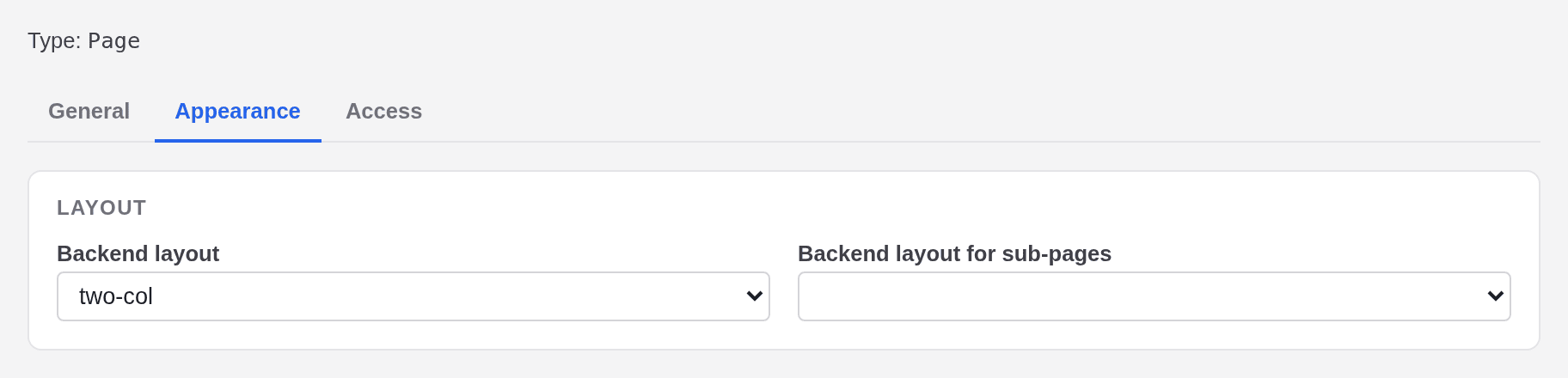
| Field | What it does |
|---|---|
| Backend layout | The layout of this page. |
| Backend layout for sub-pages | The layout of the pages beneath this one, unless they choose their own. |
The lists show the layouts by their short names, such as “one-col” and “two-col”. The empty choice means “inherit”: the page uses the layout that the nearest page above it sets for sub-pages, or else the site’s default. Backend layout for sub-pages is missing on page types that cannot have subpages. Switching to another layout never deletes content.
Access
The Access tab decides who finds the page.
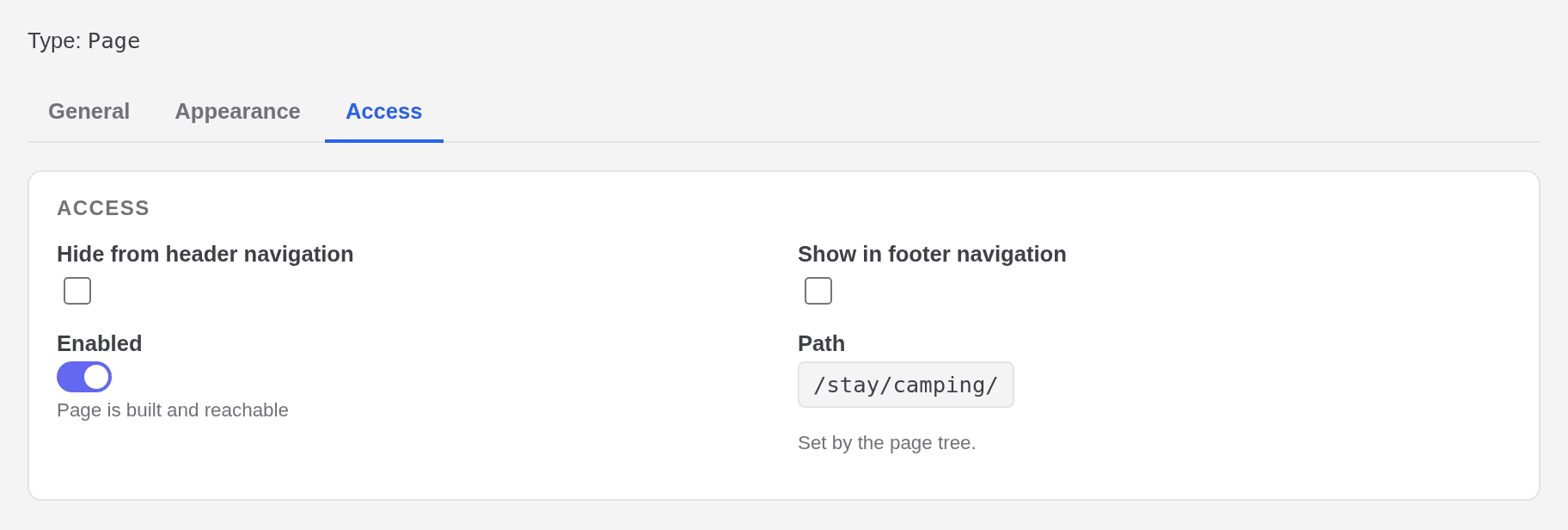
| Field | What it does |
|---|---|
| Hide from header navigation | The page is not listed in the menu at the top of the site, but it is still on the site. |
| Show in footer navigation | The page is listed in the menu at the bottom of the site, for example for an imprint or a privacy page. Only pages of the type Page have this field. |
| Enabled | Whether the page is on the live site. See Enabling and disabling pages. |
| Path | The page’s address. It is set by the page tree and cannot be edited here. |
When a field is refused
The editor checks a field as soon as you leave it. If something is wrong, a red message appears under the field and a red dot marks its tab, so you can find the problem even on another tab. The page is not saved until you fix it.
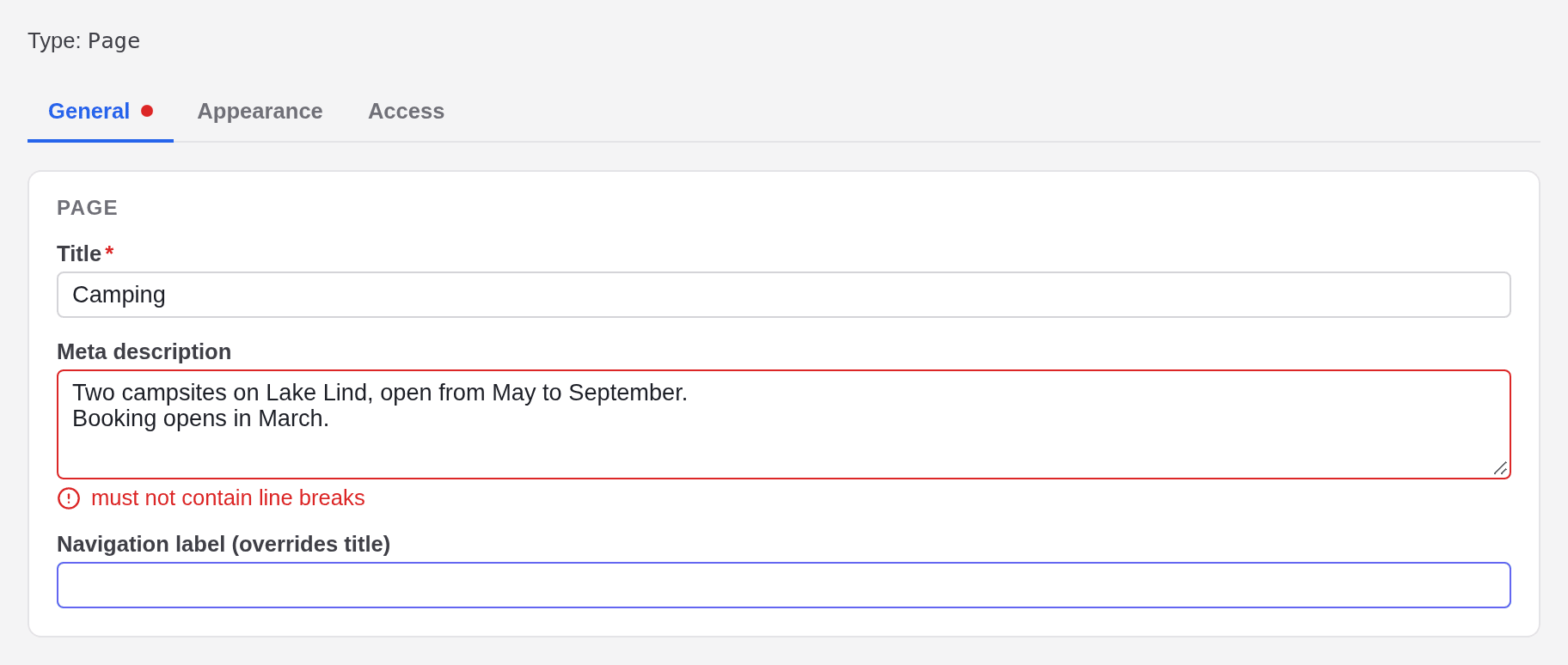
| Message | Cause and fix |
|---|---|
| this field is required | The title is empty. Type a title. |
| must not contain line breaks | The meta description contains a line break. Join the lines into one paragraph. |
If you try to leave the form with unsaved changes, the editor asks first: Stay keeps you on the form, Discard changes drops your edits, Save & continue saves and goes on.