Enabling and disabling pages
Keep a page in the editor but off the live site: what disabled means, and how to enable or disable a page.
A disabled page stays in the editor with all its content, but it is not on your live website. Disable a page to prepare it in peace, or to take it offline for a while without deleting it.
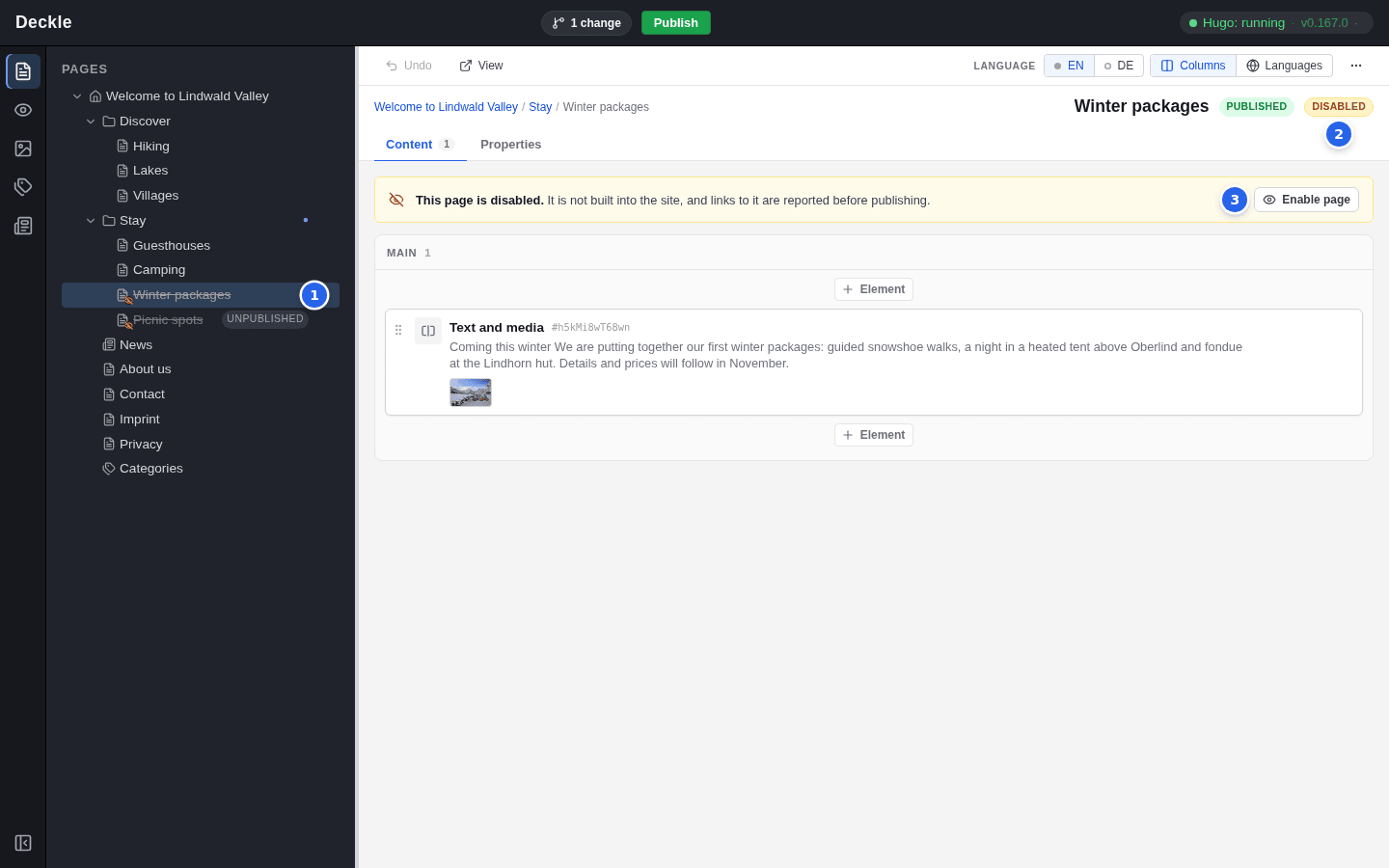
You recognise a disabled page by three things:
- In the page tree its title is struck through and its icon carries a crossed-out eye.
- Next to the page title there is a Disabled badge.
- On the Content tab a yellow banner says “This page is disabled.” and offers the button Enable page.
What disabled means
- The page is not on the live site: it has no address there, and it is missing from the menus and from lists of pages.
- It stays in the editor. You can edit it, move it and add content as usual.
- The preview still shows it, so you can check the page before you enable it. In the preview it even appears in the navigation menu, but not in lists of pages such as page teasers.
Disabled is not the same as unpublished. Disabled means switched off; unpublished means the page has never been published. A new page is both, which is why it shows both badges.
New pages start disabled
Every page you create starts disabled, so visitors never see a half-finished page, even if you publish other changes in the meantime. Enable it when it is ready, then publish.
Enabling or disabling a page
Choose whichever way is closest:
- On the page’s Content tab, click Enable page in the yellow banner.
- In the page tree, open the page’s menu with ⋯ and choose Disable or Enable.
- In the ⋯ menu at the top right of the page, choose Disable page or Enable page.
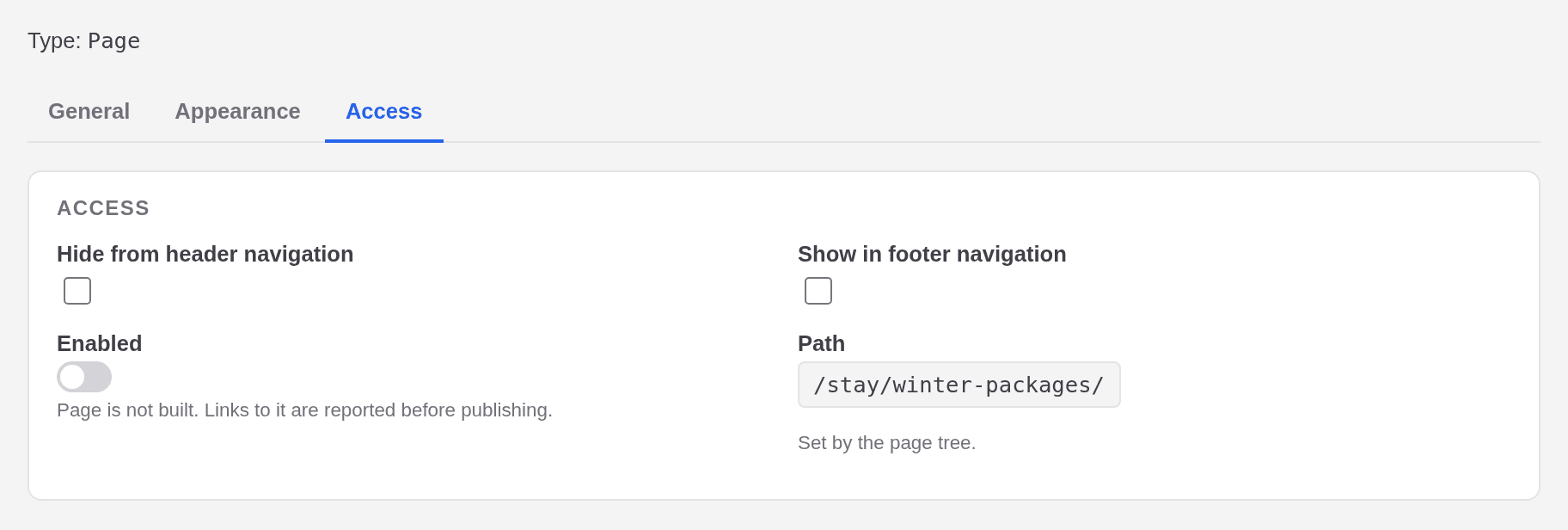
- On the Properties tab, open Access, switch Enabled on or off and click Save.
The first three take effect at once. The switch on the Properties tab takes effect when you save.
Like every change, enabling or disabling a page reaches the live site only when you publish. Until then the live site keeps the previous state.
The home page
The home page cannot be disabled. Its Enabled switch is shown but locked, with the note “The home page is always published; it cannot be disabled.”
Links to disabled pages
Links to a disabled page would lead visitors to an error page, so the editor watches out for them:
- In the Link browser, disabled pages are greyed out and marked Disabled. You cannot choose them as a link target.
- If you disable a page that other pages already link to, Publish stops before anything goes live and opens the dialog “Linked pages are disabled”. It lists each disabled page and the pages that link to it. Remove or change those links, enable the page, or choose Publish anyway. See Publishing.
In other languages
On a site with several languages, each translation of a page is enabled or disabled on its own. A new translation starts disabled, and disabling a translation does not affect the page in the other languages. See Translating pages and elements.