Pages
Pages and subpages, the page tree as the structure of your site, and the page types your editor offers.
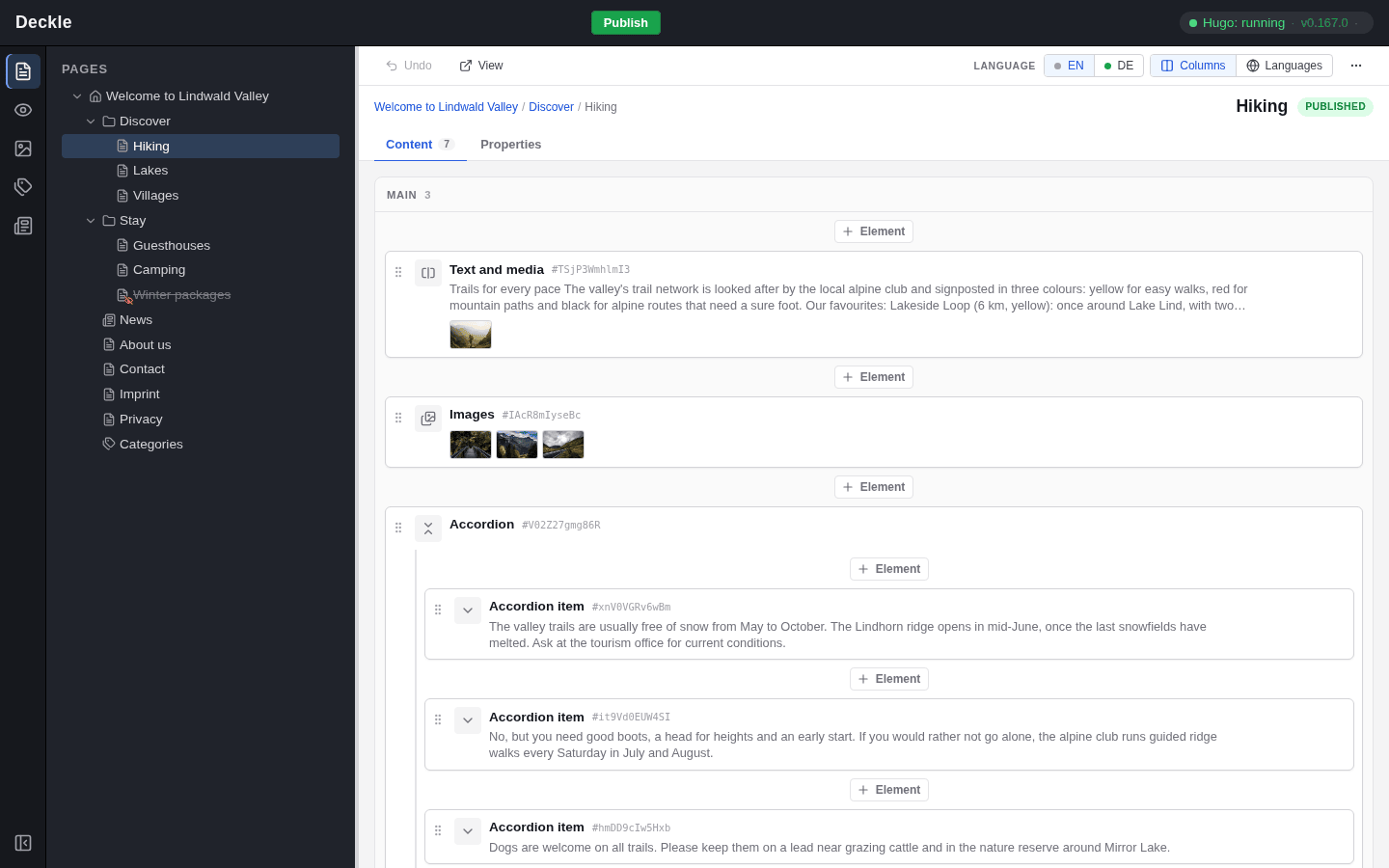
Every page of your website is a page in the editor, and every page can hold subpages. The page tree on the left of the Page module shows them all: its nesting is the structure of your site and of its addresses, and its order is the order in which your site lists the pages, for example in the navigation menu. This section explains how to work with the tree, how to change a page’s settings and how to keep a page off the live site until it is ready.
Page types
Each page has a page type. It decides which settings the page has, which elements it can hold and which pages may be created beneath it. The person who looks after your website sets up the page types, so your editor may offer different ones. A new site usually has these:
| Page type | Icon in the tree | What it is for |
|---|---|---|
| Home page | House | The start page of your site. There is exactly one, always at the top of the tree. |
| Page | Sheet of paper | An ordinary page with content elements. It can hold subpages too. |
| Section | Folder | A page that groups subpages. On most sites it lists its subpages and shows them as a drop-down in the header navigation. |
If your site has news or categories, their pages have their own icons, and their entries are managed in their own modules rather than in the page tree. See News and categories.