Managing news
Write, find and publish news items in the News module, and show the latest news on other pages.
News items are short articles with a date: events, announcements, tips. You write and manage them in the News module, which lists them newest first. This page applies if your site has the News feature.
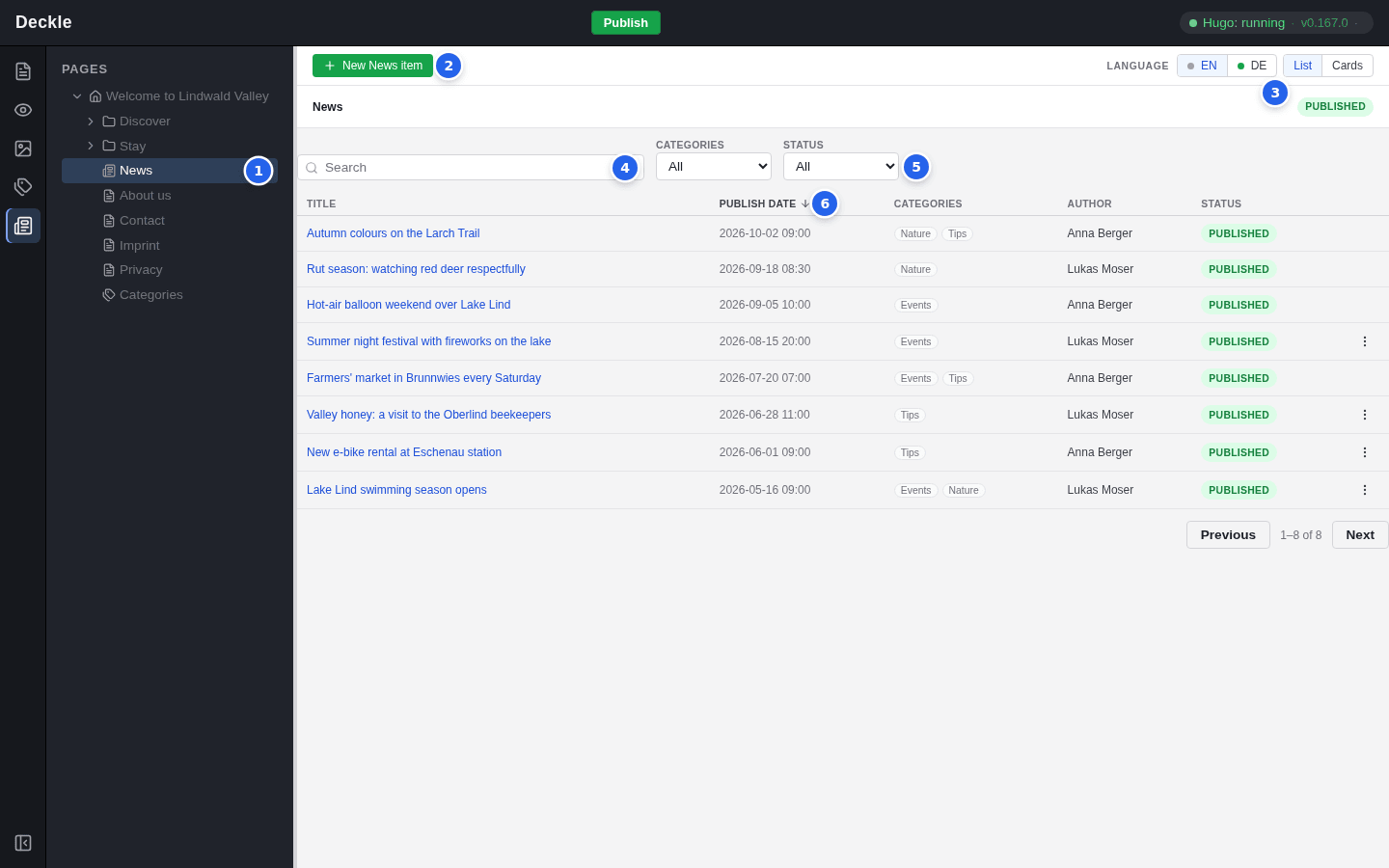
The News module
Click News (the newspaper icon) in the module bar, then select the News page in the page tree. Until you select one, the module shows “Select a News page in the tree”. News items themselves never appear in the page tree; they are listed here.
- The News page whose items are listed. If your site has several News pages, each has its own list.
- New News item creates an item on this News page.
- List and Cards switch between a table and cards with pictures.
- Search finds items by words in their title or teaser.
- The filters Categories and Status (All, Enabled, Disabled) narrow the list.
- Click a column heading (Title, Publish date, Author) to sort by it; click again to reverse the order. In the cards view, use the Sort menu instead.
The list shows 20 items at a time; use Previous and Next to page through it. The Status column shows whether an item is disabled and whether it is published.
Create a news item
Click New News item
Click New News item in the toolbar of the News module.
Fill in the dialog
Enter the Title. Publish date starts at the current date and time. Add a short Teaser (one paragraph, no line breaks) and, if you like, a Featured image. Click Create.
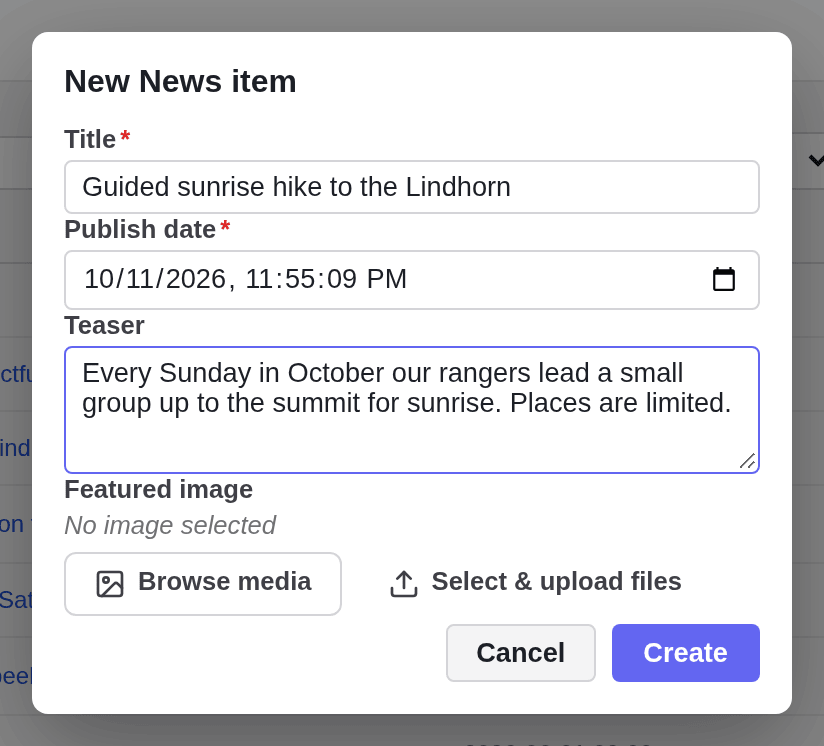
Complete the properties
The new item opens on its Properties tab. Add the Author and choose Categories, then click Save.
Write the text
Open the Content tab and add elements as on any page, see adding elements.
Enable the item and publish it
Open ⋯ and choose Enable page, then click Publish. See publishing.
Edit a news item
Click a title in the list. The item opens in the News module with two tabs: Properties for its settings and Content for its text.
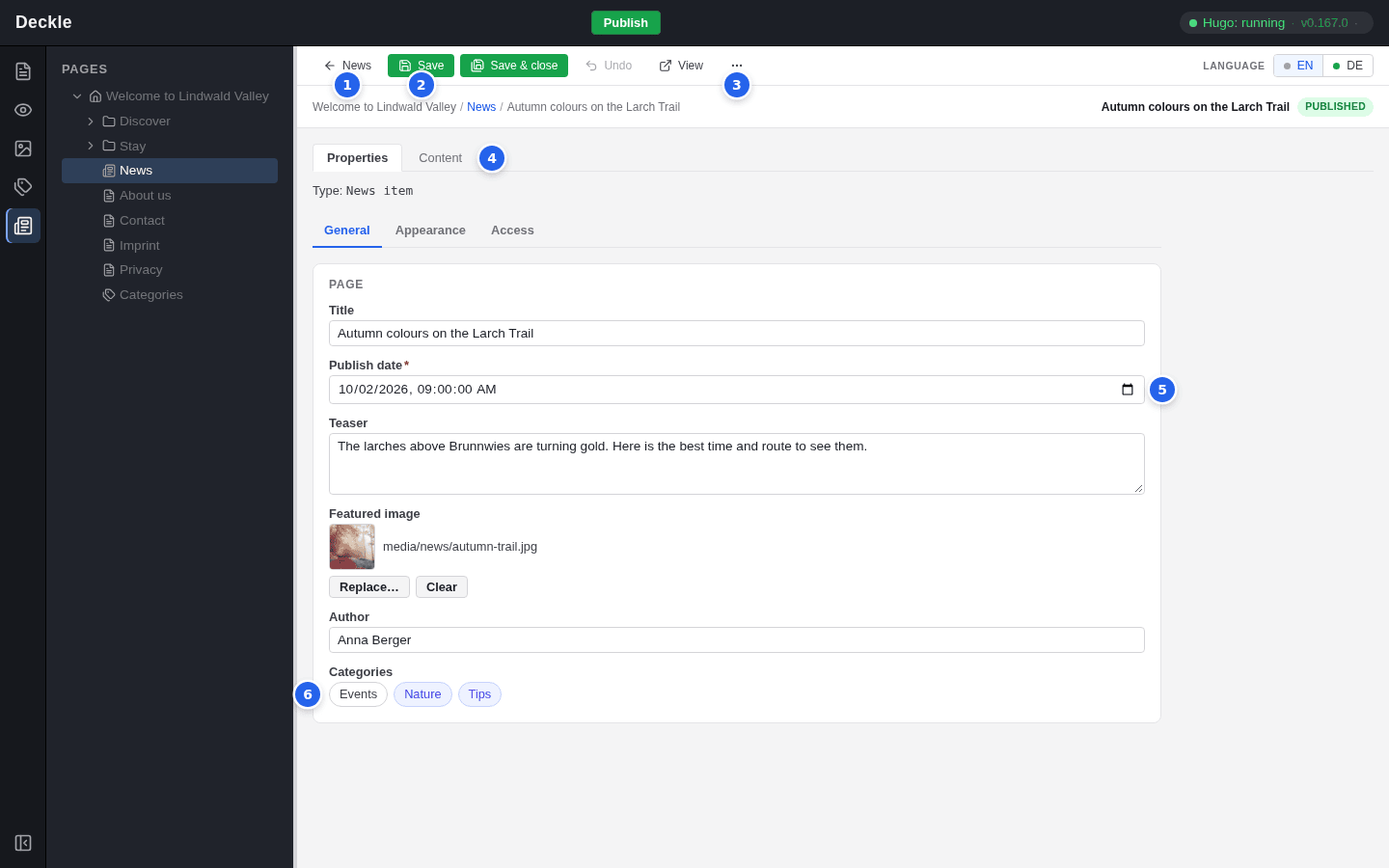
- News takes you back to the list.
- Save keeps your changes; Save & close saves and returns to the list. In this screen, save with the buttons: the keyboard shortcut for saving does not work here.
- ⋯ holds Rename…, Disable page or Enable page, and Delete….
- Content shows the item’s elements, edited exactly like the elements of a page.
- Publish date: the date and time shown with the item. It also decides the order.
- Categories: click a category to select it, click again to remove it. See categories.
The Teaser appears with the item in news lists, the Featured image on its card and on the item’s page, and the Author under its title. Undo, Discard… and View work as on a page, see changes and undo.
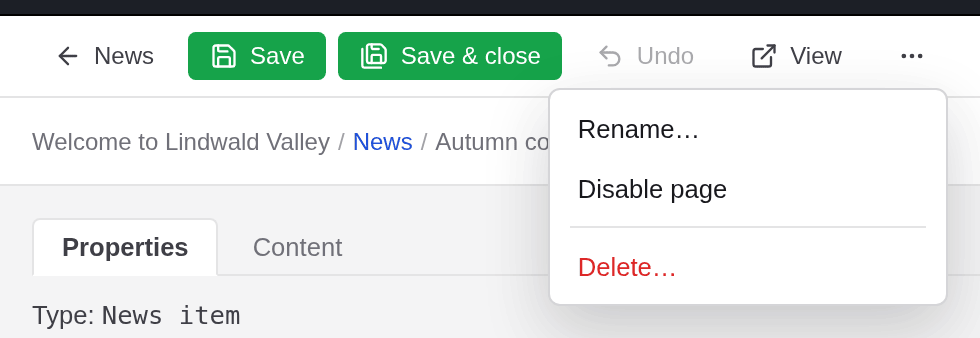
Rename… changes the title and the address of the item, like renaming a page. To change only the visible title, edit Title on the Properties tab and click Save.
Dates and order
News items are always sorted by their Publish date, newest first, in the editor and on the website. To move an item up or down, change its date. You cannot drag news items into another order.
News in the Page module
In the Page module, the News page shows a Manage in News button and the note “This page’s entries are managed in the News module”. If you reach a news item another way, for example through a link in the preview, its toolbar shows Open in News.

Latest news on other pages
To show the newest items on another page, for example on the home page, insert the Latest news element. In its form you choose the News section, the Number of items (5 unless you change it), optionally Categories (then only items in at least one of them appear) and whether to add an “All news” link. Only enabled items are shown. See the element reference.
To translate news items, see translating pages and elements.