Categories
Create, rename and delete categories in the Categories module, assign them to pages and see where visitors find them.
Categories group pages by topic, for example “Events” or “Tips”. You manage them in the Categories module and assign them to news items and to any other pages that have a categories field. On the website, every category gets a page that lists everything in it.
The Categories module
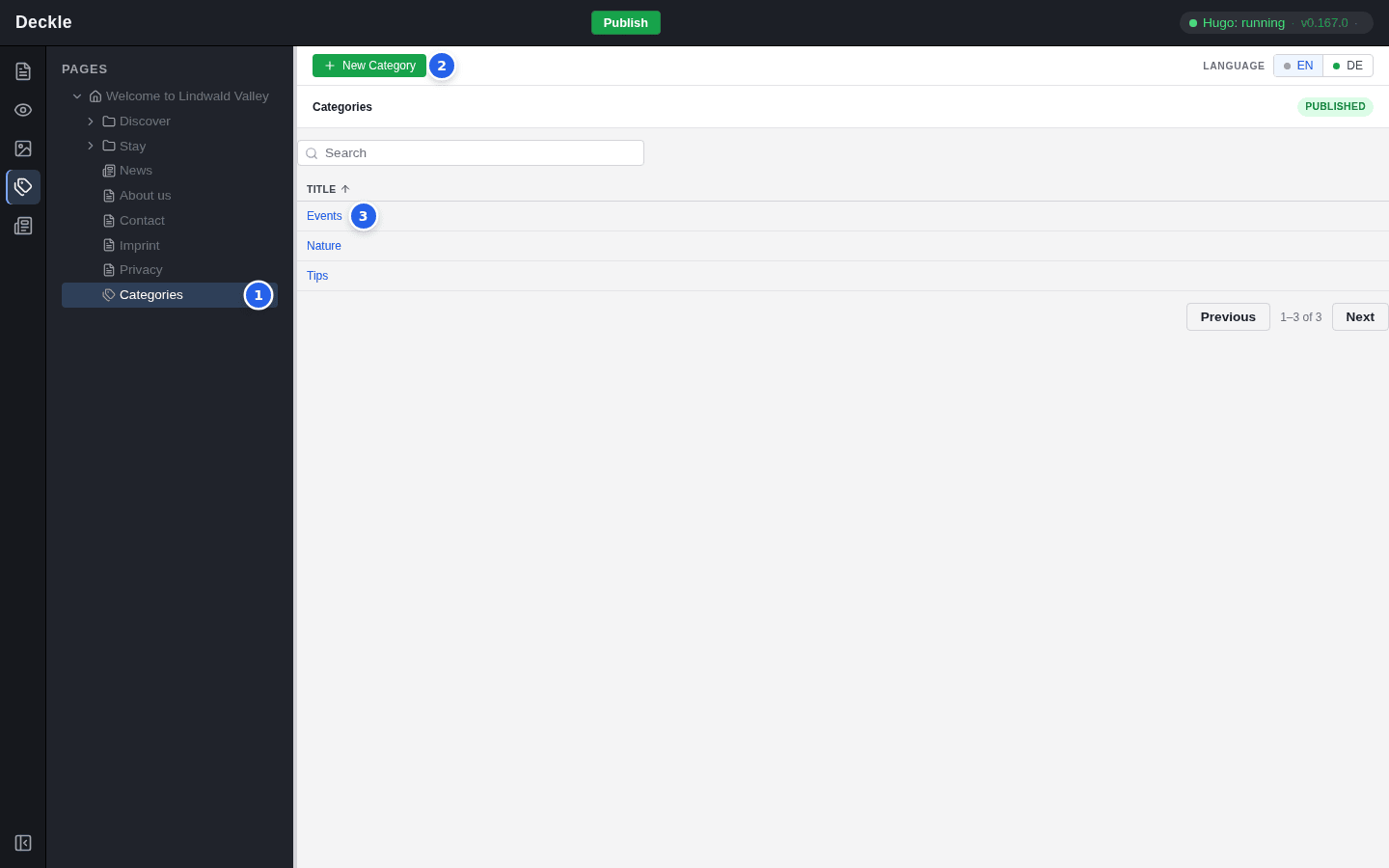
Click Categories (the tag icon) in the module bar and select the Categories page in the page tree (1). The categories themselves are not shown in the tree. New Category (2) creates a category; click a title (3) to open it. Use Search to find a category in a long list.
Create a category
Click New Category
Click New Category in the toolbar of the Categories module.
Enter the name
Type the name in Title and click Create.
A category has no Enabled switch: it is enabled from the start. It reaches the live site with your next Publish, and visitors see it in the category overview once at least one published page uses it.
Rename a category
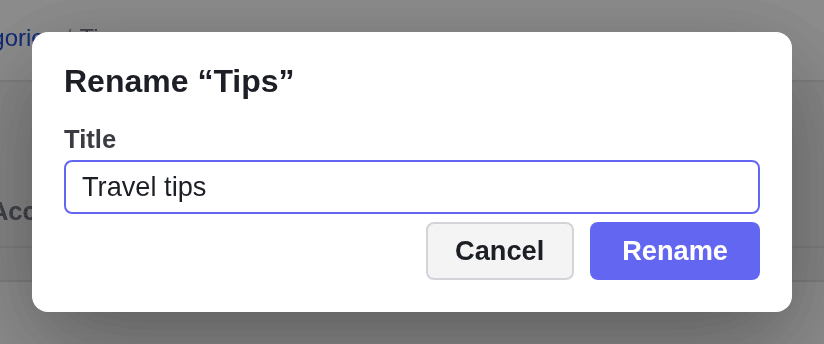
Renaming changes the name and the address of the category, for example from /categories/tips/ to /categories/travel-tips/. Every page and element that uses the category is updated automatically.
Open the category
Click its title in the list.
Choose Rename…
Open ⋯ in the toolbar and choose Rename….
Enter the new name
Type the new name and click Rename.
Delete a category
Open the category, then open ⋯ and choose Delete…. The dialog tells you how many pages use the category; it is removed from all of them, and its translations are deleted with it. A Latest news element that showed only this category then shows all news.
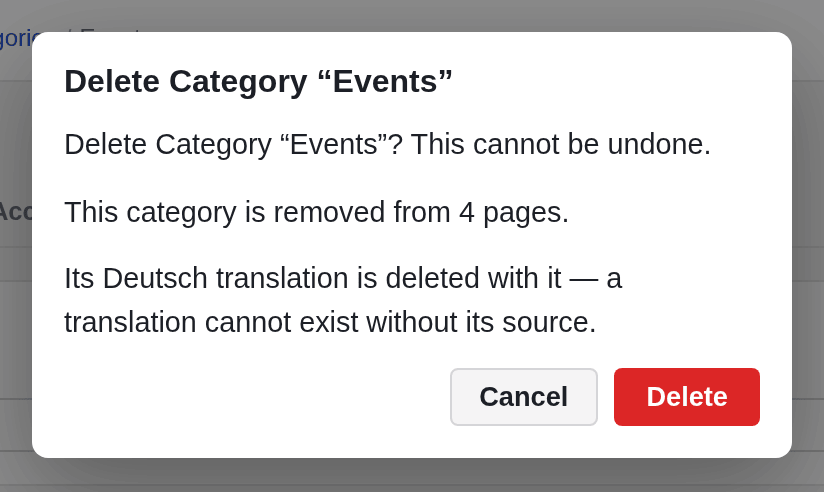
Deleting a category cannot be undone. Categories cannot be moved either: they always live on the Categories page.
Assign categories to a page
Pages get categories through their Categories field. On a new site, news items have it (and so does the Latest news element); the person who looks after your website can add it to other kinds of pages.
Open the page's properties
For a news item, open it in the News module; it opens on its Properties tab. For a page, open its Properties tab in the Page module.
Click the categories
Click a category to select it (it turns blue) and click it again to remove it. You can select several.

Click Save
What visitors see
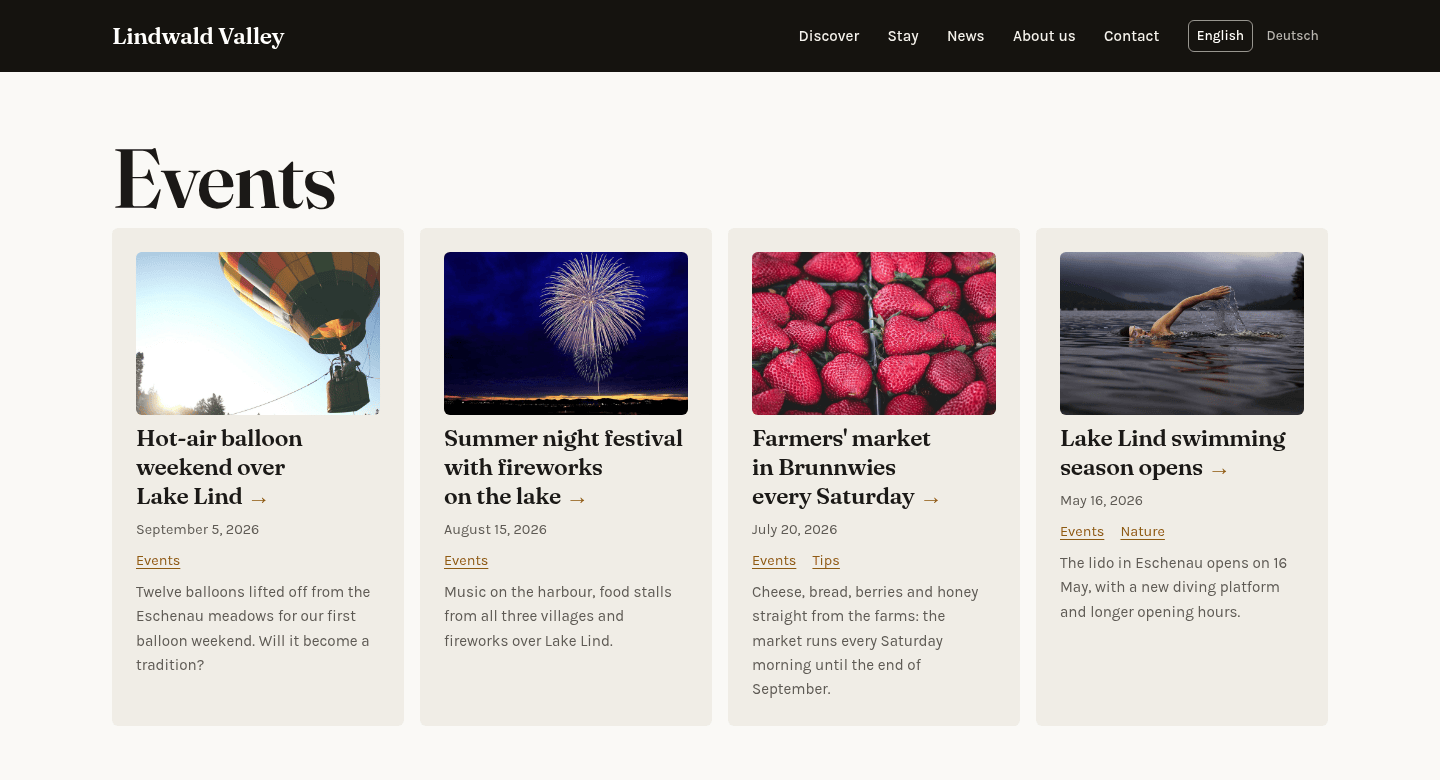
The category overview (/categories/) lists every category that has at least one published, enabled page, with the number of pages. A new category that no page uses yet is not listed. Each category has its own page that lists its pages, newest first.
Categories in other languages
On a multilingual site you translate a category’s name like a page: switch the language and choose Translate… in the Categories module. A category page exists in another language only when the category is translated there. A new translation starts disabled, so switch on Enabled on its Access tab and click Save. See translating pages and elements.