The media library
Upload images and PDF files, sort them into folders, and rename, move or delete them in the Media module.
The media library holds every image and PDF file of your site. Open it with Media (the picture icon) in the module bar on the left. Here you upload files, sort them into folders and see which pages use a file.
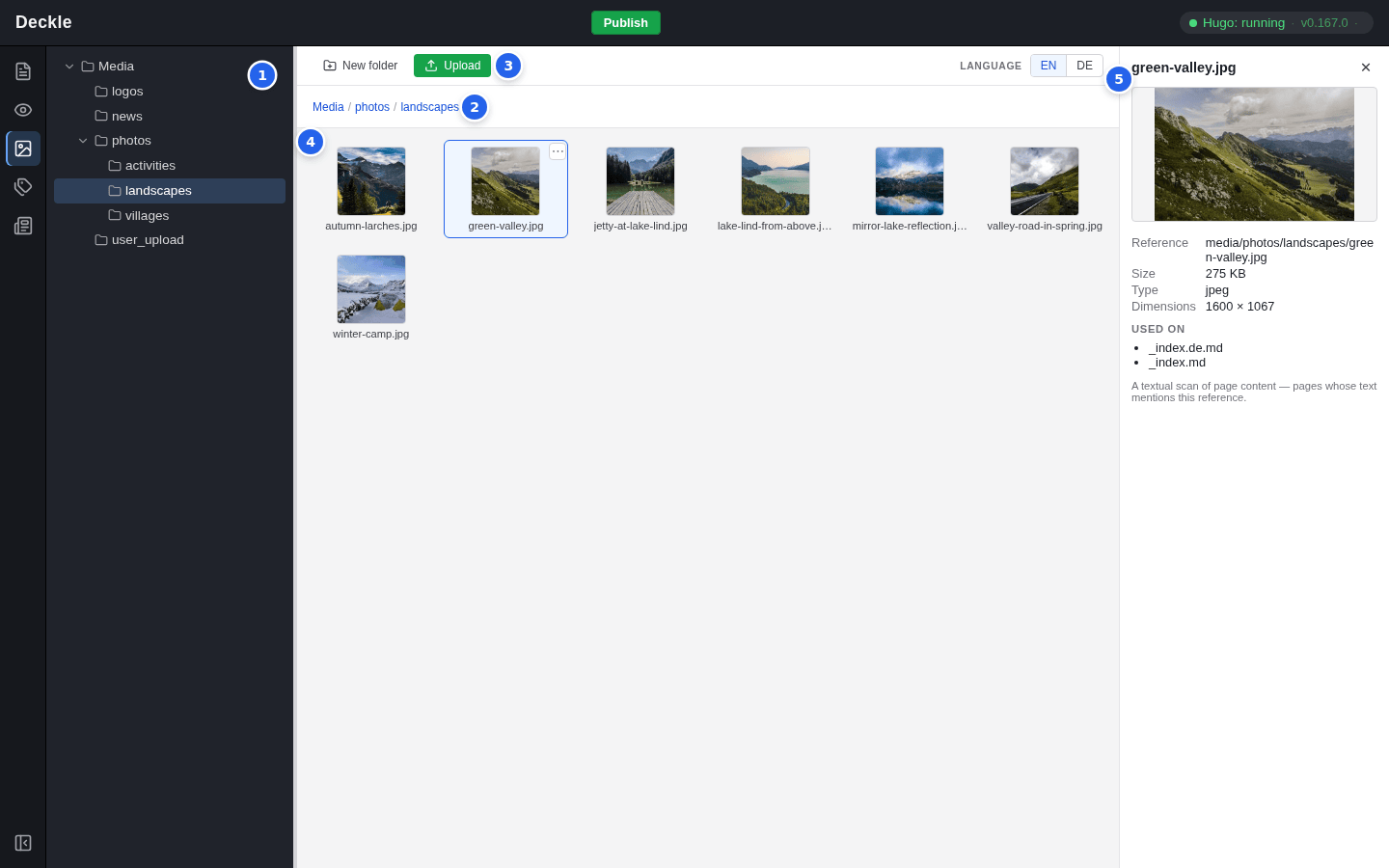
- The folder tree takes the place of the page tree. The top folder is called Media. Click a folder to open it.
- The breadcrumb shows where you are. Click a part of it to go back up.
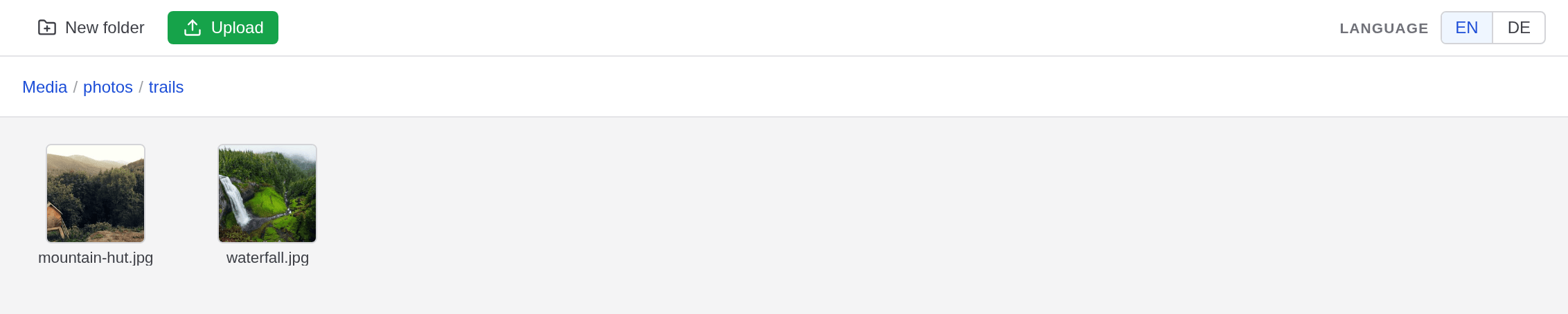
- New folder and Upload work in the folder that is open.
- The grid shows the subfolders first, then the files. PDF files appear as a “PDF” tile.
- Click a file to see its details. Close them with ✕ or Escape.
The details of a file
| Detail | What it tells you |
|---|---|
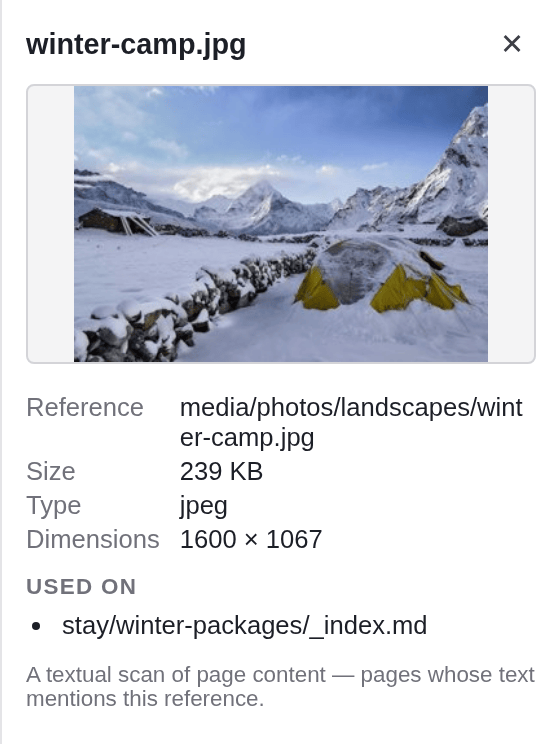
| Reference | The file’s place in the library, for example media/photos/landscapes/winter-camp.jpg. |
| Size, Type, Dimensions | The file size, the file type and, for images, the width and height in pixels. |
| Used on | The pages that use the file, listed by their file names: stay/winter-packages/_index.md is the page Winter packages under Stay, and a name with a language code, such as _index.de.md, is a translation. “It appears unused.” means no page uses it. |
There is no list of all unused files: check a file’s details before you delete it.
Uploading files
Open the folder
Click the folder the files belong in. If it does not exist yet, create it first (see Folders below).
Click Upload and choose the files
You can choose several files at once. Or drag files from your computer straight onto the grid.
Check the result
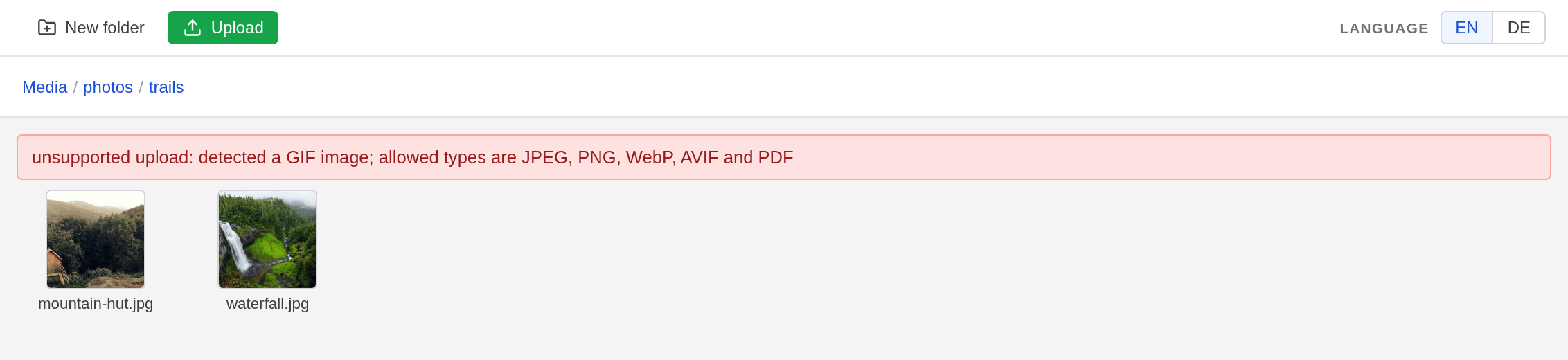
The new files appear in the grid. If a file is refused, a red message above the grid says why.
The editor checks and prepares every upload:
| What | Rule |
|---|---|
| File types | JPEG, PNG, WebP and AVIF images, and PDF documents. The editor looks at the content of the file, not at its name. |
| Not accepted | Among others SVG, GIF, HEIC (photos from iPhones), videos, Word and other Office files, ZIP archives. |
| Size | At most 15 MB per file. |
| Large images | The longer side is reduced to 2560 pixels. Smaller images are never enlarged. |
| Orientation | Photos are turned upright, as the camera recorded them. |
| Hidden data | Camera details, the GPS location and colour profiles are removed. |
| Format | Images are saved as JPEG, or as PNG when they have transparent parts. WebP and AVIF files therefore arrive as .jpg or .png. PDF files are stored unchanged. |
| File names | Lower case, spaces become hyphens, ä, ö, ü and ß become ae, oe, ue and ss, other special characters are dropped. “Lake Lind (Sommer) Übersicht.webp” becomes lake-lind-sommer-uebersicht.jpg. If the name exists already, “-2” is added: nothing is ever overwritten. |
Folders
Click New folder to create a folder inside the open one. Folder names may contain lower-case letters, digits and single hyphens, for example “team-photos”.
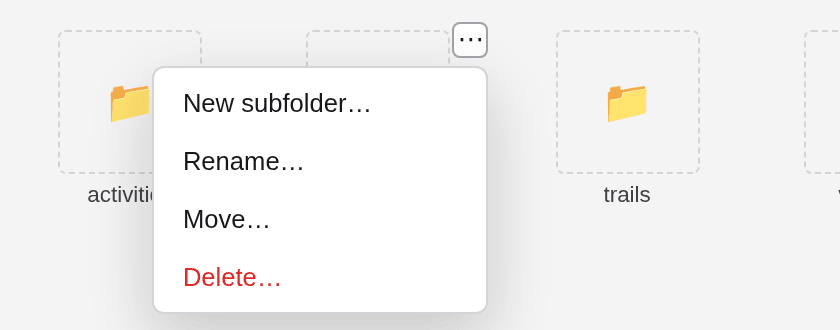
Each folder has a menu: point at it in the grid or in the folder tree and click ⋯, or right-click it. It offers New subfolder…, Rename…, Move… and Delete…. The top folder Media has only New subfolder… in its menu.
When you rename or move a folder, the pages that use files inside it are updated. When you delete a folder, the dialog lists which files will be deleted and which are still used by pages: those are kept, together with their folders.
Renaming and moving files
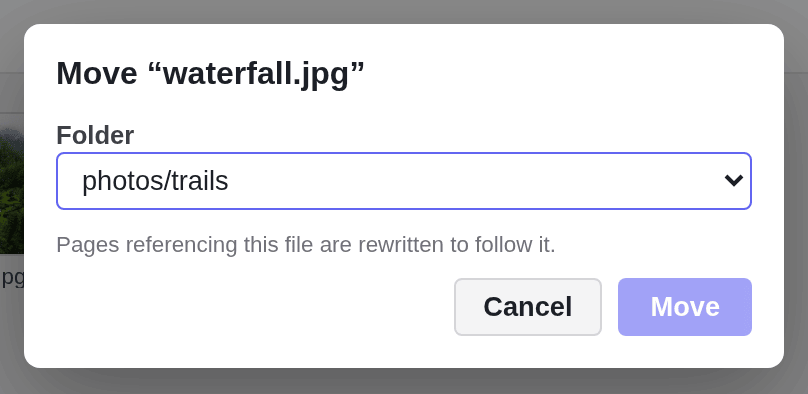
Open a file’s menu the same way, with ⋯ or a right-click. It offers the commands Rename…, Move… and Delete…, which work like this:
- Rename… asks for the new name without the extension; the extension stays.
- Move… lets you pick the target folder, or “Media (root)” for the top folder.
- You can also drag a file onto a folder in the grid or in the folder tree to move it.
Pages that use the file in an image field, a link field or their settings follow the new name or folder automatically.
Deleting files
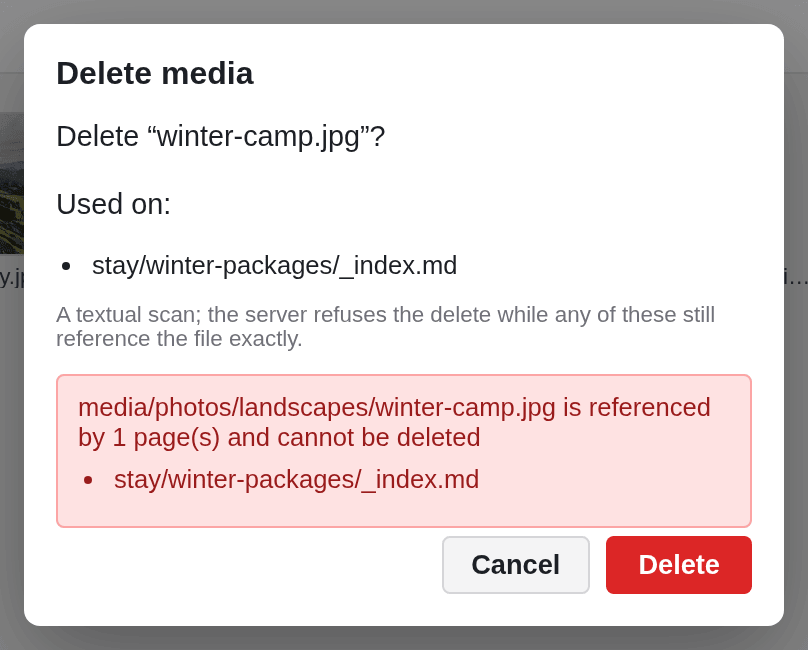
Choose Delete… in the file’s menu. The dialog first checks which pages use the file: it lists them under Used on: or says “It appears unused.” Click Delete to delete an unused file.
A file that a page still uses cannot be deleted. The dialog then shows a red message such as “… is referenced by 1 page(s) and cannot be deleted”. Remove the file from those pages first, or choose another image there, and then delete it.