Choosing images
Pick or upload images in element forms, build galleries with several images, write good alternative text and link to PDF files.
Elements that show pictures have image fields in their form. This page shows how to pick an image from the media library or upload a new one, how to fill a gallery with several images, how to write good alternative text and how to link to a PDF file.
Image fields
An empty image field shows “No image selected” and two buttons:
- Browse media opens the file browser, where you pick an image from the media library.
- Select & upload files uploads an image from your computer and puts it straight into the field. The file is stored in the library folder user_upload.

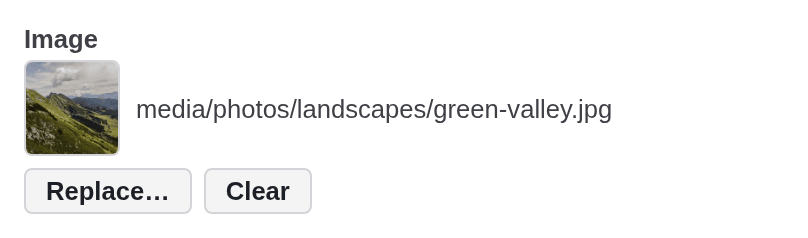
Once an image is set, the field shows a thumbnail and the image’s place in the library. Replace… opens the file browser to pick another image, Clear empties the field. If the image is required, an empty field is refused with “this field is required”. Like every change in a form, the new image counts only after you click Save.
The file browser
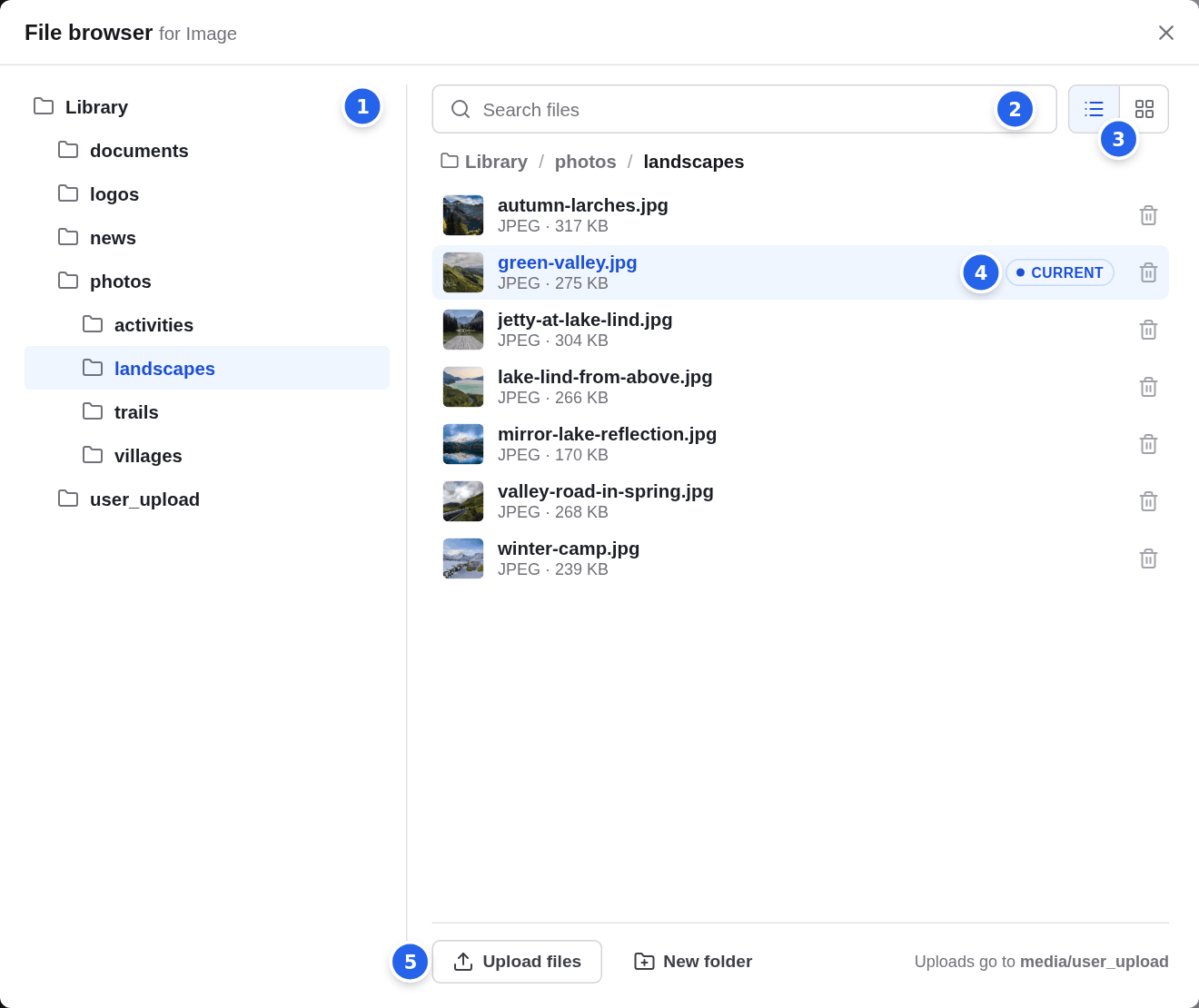
- The folders of the media library. The top folder is called Library here. Click a folder to see its files.
- Search files finds files by name in the open folder.
- Switch between a List and Tiles with bigger previews.
- The image that is in the field right now is marked Current.
- Upload files uploads from your computer. Uploads go to the folder user_upload, and the browser then shows that folder. You can also drop files onto the browser.
Click a file to use it: it is put into the field and the file browser closes. Close the browser with ✕ or Escape to keep the field as it is. The bin icon next to a file deletes it from the library, with the same checks as in the media library.
Galleries with several images
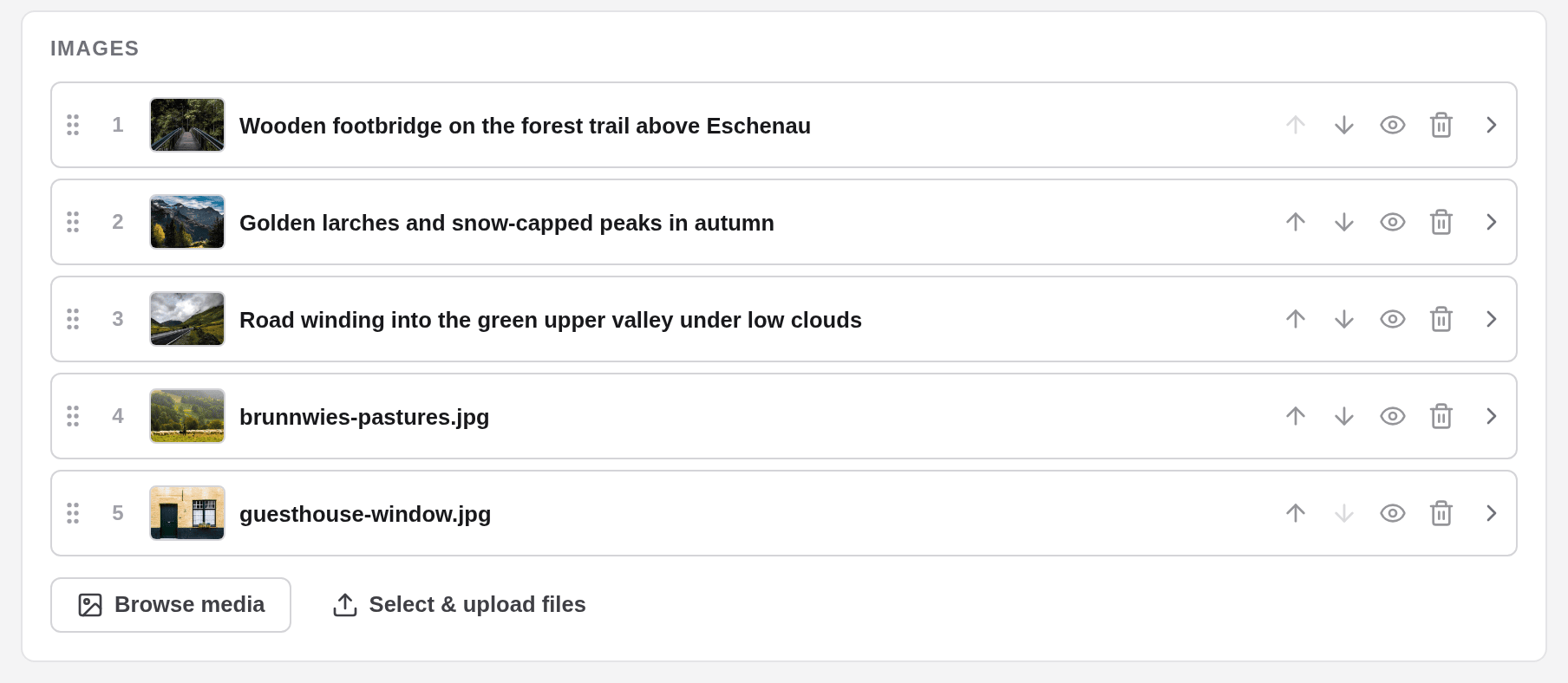
Some elements show several images, for example Images (a grid of pictures) or Text and media. Their form lists the images as rows.
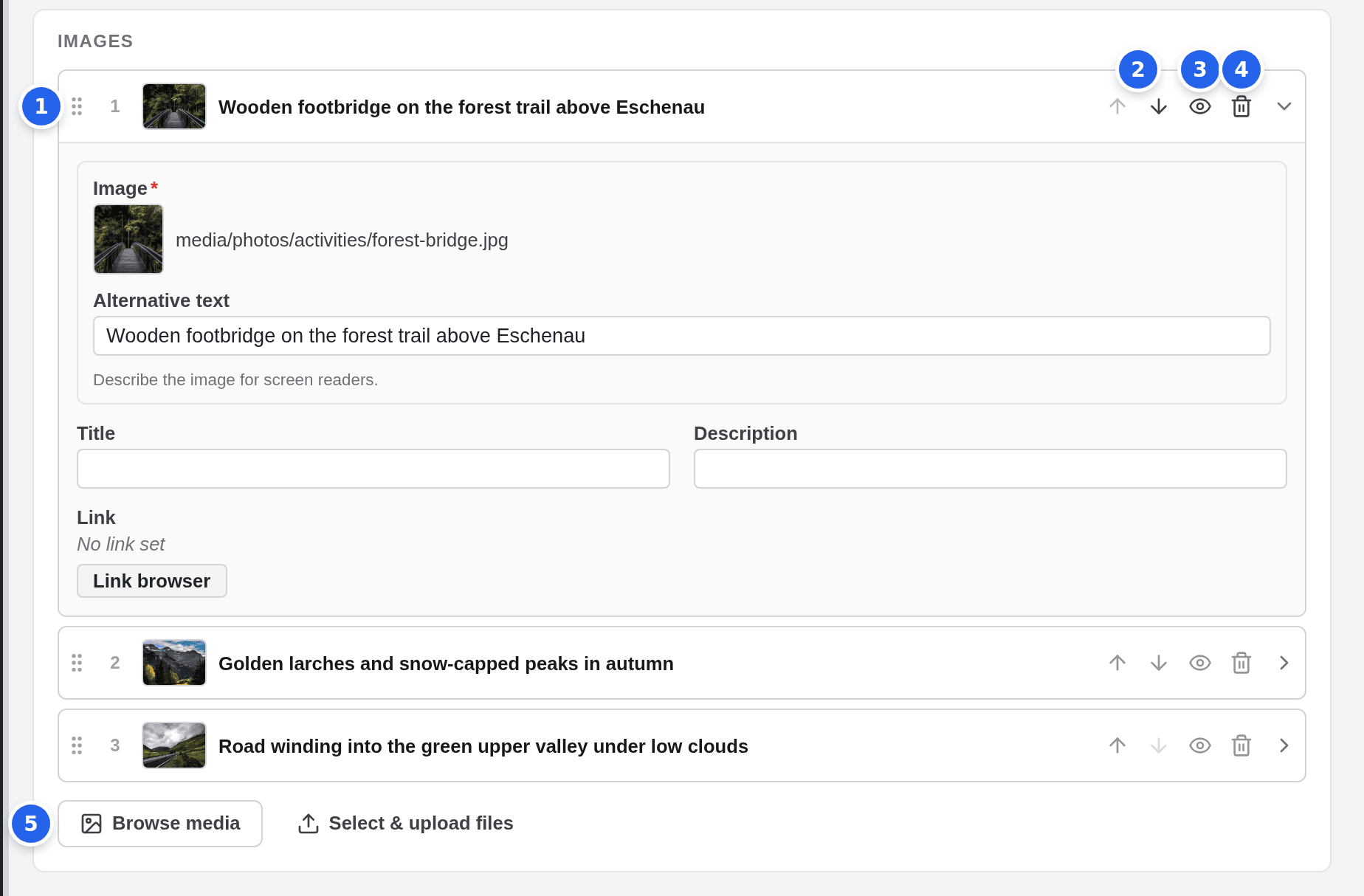
- Drag a row by its handle to change the order.
- Or use the arrows (Move up, Move down).
- The eye (Disable item) hides one image on the site without removing it.
- The bin (Remove item) removes the row. It does not ask first.
- Browse media and Select & upload files add new rows.
Click a row’s title to open or close it. An open row shows the image and its fields, such as Alternative text, Title, Description and Link. All changes to the rows count only when you click Save; if you close the form without saving, the editor asks whether to discard your changes.
Adding several images at once
Click Browse media below the rows
The file browser opens. In this mode every file has a checkbox.
Tick the images you want
You can tick files in several folders. The bottom line counts them; Reset clears the selection.
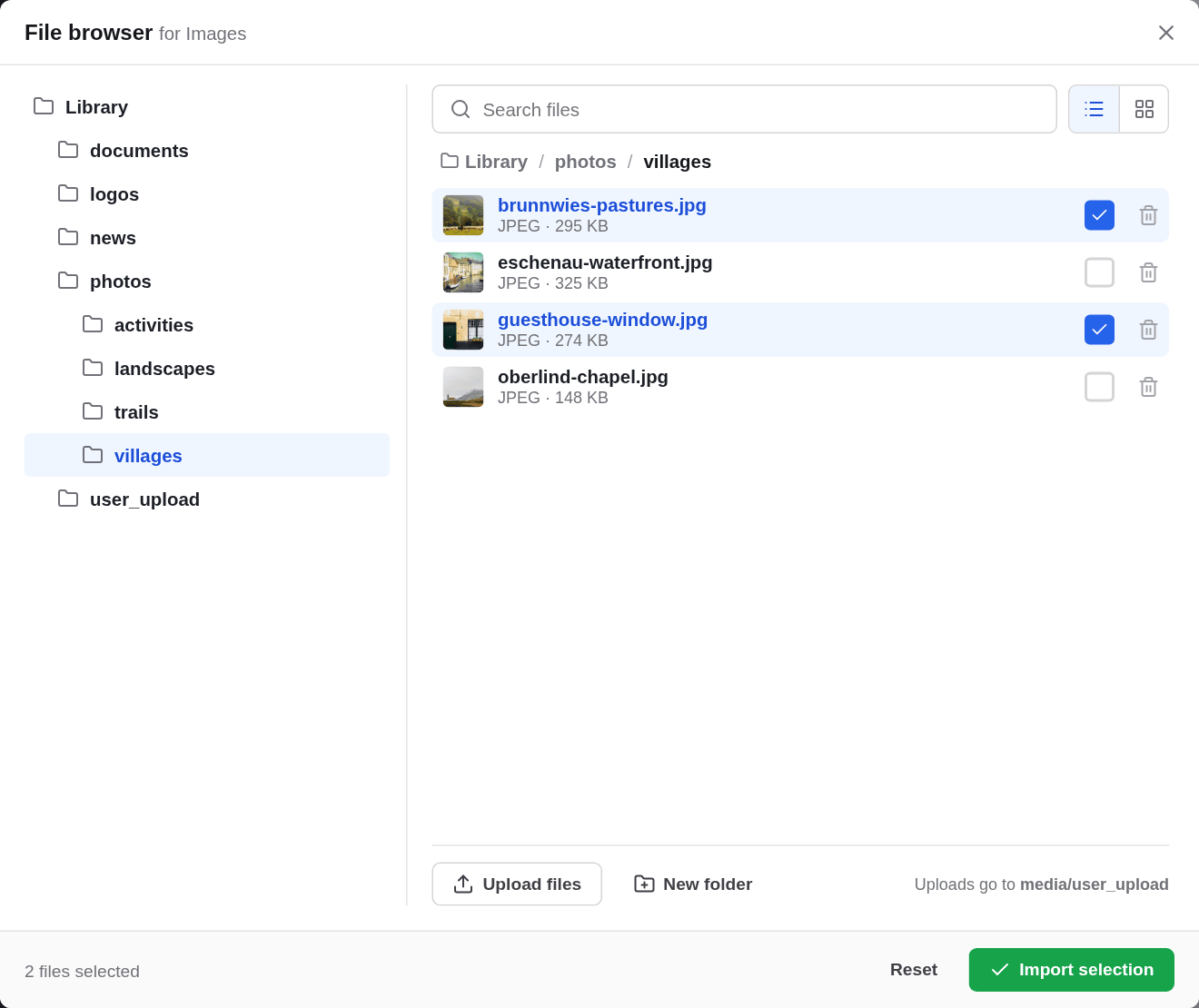
Click Import selection
Each image becomes a new row at the end. Closing the browser instead imports nothing.
Describe the new images
A new row shows the file name until you fill in its Alternative text. Open each new row and describe the image.
Click Save
Alternative text
The Alternative text next to an image describes it in words. Screen readers read it aloud to people who cannot see the image, and browsers show it when the image does not load. The hint under the field says it: “Describe the image for screen readers.”
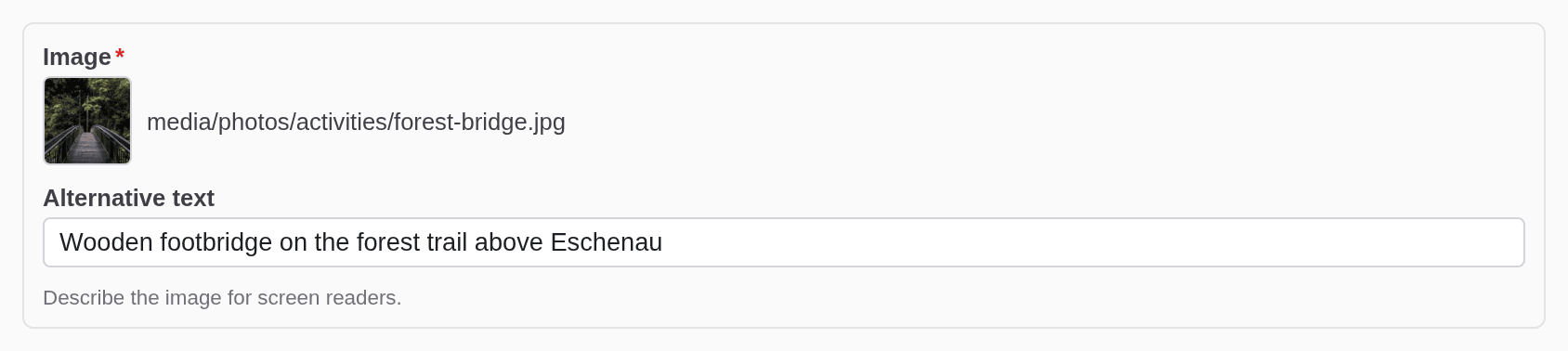
Good alternative text:
- says what the image shows in this context, in one short sentence;
- names what matters: people, places, what is happening, text in the image;
- does not start with “Image of” or “Photo of”: screen readers announce that already;
- does not repeat the caption or the text right next to the image.
| Image | Weak | Better |
|---|---|---|
| A bridge on a hiking trail | forest-bridge.jpg | Wooden footbridge on the forest trail above Eschenau |
| The team in front of the office | Team photo | Our five guides in front of the tourism office in Eschenau |
| A chart of visitor numbers | Chart | Visitor numbers rose from 12,000 in 2024 to 15,000 in 2026 |
| A poster with opening hours | Poster | Opening hours: Monday to Friday, 9 am to 5 pm |
Leave the field empty only for images that are pure decoration and add no information, such as a background texture. An empty alternative text tells screen readers to skip the image. On a standard site the field is optional, but the person who looks after your website can make it required. On a multilingual site, write the alternative text in each language.
Linking to a PDF file
To link a PDF, for example a trail map or a price list, use the File tab of the Link browser. You open the Link browser from a link field or, in rich text, with the Link button; see Rich text and links.
Open the Link browser
Click Link browser in a link field, or select a few words in a text and click Link.
Click the File tab
The tab shows the folders and files of the media library. If you want the link to open in a new browser window, switch on Open in new window first.
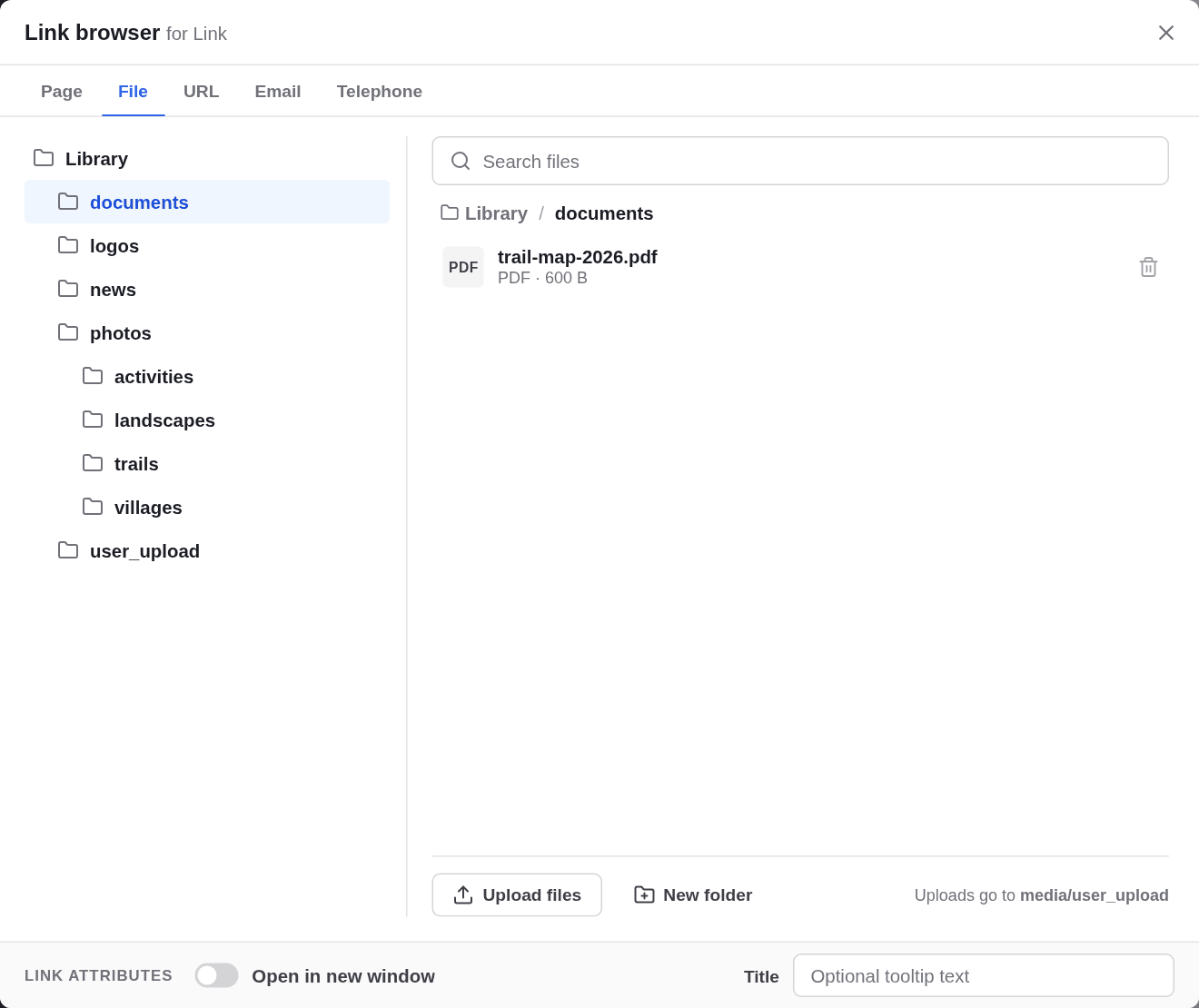
Click the PDF file
The link is set at once and the Link browser closes. To link a new file, click Upload files: the uploaded file is linked directly and stored in user_upload.
A link to a file in a link field follows the file when you rename or move it. A link inside a text does not; see The media library.