Your first change
A complete walkthrough: open a page, change a sentence, save it, check it in the preview and publish it.
This walkthrough takes you through one complete change, from opening a page to seeing the change on your live website. The screenshots change one sentence on the Hiking page of the demo website; do the same with a page of your own. If the screen is new to you, read the editor at a glance first.
Change a sentence and publish it
Open the page in the page tree
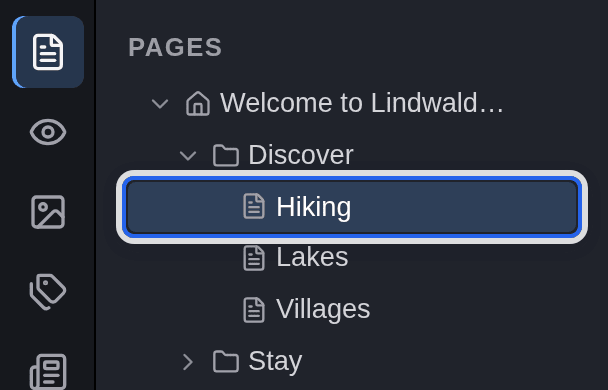
Click Page in the module bar (the document icon at the top). Then click the page you want to change in the page tree. If it is a subpage, click the small arrow next to its parent page to show it. Here the Hiking page below Discover is selected.
Open the element
On the Content tab, the page’s content elements are listed as cards. Click the card with the text you want to change, or the pencil that appears when you point at the card. The element’s form opens.

Change the text
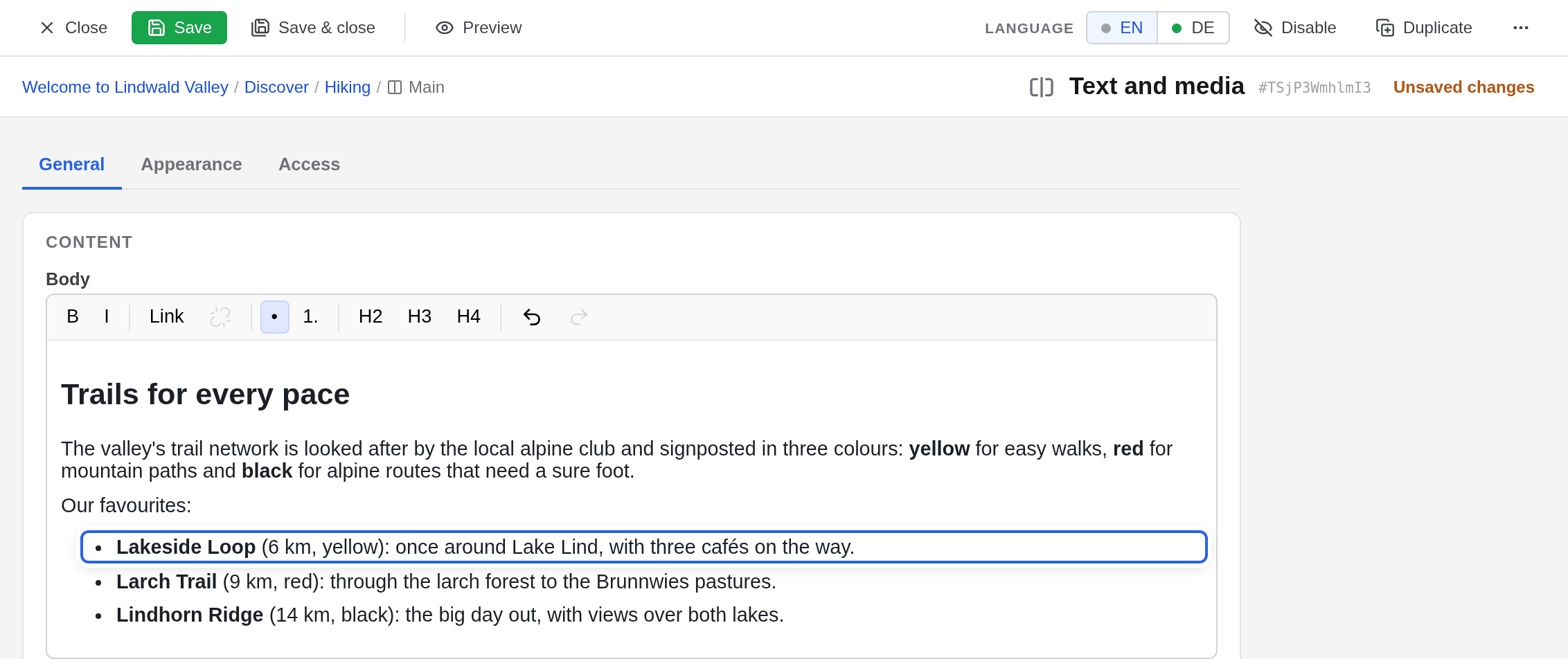
Click into the text and change it as you would in a word processor. Here two cafés becomes three cafés. Until you save, the form shows Unsaved changes at the top right.
Click Save & close
The change is saved and you are back on the page. Next to the title it now says modified, a blue dot marks the page in the page tree, and the top bar shows 1 change: a saved change that is not on your live website yet.

Check the change in the preview
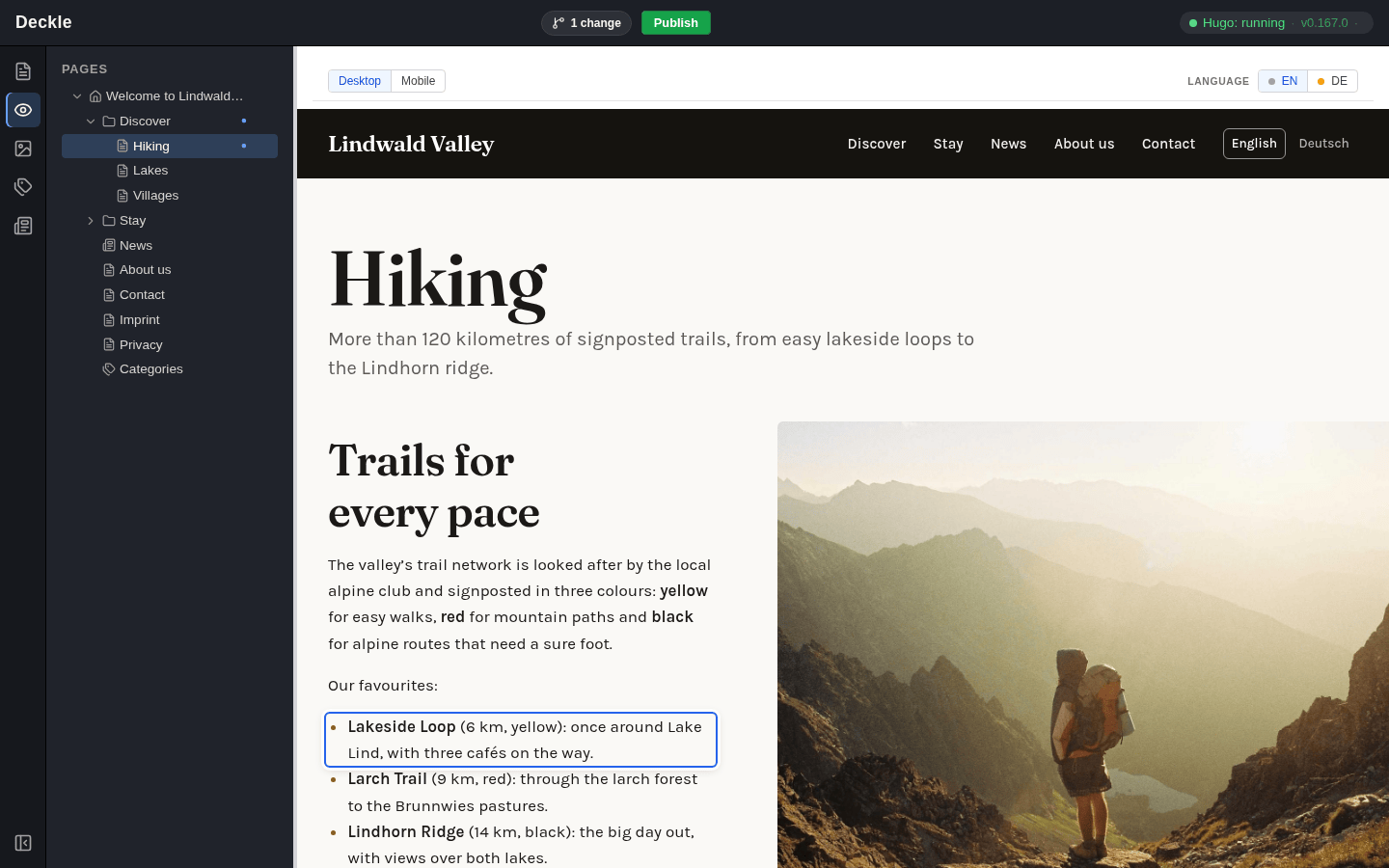
Click View (the eye icon) in the module bar. The preview shows the page as visitors will see it after publishing, including your change. Visitors of your live website do not see it yet.
Click Publish
Click the green Publish button in the top bar. The editor first builds your whole website as a test, which usually takes a few seconds, and shows Building… meanwhile.
Wait for the confirmation
When the editor shows a green Live ✓, your change is on your live website. The counter disappears, and the page is marked published again.

Where to go next
Every change follows this pattern: open, change, save, check, publish. You do not have to publish after every single change: collect as many as you like and publish them together.
To learn more, read how to add new elements, format text and add links, create and arrange pages and choose images. If something went wrong, Undo and Discard take changes back before anyone sees them.