Moving, copying and deleting
Drag elements to another place, move them up or down, duplicate, cut, copy and paste them, delete them, and undo a step that went wrong.
You can drag an element to another place, move it up or down, duplicate it, cut or copy it to another page and delete it. These actions take effect immediately, without a Save, and most of them do not ask first. If something goes wrong, Undo brings back the last step.
Drag and drop
Grab the element by its grip
Point at the dotted grip on the left of the card and hold the mouse button down.
Drag it to the new place
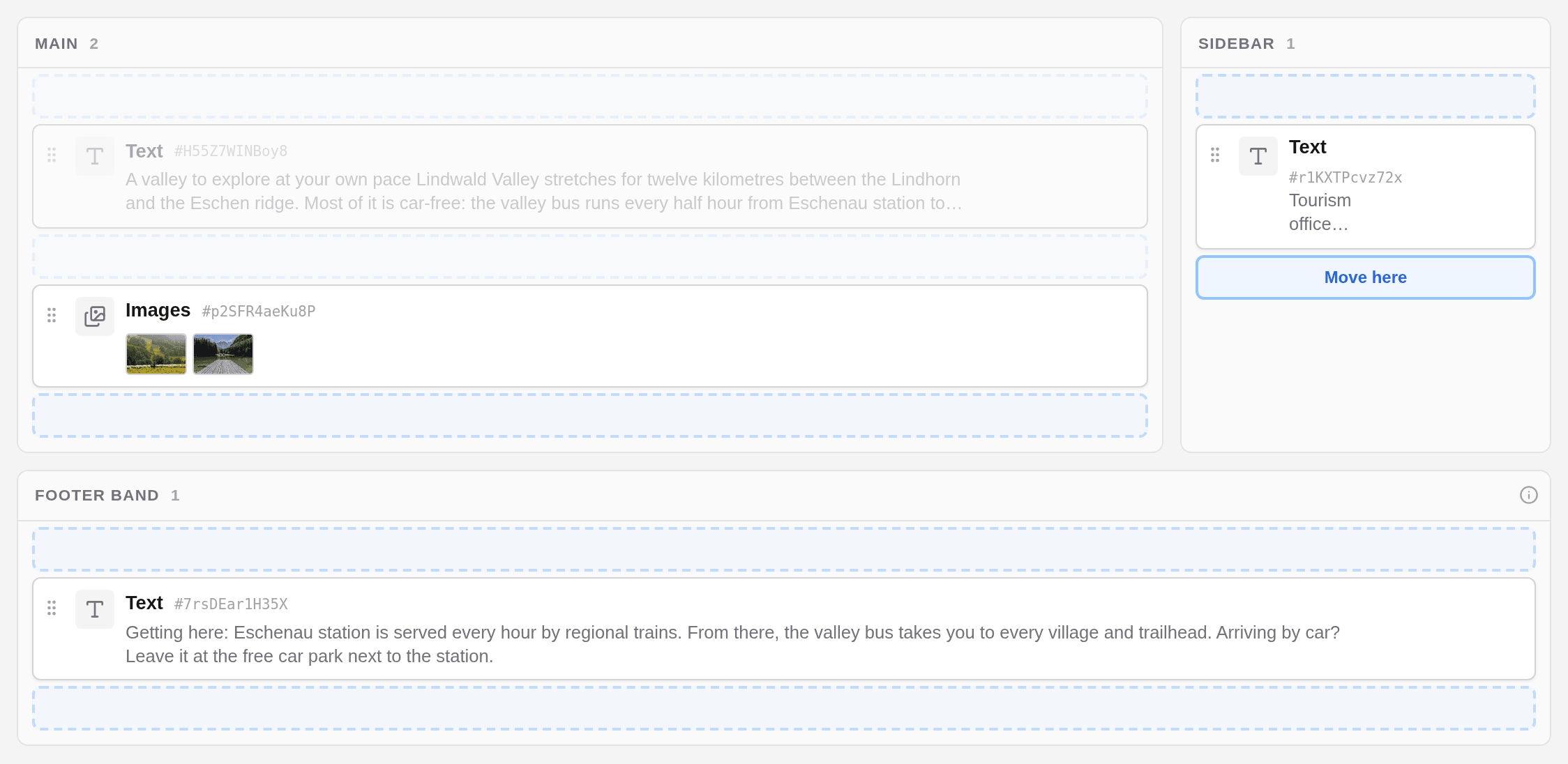
While you drag, every + Element row turns into a dashed drop zone. A zone where the element may go says Move here when you point at it. Zones where it may not go stay grey.
Release the mouse button
The element moves at once. There is no confirmation.
You can drop an element in another area of the page, also in an empty one, and into or out of an element that holds others, such as an Accordion, as long as it is allowed there (see Adding an element). Dropping an element in an area with inherited content gives this page its own content there (see Layouts and columns). If the editor refuses a move, a red message explains why and the page shows its previous state again.
Move up and Move down
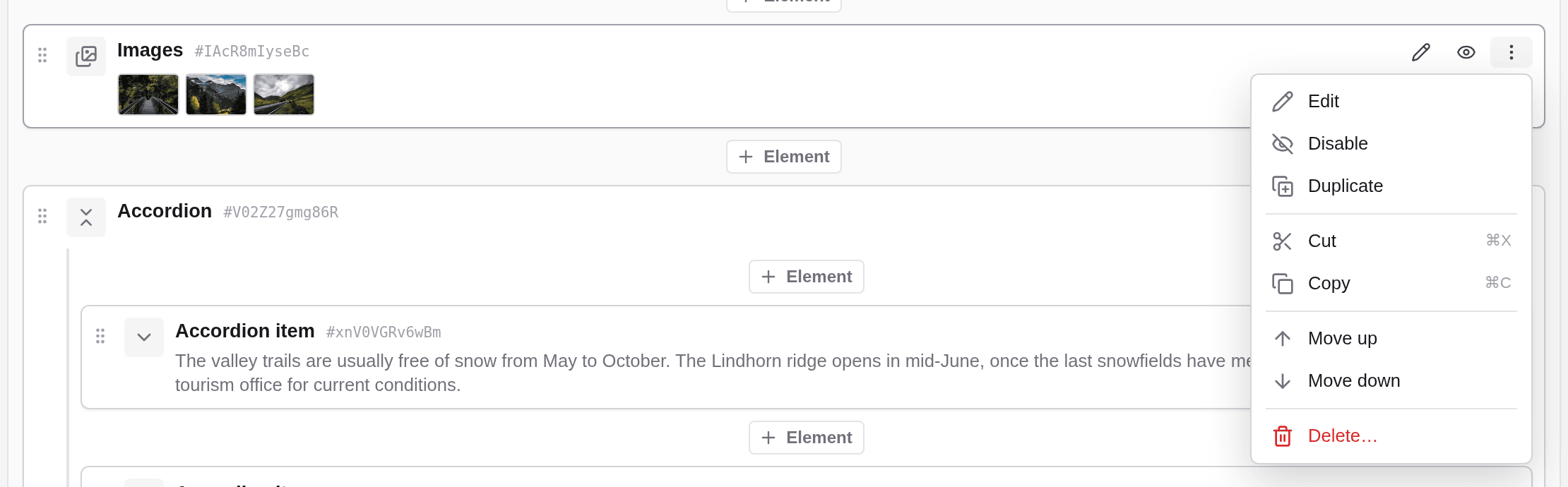
⋮ and Move up or Move down move an element by one place. The element stays in its list: it never leaves its area or the element it is in, and at the top or bottom of a list the entry is greyed out. To move an element to another area or another page, drag it or cut and paste it.
Duplicate
⋮ and Duplicate, or Duplicate in the element’s form, put a copy with the same content right after the original. Then change the copy as you like.
Cut, copy and paste
Choose Cut or Copy
Click ⋮ on the card and choose Cut or Copy, or use the ⋯ menu of the element’s form. When a card has the keyboard focus, Ctrl+X and Ctrl+C work too (Cmd on a Mac).
Go to the place where the element should go
This can be the same page or any other page in the same language.
Click Paste
A bar at the top of the content area shows which element is on the clipboard, and a Paste button appears next to every + Element where the element is allowed. Cut moves the element there; Copy inserts a duplicate.
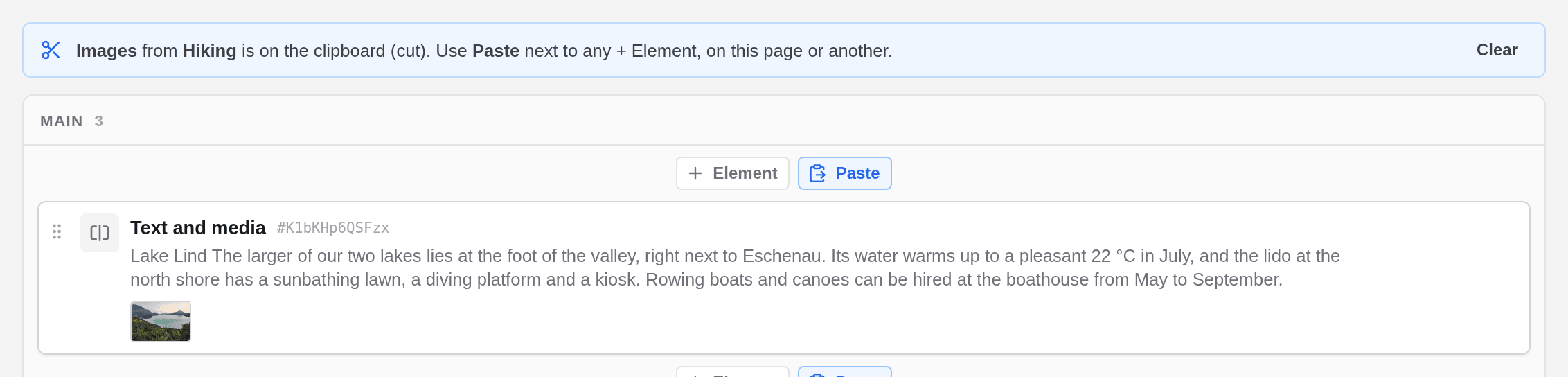
The clipboard holds one element at a time; a new cut or copy replaces it. It is emptied after one paste, so copy the element again if you want to paste it a second time. Clear in the bar empties the clipboard without pasting. A cut element stays where it is, shown dashed, until you paste it.
When a move to another page has side effects
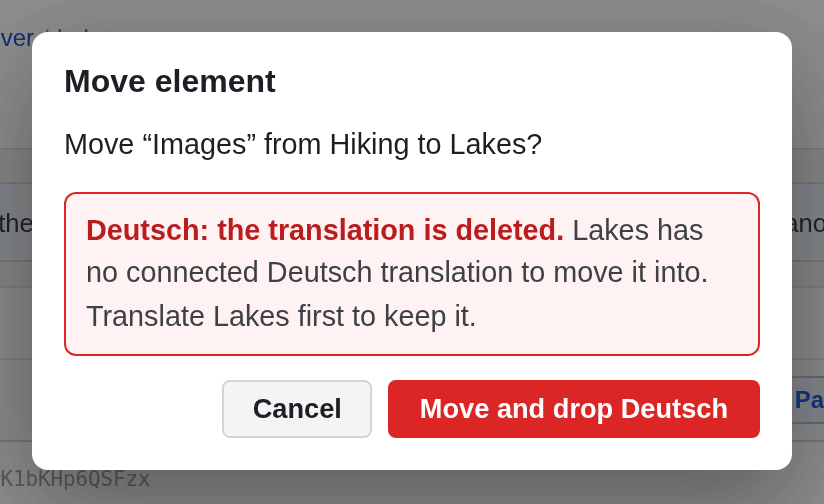
If you paste a cut element on another page and that would break something, the editor asks first in a Move element dialog. It lists, for example:
- other pages that link to the element on its old page, because those links will stop working;
- images that are stored with the old page and will not show on the new one;
- translations that cannot move along because the new page has no connected translation in that language. They are deleted, which the button says, for example Move and drop Deutsch.
Click Cancel to leave everything as it is.
Delete an element
Choose Delete
Click ⋮ on the card and choose Delete…, or choose Delete… in the ⋯ menu of the element’s form.
Read what goes with it
The dialog says what is deleted along with the element: everything inside it, such as the items of an Accordion, and its translations. It also lists other pages that link to the element; those links stop working.
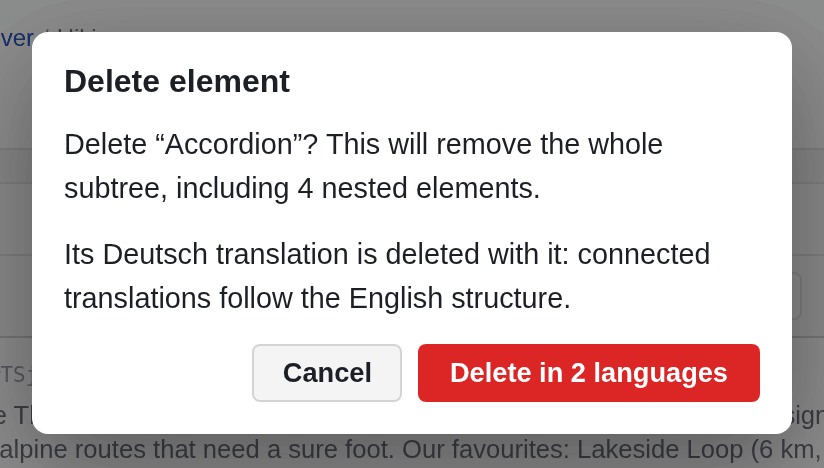
Click Delete
On a site with several languages the button says so, for example Delete in 2 languages.