Layouts and columns
Choose a layout with several areas for a page, work with content inherited from the page above, and tidy up content a new layout leaves unused.
A page can be divided into several areas, for example a main column, a sidebar and a band across the bottom. Which areas a page has depends on its layout, which you choose in the page’s properties. This page explains layouts, content that a page takes over from the page above it, and what happens to content when you switch layouts.
Layouts and areas
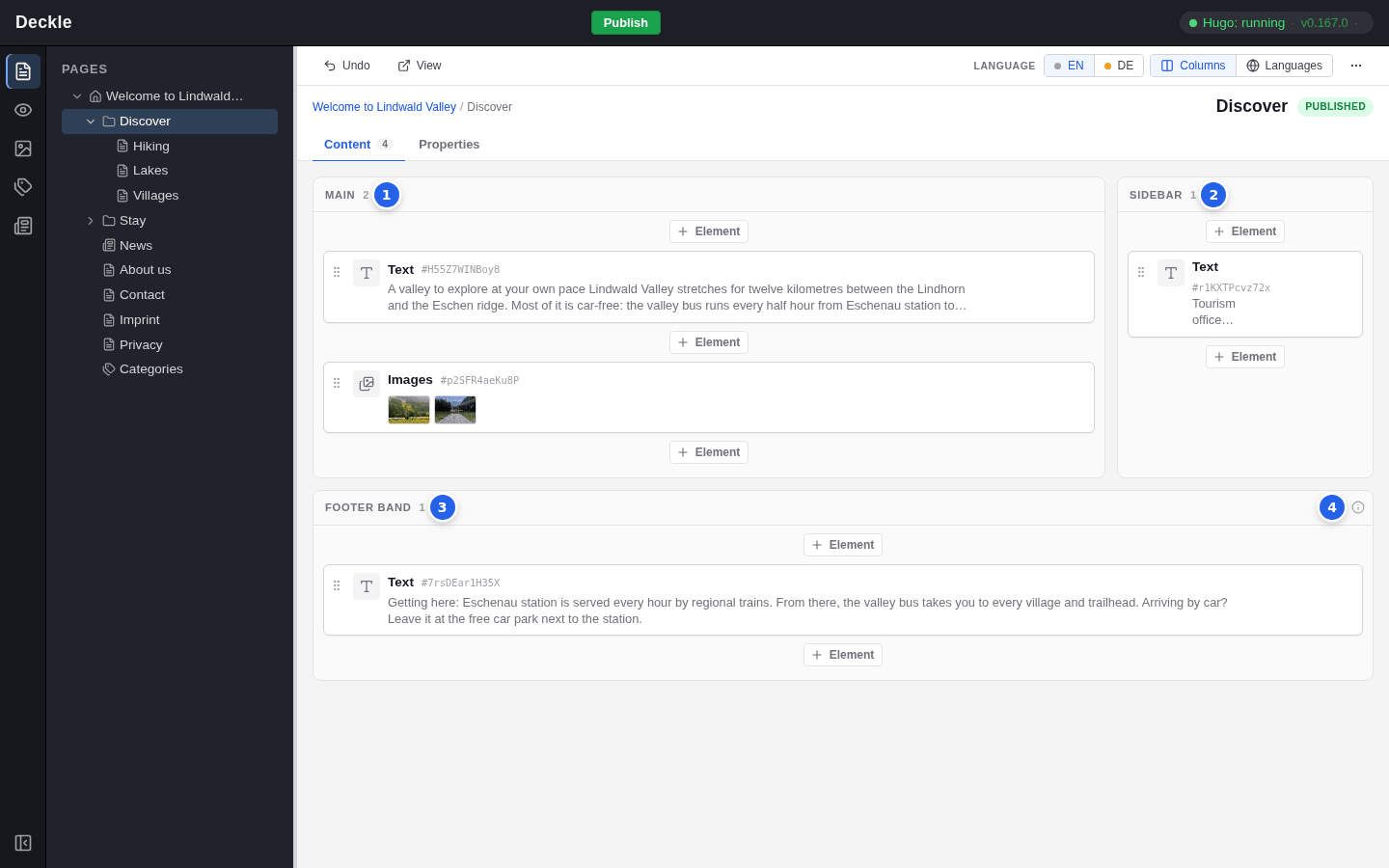
On the Content tab, every area of the layout has its own heading and its own elements, arranged roughly as on the website. A standard deckle site comes with two layouts:
- One column has a single area, Main. It is used by every page that has no other layout.
- Two columns has ① Main and a narrow ② Sidebar side by side, and a ③ Footer band across the whole width below them.
④ An info icon in the heading of an area means that the area accepts only some elements. Point at it to see which, for example “Allows only: Text, Images”. The Insert element dialog says the same and greys out the other elements. Your site may have other layouts and areas; the person who looks after your website sets them up.
Choose a layout for a page
Open the page's properties
Select the page in the page tree and click the Properties tab.
Open the Appearance tab
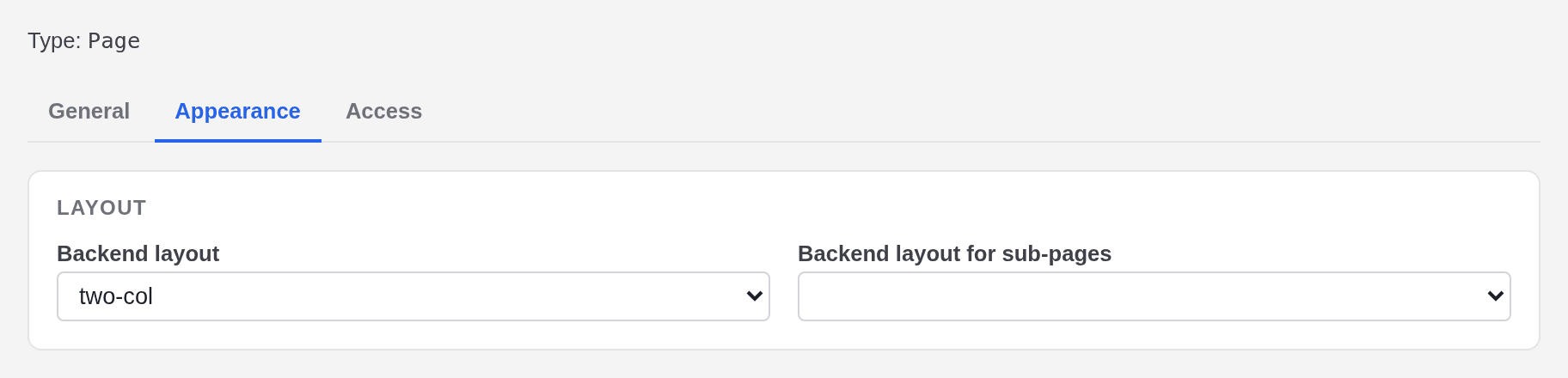
It has two dropdowns: Backend layout for this page, and Backend layout for sub-pages for the pages below it that have no layout of their own.
Choose the layout
The dropdowns show the short names of the layouts, for example one-col and two-col. Leave a dropdown empty to take over the layout from the pages above.
Click Save & close
The Content tab now shows the areas of the new layout.
When Backend layout is empty, the page uses the Backend layout for sub-pages of the nearest page above it that sets one, or else One column. The dropdown does not tell you which layout that is, but the areas on the Content tab do. For more on the properties, see Page properties.
Inherited content
Some areas pass their content on: in the standard Two columns layout these are the Sidebar and the Footer band. If a page leaves such an area empty, it shows the content of the nearest page above it instead. On the Content tab, that area is hatched, its cards are dashed and marked ① From and the name of the page they come from, and a note at the bottom of the area says where the content is edited, with the link ② Edit on and the page name.
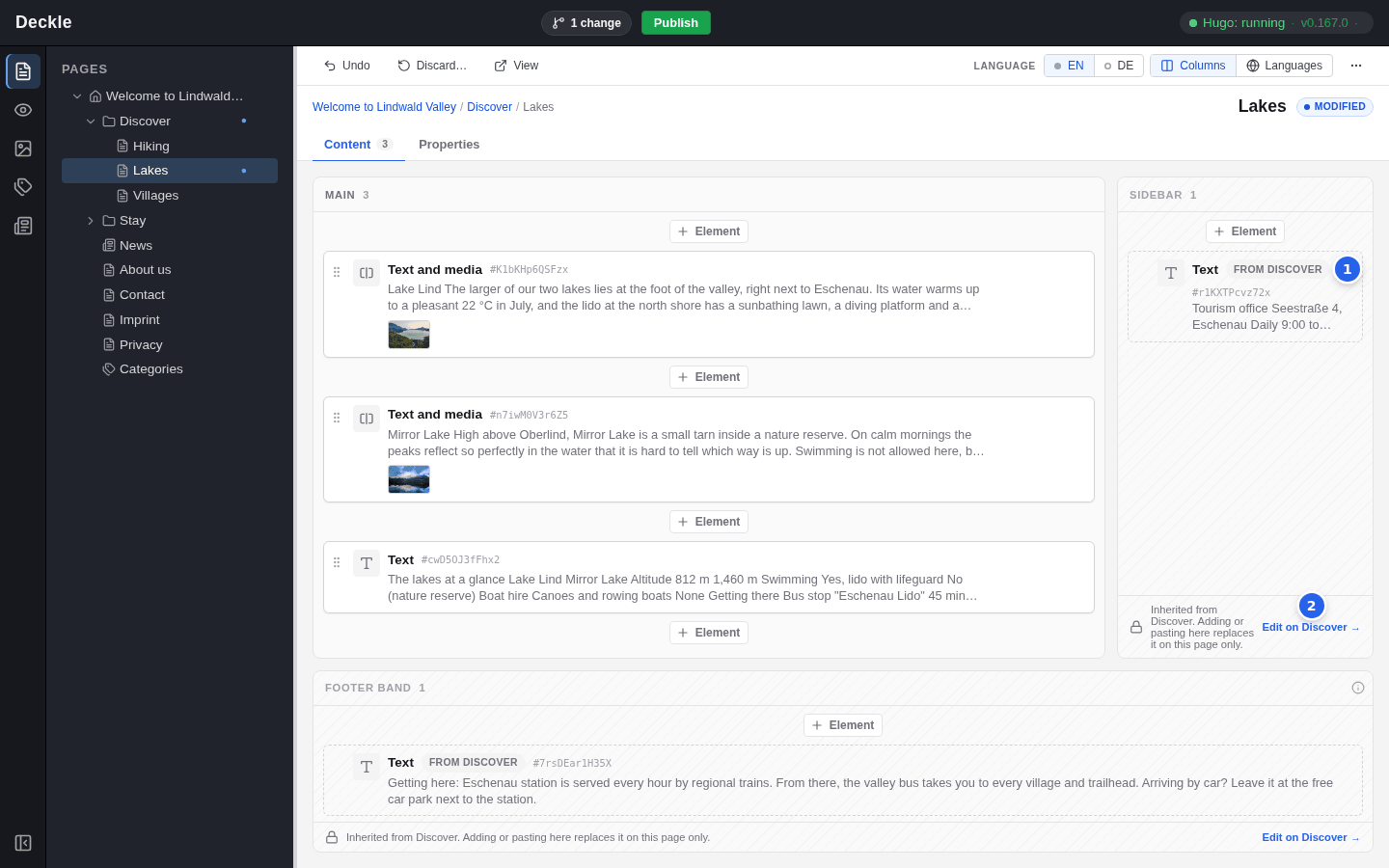
- To change the inherited content for all pages that show it, click Edit on and the page name, and edit it there.
- To give one page its own content in that area, add or paste an element there. It replaces the inherited content on this page only.
- To inherit again, delete all of the page’s own elements in that area.
Content outside the layout
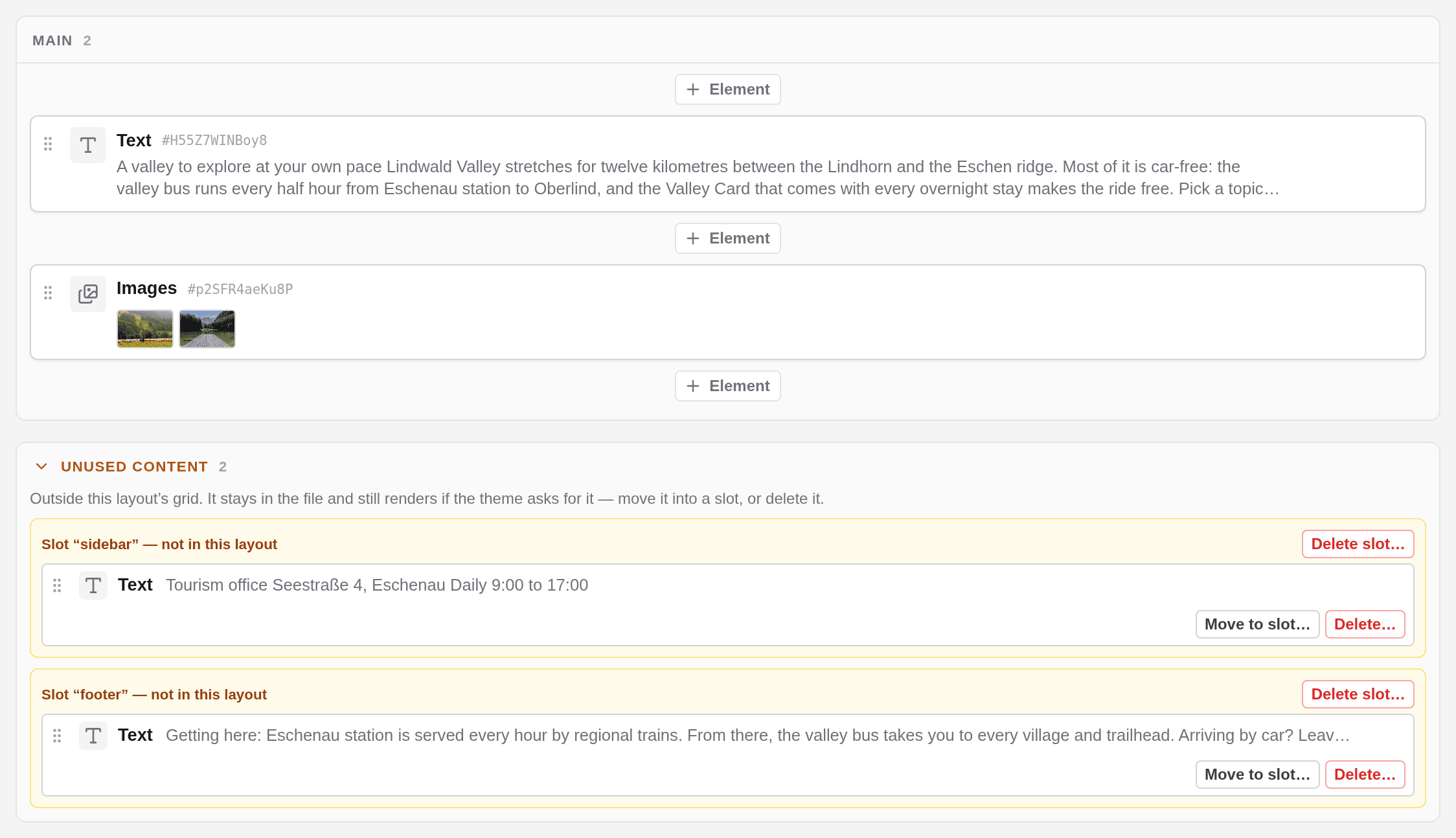
Switching a page to a layout with fewer areas never deletes anything. Elements in areas the new layout does not have are collected under Unused content below the layout. The section is closed at first; click it to open it. Each missing area is shown with its name, for example “Slot “sidebar” — not in this layout”, and its elements:
- Move to slot… moves an element into one of the layout’s areas, at the end.
- Delete… deletes a single element, Delete slot… the whole area with everything in it.
Switching back to the previous layout shows the content in its areas again.