Every page of your website is built from content elements: a text, a row of images, a set of cards, a video. In the editor, each element is a card on the page’s Content tab, and each has a form in which you edit its texts, images, links and options. Which elements your site offers, what they are called and where they may be placed is set up for your website, so your editor may show a slightly different selection than the screenshots in this guide.
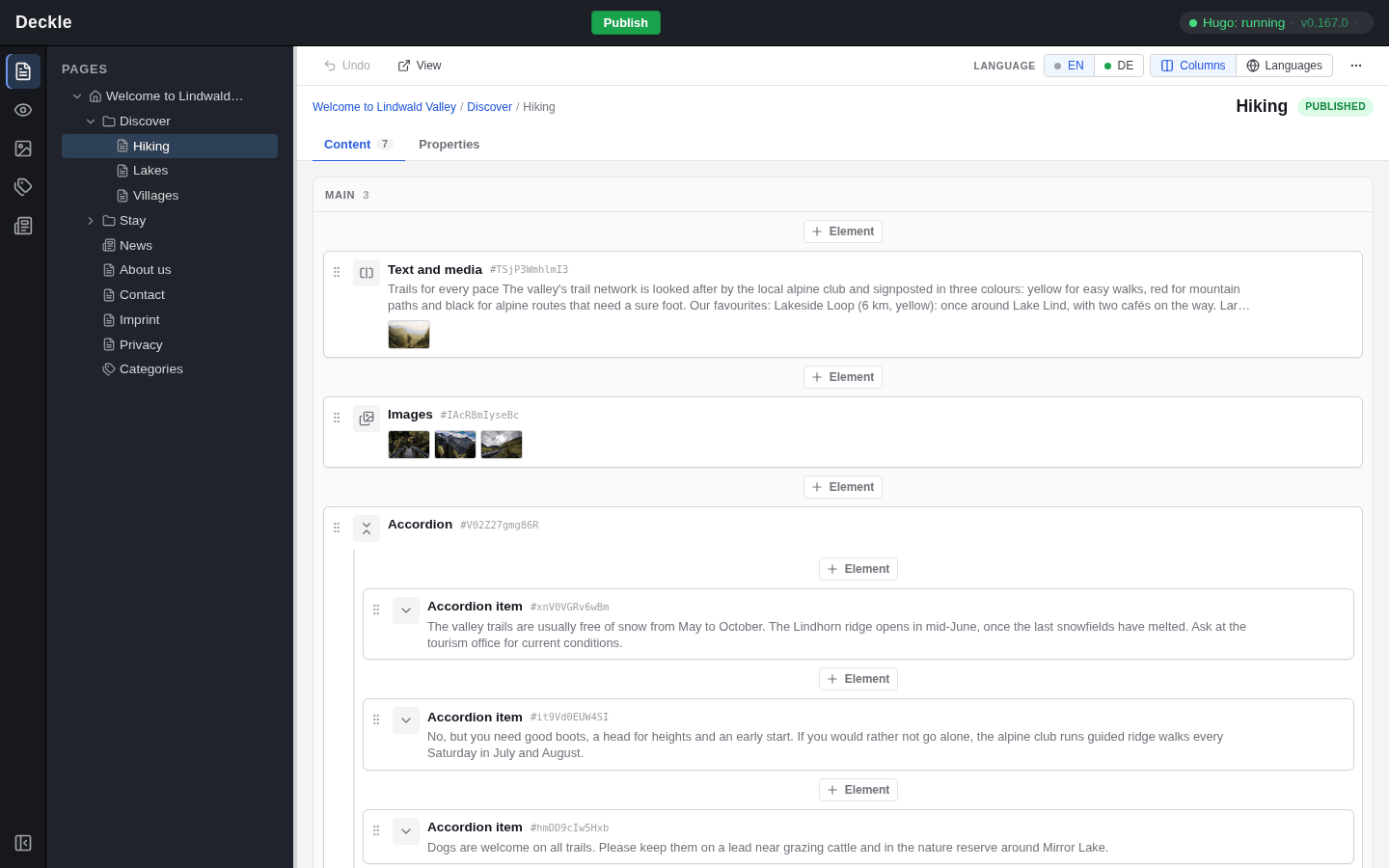
The Content tab of the Hiking page: a Text and media element, an Images element and an Accordion with its items, each shown as a card
The elements of a page, shown as cards on its Content tab.
  • Adding an element

    Add a text, images, cards or any other element to a page: the content area, the Insert element dialog and why some elements are greyed out.

  • Editing an element

    Open the form of an element, change its fields on the General, Appearance and Access tabs, fix error messages and switch an element off.

  • Rich text and links

    Write and format text with headings, lists and tables, add buttons and icons, and link to pages, elements, files, addresses, email and phone numbers.

  • Moving, copying and deleting

    Drag elements to another place, move them up or down, duplicate, cut, copy and paste them, delete them, and undo a step that went wrong.

  • Layouts and columns

    Choose a layout with several areas for a page, work with content inherited from the page above, and tidy up content a new layout leaves unused.

  • Element reference

    The standard elements of a deckle site at a glance: what each is for, its fields on the General and Appearance tabs, and a tip.